EasyManua.ls Logo

Xerox VersaLink B71 Series - User Manual

Xerox VersaLink B71 Series
302 pages
Print Icon
To Next Page IconTo Next Page
Loading...
VERSION 2.0
NOVEMBER 2022
702P08829
Xerox
®
VersaLink
®
B71XX Series
Multifunction Printer
User Guide

Table of Contents

Other manuals for Xerox VersaLink B71 Series

Questions and Answers

  • A
    Andrew WilliamsAug 4, 2025
    What to do if my Xerox All in One Printer does not print?
    • S
      Samantha CastilloAug 4, 2025
      If your Xerox All in One Printer isn't printing, first, press the Power/Wake button on the control panel in case the printer is in Power Saver mode. Also, check the control panel for any error messages (Status LED blinking amber) and follow the instructions to clear them. Ensure that the printer has paper loaded in the tray. Replace any empty toner cartridges, the drum cartridge if it has reached its end of life, or the toner waste container if it is full.
  • E
    Eric JonesAug 9, 2025
    How to fix Xerox VersaLink B71 All in One Printer that does not power on?
    • V
      vmaciasAug 9, 2025
      If your Xerox All in One Printer does not power on, make sure the power switch is in the On position after opening the front door, and press the Power/Wake button on the printer control panel. Ensure the power cord is securely plugged into the outlet, using the provided bracket to secure it. Test the outlet with another appliance or try a different outlet. Verify that the power source matches the printer's electrical specifications.
  • R
    renee42Aug 14, 2025
    Why does my Xerox VersaLink B71 reset or power off frequently?
    • L
      Laurie HeathAug 14, 2025
      If your Xerox All in One Printer resets or powers off frequently, ensure the power cord is correctly plugged into both the printer and the outlet, securing it with the provided bracket. If a system error occurred, power the printer off and on again. Print the Error History Report. Connect the printer directly to a suitable outlet, avoiding uninterruptible power supplies or power strips shared with other high-power devices.
  • B
    Benjamin JonesAug 19, 2025
    What to do if my Xerox All in One Printer is making unusual noises?
    • A
      Amber RobertsAug 19, 2025
      If your Xerox All in One Printer is making unusual noises, power off the printer and check for any obstructions or debris inside. If you cannot remove it, contact your Xerox representative.
  • B
    Becky McguireAug 25, 2025
    What to do if paper tray does not close in Xerox All in One Printer?
    • M
      Mr. John Villegas MDAug 25, 2025
      If the paper tray on your Xerox All in One Printer does not close fully, power off the printer and check for any debris or obstructions blocking the tray. If you cannot remove it, contact your Xerox representative.
  • A
    Angela BrownAug 29, 2025
    What to do if condensation has formed inside the Xerox VersaLink B71?
    • R
      Rita WellsAug 29, 2025
      If condensation has formed inside your Xerox All in One Printer, allow the printer to operate for several hours at room temperature. Reduce the humidity in the room or move the printer to a location where the temperature and relative humidity are within the operating specifications.

Summary

Safety

Notices and Safety

Important safety notices and instructions for printer operation.

Electrical Safety

Safety guidelines for electrical connections, power cord, and hazard warnings.

Operational Safety

Precautions for safe printer operation, including handling moving parts and hot surfaces.

Maintenance Safety

Safety guidelines for performing printer maintenance and avoiding hazards.

Printer Symbols

Explains various warning and caution symbols used on the printer.

Getting Started

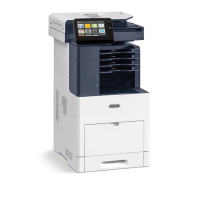
Parts of the Printer

Identifies and illustrates key external and internal printer components.

Power Options

Explains how to power the printer on, off, and manage power saving modes.

Accessing the Printer

Details on logging in, accounting, and authentication methods for accessing printer features.

Initial Printer Setup

Guides through initial printer configuration and setup using the Xerox Easy Assist app.

Installing the Software

Instructions for installing print drivers and software for various operating systems.

Xerox Apps

Xerox App Gallery

Access and manage apps to enhance printer functionality and productivity.

Device

View printer status, supplies, notifications, and configure general settings.

Address Book

Create and manage contacts for email, fax, and scan destinations.

Jobs

Manage active, saved, personal, and secure print jobs.

Copy

Instructions on making copies, including page layout and contrast settings.

Scan To

Methods for scanning documents to email, home folder, network locations, or USB.

Printing

Printing Overview

General steps for sending a print job to the printer.

Selecting Printing Options

How to choose print settings like 2-sided printing, page layout, and print quality.

Printing Features

Details on paper selection, scaling, 2-sided printing, print quality, and image options.

Using Custom Paper Sizes

Defines and saves custom paper sizes for print jobs in the driver and control panel.

Paper and Media

Supported Paper

Guidelines on paper types, weights, and handling to avoid jams and ensure print quality.

Paper Tray Settings

Configures paper trays for specific sizes, types, and colors, including tray modes and priority.

Loading Paper

Step-by-step guide on how to load paper into various printer trays and the bypass tray.

Printing on Special Paper

Instructions for printing envelopes and labels, including guidelines and loading procedures.

Maintenance

General Precautions

Safety warnings and precautions for printer maintenance procedures.

Cleaning the Printer

Instructions for cleaning the printer exterior, scanner, and internal components.

Supplies

Information on consumable supplies, ordering, status, and alert settings.

Routine Maintenance Items

Details on replacing drum cartridges, staple cartridges, and waste containers.

Troubleshooting

General Troubleshooting

Common printer issues and solutions for power, reset, and general operational problems.

Paper Jams

Locating and clearing paper jams from various printer areas and components.

Print-Quality Problems

Identifying and resolving issues affecting print output quality, like light output or smears.

Copy and Scan Problems

Troubleshooting issues related to copy and scan quality, such as lines or spots.

Fax Problems

Solutions for issues with sending and receiving faxes correctly.

Specifications

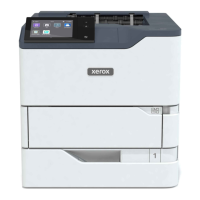
Printer Configurations and Options

Details available printer models, features, and optional configurations.

Performance Specifications

Information on printer warm-up time, recovery from sleep/low-power modes, and print speeds.

Physical Specifications

Dimensions, weights, and clearance requirements for different printer configurations.

Regulatory Information

Basic Regulations

Information on ENERGY STAR compliance, power consumption, and environmental benefits of duplex printing.

UNITED STATES FCC REGULATIONS

Compliance details for FCC rules regarding radio frequency energy and interference.

CERTIFICATIONS IN EUROPE

CE marking and compliance with European Union directives for radio equipment.

Copy Regulations

Legal restrictions on reproducing copyrighted materials and government documents in the US and Canada.

Recycling and Disposal

All Countries

General information on product disposal, including Perchlorate material and special handling.

North America

Xerox equipment take-back and recycling program information for North America.

European Union

Guidelines for domestic and business disposal of electrical and electronic equipment in the EU.

Apps Features

Preset

Use Preset to select stored values for jobs, simplifying repetitive tasks.

Reduce;Enlarge

Adjust image size from 25% to 400% for copies and prints.

Auto Background Suppression

Reduces sensitivity to light background variations for improved scan quality.

Booklet Creation

Prints documents in booklet format with pages reordered for folding.

Xerox VersaLink B71 Series Specifications

General IconGeneral
BrandXerox
ModelVersaLink B71 Series
CategoryAll in One Printer
LanguageEnglish

Related product manuals