EasyManua.ls Logo

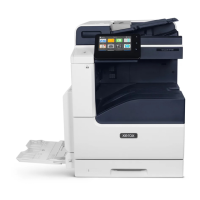
Xerox VersaLink B615 - User Manual

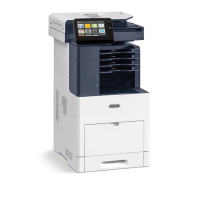
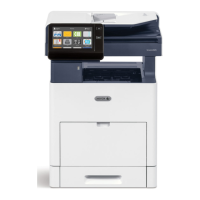
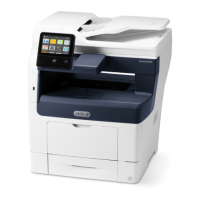
Xerox VersaLink B615
220 pages
Print Icon
To Next Page IconTo Next Page
Loading...
Xerox
®
VersaLink
®
B605/B615
Multifunction Printer
User Guide
Version 1.0
May 2017
702P05550

Table of Contents

Questions and Answers

  • M
    Mark RamirezAug 18, 2025
    Why does my Xerox VersaLink B615 reset or power off frequently?
    • C
      charlesbradyAug 18, 2025
      Your Xerox All in One Printer may be resetting or powering off frequently due to: * An improperly plugged power cord. Power off the printer, ensure the power cord is correctly plugged into both the printer and the outlet, then power the printer back on. * A system error. Power off the printer and then power it back on again. * Connection to an uninterruptible power supply. Power off the printer and connect the power cord to a suitable outlet. * Sharing a power strip with high-power devices. Plug the printer directly into the outlet or a dedicated power strip. * The Auto Power Off feature being enabled. Increase the Auto Power Off timer setting or disable the feature.
  • T
    Theresa MercerAug 20, 2025
    What to do if Xerox All in One Printer pulls multiple sheets together?
    • D
      Douglas CardenasAug 20, 2025
      If your Xerox All in One Printer is pulling multiple sheets together, try the following: * Remove some paper if the tray is too full, ensuring not to load past the MAX fill line. * Remove the paper, align the edges, and reload it if the edges aren't even. * Replace moist paper with new, dry paper. * Load a new ream of paper to reduce static electricity. * Use only Xerox-approved paper. * Clean the feed rollers with a clean, lint-free cloth moistened with water.
  • J
    Jane TranAug 23, 2025
    How to fix jams during automatic 2 sided printing on Xerox VersaLink B615?
    • S
      Steven MyersAug 23, 2025
      To resolve jams during automatic 2-sided printing on your Xerox All in One Printer: * Use paper of the correct size, thickness, or type. * Ensure that paper is loaded into the correct tray.
  • A
    Alexandra SolisAug 26, 2025
    What causes label and envelope misfeeds in Xerox All in One Printer?
    • D
      Dawn McmahonAug 26, 2025
      Label and envelope misfeeds in your Xerox All in One Printer can be caused by: * Incorrectly loaded label sheets. Load label sheets according to the manufacturer's instructions, face up. * Damaged labels. Do not use sheets where labels are missing, curled, or pulled away from the backing sheet. * Incorrectly loaded envelopes. You can print envelopes from the Bypass Tray or Tray 1. * Wrinkling envelopes. Use supported envelopes, noting that the heat and pressure of the laser printing process can cause wrinkling. When you load envelopes long-edge feed, ensure that you specify landscape orientation in the print driver.
  • C
    Caroline StevensAug 28, 2025
    How to solve automatic 2 sided printing problems on Xerox All in One Printer?
    • W
      wjonesAug 28, 2025
      To solve automatic 2-sided printing problems on your Xerox All in One Printer: * Ensure that you are using a supported paper size and weight for 2-sided printing. Note that envelopes, cardstock, and labels cannot be used for 2–sided printing. * In the print driver Printing Options tab, select 2–Sided Print.
  • T
    tammie83Aug 30, 2025
    What causes paper jam message to stay on Xerox All in One Printer?
    • J
      John PageAug 30, 2025
      If the paper jam message remains on your Xerox All in One Printer: * Recheck the paper path to ensure all jammed paper has been removed. * Check and close any open doors on the printer.
  • A
    Austin YoungSep 1, 2025
    Why Xerox VersaLink B615 does not power on?
    • A
      Andrea JohnsonSep 2, 2025
      Your Xerox All in One Printer might not power on due to several reasons: * The power switch might not be turned on. Ensure you press the Power/Wake button on the printer's control panel. * The power cord may not be correctly plugged into the outlet. Power off the printer and securely plug the power cord into the outlet. * The printer may require a full reset. Power off the printer, unplug the power cord, wait 30 seconds, then plug it back in and power on. * The outlet connected to the printer might have an issue. Test the outlet with another appliance or try a different outlet. * The printer might be connected to an outlet with incorrect voltage or frequency. Use a power source that matches the printer's electrical specifications.
  • J
    Jordan BurkeSep 7, 2025
    What to do if my Xerox All in One Printer document prints from wrong tray?
    • L
      lori52Sep 7, 2025
      If your Xerox All in One Printer prints documents from the wrong tray: 1. Check the tray selected in the print driver. 2. Access the page setup or printer settings of the application from which you are printing. 3. Set the paper source to match the tray selected in the print driver or set the paper source to Automatically Select. 4. Check that you have the latest print driver installed.
  • C
    Colleen BanksSep 9, 2025
    Why Xerox VersaLink B615 faxes cannot be received automatically?
    • C
      Christopher MclaughlinSep 9, 2025
      If your Xerox All in One Printer is unable to receive faxes automatically: * Ensure the printer is set to automatic reception. * Load paper if it is empty, and then print the faxes stored in the memory. * Verify the telephone line connection and connect it if disconnected. * Make a copy to verify that your printer is operating correctly. If the copy prints correctly, have the recipient verify their fax machine is operating correctly.
  • A
    Anthony HernandezSep 12, 2025
    What to do if Xerox VersaLink B615 All in One Printer is making unusual noises?
    • J
      joseph48Sep 12, 2025
      If your Xerox All in One Printer is making unusual noises, power off the printer and remove any obstruction or debris inside.

Summary

Safety

Notices and Safety

Instructions for safe operation of the printer and adherence to safety requirements.

Electrical Safety

General guidelines and warnings related to electrical hazards and operation.

Power Cord

Proper usage, connection, and safety precautions for the printer's power cord.

Emergency Power Off

Procedure for immediate power shutdown in case of hazards or unusual conditions.

Operational Safety

Guidelines for safe operation of the printer and its components.

Printer Location

Guidelines for placing the printer for optimal performance and safety.

Printer Supplies

Using correct supplies and safety warnings associated with them.

Maintenance Safety

Safety precautions to follow during printer maintenance procedures.

Printer Symbols

Explanation of various safety symbols used in the documentation.

Getting Started

Parts of the Printer

Identification of key components and parts of the printer.

Front View

Diagram illustrating the front view of the printer.

Duplex Automatic Document Feeder

Details on the duplex automatic document feeder's capabilities and usage.

Document Feeder Guidelines

Instructions for loading original documents into the ADF.

Document Glass Guidelines

Guidelines for using the document glass for copying or scanning.

Internal Parts

Diagram illustrating the internal components of the printer.

Rear View

Diagram illustrating the rear view of the printer.

Control Panel

Overview of the printer's touch screen control panel.

Power Options

Details on the Power/Wake button functions for power management.

Restarting, Placing in Sleep Mode, or Powering Off the Printer

Procedures for restarting, entering sleep, or powering off the printer.

Logging In

Process of identifying yourself to the printer for authentication.

The Embedded Web Server

Overview of the Embedded Web Server for printer administration.

Finding the IP Address of Your Printer

Methods to locate the printer's IP address for network setup.

Installation and Setup

Overview of the printer installation and initial setup process.

Selecting a Connection Method

Choosing between USB, Ethernet, or wireless connection methods.

Connecting the Printer

Guidance on physically connecting the printer to a computer or network.

Installing the Software

Instructions for installing printer drivers and software on your computer.

Configuring AirPrint

Setting up AirPrint for printing from Apple devices.

Configuring Google Cloud Print

Setting up and configuring the Google Cloud Print service.

Customize and Personalize

Customize and Personalize Overview

How to customize device settings to meet specific workflow demands.

Customizing or Personalizing the Home Screen

Tailoring the printer's home screen layout and app visibility.

Hiding or Showing an App on the Home Screen

Steps to hide or show applications on the printer's home screen.

Rearranging Apps on the Home Screen

How to change the order of applications on the home screen.

Customizing or Personalizing the Apps

Modifying application features, deleting presets, or removing customizations.

Customizing or Personalizing the Feature List

Customizing the feature list for individual printer applications.

Saving Presets

Saving app settings as presets for future job use.

Customizing App Default Settings

Setting default configurations for printer applications.

Xerox Apps

Xerox App Gallery

Accessing and managing applications from the Xerox App Gallery.

Creating a Xerox App Gallery Account

Steps to create an account for accessing the Xerox App Gallery.

Installing or Updating an App from the Xerox App Gallery

Process for installing and updating applications from the App Gallery.

Device

Overview of device management features and options.

Checking the Supplies Status at the Control Panel

Monitoring printer supplies status via the control panel.

Billing and Usage Counters

Viewing printer impressions and usage data.

Reset to Factory Defaults

Restoring printer settings to their original factory state.

Address Book

Managing contacts for Email, Fax, and Scan To features.

Adding or Editing Contacts in the Address Book at the Control Panel

Managing contacts and groups via the printer's control panel.

Adding or Editing Contacts in the Address Book in the Embedded Web Server

Managing contacts and groups via the Embedded Web Server.

Jobs

Overview of managing print jobs.

Managing Jobs

Viewing and managing active, secure, and completed print jobs.

Viewing, Printing, or Deleting Saved and Secure Jobs

Managing saved, personal, and secure print jobs.

Copy

Overview of the printer's copying functionality.

Making a Copy

Step-by-step guide on how to make a copy.

Scan To

Overview of scanning to various destinations.

Scanning to an Email Address

Detailed steps for scanning documents directly to an email address.

Scanning to a USB Flash Drive

Instructions for scanning documents to a USB flash drive.

Fax

Overview of the printer's fax functionality.

Sending a Fax

Step-by-step guide on how to send a fax from the printer.

Forwarding a Fax to an Email Address

Configuring the device to forward received faxes to an email address.

USB

Overview of USB printing features.

Printing from a USB Flash Drive

Instructions for printing files stored on a USB flash drive.

Printing

Printing Overview

Prerequisites and basic steps for printing documents.

Selecting Printing Options

Choosing print settings within software applications.

Windows Printing Options

Available printing options for Windows operating systems.

Setting Default Printing Options for Windows

Setting default print preferences for Windows users.

Macintosh Printing Options

Available printing options for Macintosh operating systems.

UNIX and Linux Printing

Information on printing from UNIX and Linux environments.

Mobile Printing Options

Options for printing from mobile devices.

Printing Features

Overview of various printing features available.

Managing Jobs

Viewing and managing print jobs.

Printing Special Job Types

Selecting and printing special job types.

Selecting Paper Options for Printing

Methods for selecting paper for print jobs.

Scaling

Adjusting document size to match output paper.

Printing on Both Sides of the Paper

Options and procedures for 2-sided printing.

Print Quality

Settings and factors affecting print quality.

Image Options

Controls for lightness, contrast, and image shift.

Printing Multiple Pages to a Single Sheet

Printing several pages on one sheet of paper.

Printing Booklets

Creating booklet formats from printed pages.

Using Special Pages

Controlling covers, inserts, and exception pages in print jobs.

Printing Watermarks for Windows

Adding text or images as watermarks on printed documents.

Orientation

Selecting the direction for page printing.

Using Custom Paper Sizes

Procedures for printing on custom paper sizes.

Defining Custom Paper Sizes

Steps to define new custom paper sizes.

Paper and Media

Paper and Media Overview

Guidelines for using various paper and media types for best quality.

Supported Paper

Information on paper types supported by the printer.

General Paper Loading Guidelines

General rules for loading paper into printer trays to avoid jams.

Paper That Can Damage Your Printer

List of paper types that can cause poor quality or damage.

Supported Paper Types and Weights

Table detailing supported paper types and their weights.

Supported Standard Paper Sizes

List of standard paper sizes automatically detected by the printer.

Changing Paper Settings

Options for adjusting paper settings in printer trays.

Envelopes

Guidelines and instructions for printing envelopes.

Guidelines for Printing Envelopes

Best practices for printing envelopes for optimal results.

Loading Envelopes in the Bypass Tray

Steps for loading envelopes into the bypass tray.

Labels

Guidelines and instructions for printing labels.

Guidelines for Printing Labels

Best practices for printing labels to avoid damage.

Maintenance

General Precautions

General safety precautions to follow during printer maintenance.

Cleaning the Printer

Procedures for cleaning the printer's exterior and internal components.

Cleaning the Scanner

How to clean the scanner glass, CVT glass, and document cover.

Cleaning the Interior

Procedures for cleaning the printer's internal parts.

Cleaning the LED Lens

Steps to clean the LED lens for optimal scanning performance.

Adjustments and Maintenance Procedures

Procedures for printer adjustments and maintenance tasks.

Adjusting Paper Registration

Adjusting image placement for accurate paper registration.

Adjusting the Density

Adjusting print density for optimal toner usage and output quality.

Scan Color Consistency

Adjusting scanned colors for accuracy and proper color balance.

Transfer Voltage Adjustment

Adjusting transfer voltage for different paper types.

Supplies

Information regarding printer supplies and consumables.

Routine Maintenance Items

Printer parts that require periodic replacement.

Ordering Supplies

Information on how and when to order printer supplies.

Toner Cartridges

General precautions and replacement procedures for toner cartridges.

Moving the Printer

Instructions for safely moving the printer.

Troubleshooting

General Troubleshooting

General procedures to locate and resolve common printer problems.

Printer Does Not Power On

Steps to resolve issues where the printer does not power on.

Printer Resets or Powers Off Frequently

Troubleshooting causes for frequent printer resets or power-offs.

Printer Does Not Print

Steps to resolve issues when the printer fails to print.

Printing Takes Too Long

Troubleshooting steps for slow printing performance.

Document Prints from Wrong Tray

Resolving issues where documents print from the incorrect paper tray.

Automatic 2-Sided Printing Problems

Troubleshooting common issues with automatic 2-sided printing.

Paper Jams

Overview and steps for locating and clearing paper jams.

Locating Paper Jams

Identifying the location of paper jams along the paper path.

Minimizing Paper Jams

Tips and rules to prevent paper jams.

Clearing Paper Jams from the Bypass Tray

Steps to clear paper jams from the bypass tray.

Clearing Paper Jams from the Tray 1 Area

Steps to clear paper jams from Tray 1.

Clearing Paper Jams from the Trays 2-5 Areas

Steps to clear paper jams from Trays 2 through 5.

Clearing Paper Jams from the Fuser Area

Steps to clear paper jams from the fuser area.

Print-Quality Problems

Troubleshooting common print quality issues.

Solving Print-Quality Problems

Specific solutions for various print quality problems.

Copy and Scan Problems

Troubleshooting issues with copy and scan quality.

Fax Problems

Troubleshooting fax sending and receiving issues.

Getting Help

Resources and utilities for troubleshooting assistance.

Specifications

Configurations and Options

Overview of available printer configurations and options.

Standard Features

List and specifications of standard printer features.

Print Speed

Specifications for the printer's print speed.

Paper Capacity

Specifications detailing the paper capacity of various trays.

Document Feeder

Specifications for the automatic document feeder.

Maximum Scan Size

Maximum document sizes supported for scanning.

Connectivity

Details on printer connectivity options and ports.

Options and Upgrades

List of available optional hardware and upgrades for the printer.

Physical Specifications

Physical dimensions and weight specifications of the printer.

Clearance Requirements

Space requirements for printer operation and servicing.

Environmental Specifications

Operating temperature, humidity, and elevation guidelines.

Electrical Specifications

Printer's electrical requirements, voltage, and power consumption.

Regulatory Information

Basic Regulations

General regulatory compliance standards for emissions and immunity.

United States FCC Regulations

FCC compliance information for devices operated in the US.

Certifications in Europe

CE marking and EU directives applicable to the printer.

Copy Regulations

Regulations pertaining to the copying of copyrighted materials.

Fax Regulations

Regulations related to fax transmission and connectivity.

Recycling and Disposal

All Countries

General guidelines for product disposal and recycling.

North America

Information on Xerox take-back and recycle programs in North America.

European Union

Disposal guidelines for electrical and electronic equipment in the EU.

Collection and Disposal of Equipment and Batteries

Symbols indicating proper disposal of used electrical products and batteries.

Apps Features

Preset

Using presets to select previously stored values.

Output Color

Controlling the color rendering of scanned images.

Saturation

Adjusting color strength and the amount of gray in the color.

2-Sided and 2-Sided Scanning

Options for scanning one or both sides of documents.

Paper Supply

Specifying paper size, type, color, or tray for print jobs.

Reduce;Enlarge

Reducing or enlarging images to a specified percentage.

Original Type

Optimizing image quality based on original document type.

Lighten;Darken

Adjusting the lightness or darkness of the output image.

Original Orientation

Specifying the layout of original images for scanning.

Auto Background Suppression

Reducing sensitivity to light variations in background colors.

Sample Copy

Printing a test copy of a job before producing multiple copies.

File Format

Specifying image file format, password protection, or combining images.

Delay Send

Scheduling fax jobs to be sent at a future time.

Xerox VersaLink B615 Specifications

General IconGeneral
N-up printing2, 4, 6, 8, 9, 16
Duplex printingYes
Print technologyLaser
Maximum resolution1200 x 1200 DPI
Warm-up time (from sleep mode)47 s
Time to first page (black, normal)3.7 s
Print speed (black, normal quality, A4/US Letter)63 ppm
Duplex print speed (black, normal quality, A4/US Letter)56 ppm
Custom media width76 - 190 mm
Custom media length216 - 356 mm
Duplex media weight60 - 176 g/m²
Paper tray media typesBond paper, Card stock, Envelopes, Labels, Letterhead, Plain paper, Pre-Printed, Recycled paper
Paper tray media weight60 - 128 g/m²
Maximum ISO A-series paper sizeA4
Multi-Purpose Tray media weight60 - 220 g/m²
USB connectorUSB Type-A / USB Type-B
Standard interfacesEthernet, USB 3.2 Gen 1 (3.1 Gen 1)
Optional connectivityWireless LAN
Wi-Fi-
Cabling technology10/100/1000Base-T(X)
Security algorithms256-bit AES, FIPS 140-2, HTTPS, IPPS, IPSec, SNMPv3, SSL/TLS
Ethernet LAN data rates10, 100, 1000 Mbit/s
Mobile printing technologiesApple AirPrint, Google Cloud Print, Mopria Print Service, Xerox PrintBack
Supported network protocols (IPv4)TCP/IP:HTTP/HTTPS, InternetPrintingProtocol, LPR/LPD, RawSocketPrinting/Port9100, IPv4/IPv6, WSD, LDAP, Bonjour/AirPrint, FTP
Supported network protocols (IPv6)IPv6
Copier resize25 - 400 %
Maximum copy resolution600 x 600 DPI
Maximum number of copies999 copies
Time to first copy (black, normal)5.3 s
Copy speed (black, normal quality, A4)65 cpm
Processor cores2
Processor familyARM
Card reader integratedNo
Internal storage capacity320 GB
Sound power level (standby)43 dB
Sound power level (printing)70 dB
Sound pressure level (standby)29 dB
Sound pressure level (printing)58.3 dB
Control typeTouch
Product colorBlue, White
Market positioningBusiness
Scan toE-mail, FTP, File, USB
Scan driversTWAIN, WIA
Scanner typeFlatbed & ADF scanner
Maximum scan area216 x 356 mm
Output color depth24 bit
Duplex scanning modeAuto/Manual
Output grayscale depth8 bit
Image formats supportedJPG, TIF
Document formats supportedPDF, XPS
Sustainability certificatesENERGY STAR
Power consumption (off)0.2 W
Power consumption (sleep)0.88 W
Power consumption (standby)79 W
Power consumption (average operating)950 W
Mac operating systems supportedMac OS X 10.10 Yosemite, Mac OS X 10.11 El Capitan, Mac OS X 10.12 Sierra
Linux operating systems supportedFedora 24, openSUSE 13.2
Other operating systems supportedHP-UX 11.31, IBM AIX 7.2, Solaris 11
Server operating systems supportedWindows 2000 Server, Windows Server 2003, Windows Server 2008, Windows Server 2008 R2, Windows Server 2012
Windows operating systems supportedWindows 10, Windows 10 Education, Windows 10 Education x64, Windows 10 Enterprise, Windows 10 Enterprise x64, Windows 10 Home, Windows 10 Home x64, Windows 10 Pro, Windows 10 Pro x64, Windows 7, Windows 7 Enterprise, Windows 7 Enterprise x64, Windows 7 Home Basic, Windows 7 Home Basic x64, Windows 7 Home Premium, Windows 7 Home Premium x64, Windows 7 Professional, Windows 7 Professional x64, Windows 7 Starter, Windows 7 Starter x64, Windows 7 Ultimate, Windows 7 Ultimate x64, Windows 8, Windows 8 Enterprise, Windows 8 Enterprise x64, Windows 8 Pro, Windows 8 Pro x64, Windows 8 x64, Windows 8.1, Windows 8.1 Enterprise, Windows 8.1 Enterprise x64, Windows 8.1 Pro, Windows 8.1 Pro x64, Windows 8.1 x64
FaxingMono faxing
Fax memory4 MB
Modem speed33.6 Kbit/s
Fax forwarding toE-mail, Fax
Fax coding methodsJBIG, MH, MMR (Fax coding method), MR
Storage temperature (T-T)0 - 35 °C
Operating temperature (T-T)10 - 32 °C
Storage relative humidity (H-H)10 - 95 %
Operating relative humidity (H-H)10 - 85 %
PCL fonts83
Printer fontsPCL, PostScript
Printing colorsBlack
Maximum duty cycle300000 pages per month
Recommended duty cycle0 - 30000 pages per month
Number of PostScript fonts136
Number of print cartridges1
Page description languagesHP-GL, PCL 5e, PCL 6, PostScript 3
Paper input typePaper tray
Total input capacity700 sheets
Total output capacity400 sheets
Maximum input capacity3250 sheets
Multi-Purpose tray input capacity150 sheets
Auto document feeder (ADF) input capacity100 sheets
Cables includedPhone
Browser supportedMicrosoft Internet Explorer, Microsoft Edge, Mozilla, Firefox, Apple Safari, Google Chrome
Languages supportCAT, CZE, DAN, DEU, ENG, ESP, FIN, FRE, GRE, HUN, ITA, NOR, POL, POR, RUM, RUS, SWE, TUR, UKR
Printer managementDHCP, SNMP, WINS, HTTP, HTTPS, TLS, SNTP, MDNS
Weight and Dimensions IconWeight and Dimensions
Depth502.8 mm
Width470 mm
Height643.7 mm

Related product manuals