EasyManua.ls Logo

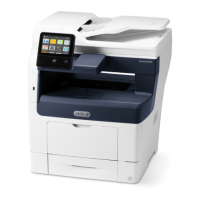
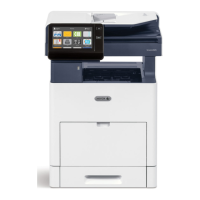
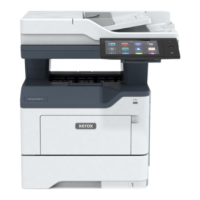
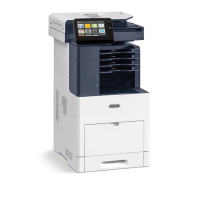
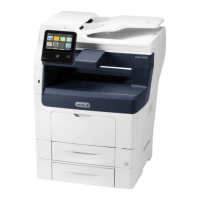
Xerox VersaLink B7035 - Service Manual

Xerox VersaLink B7035
1341 pages
Print Icon
To Next Page IconTo Next Page
Loading...
Xerox® VersaLink® B7025/B7030/B7035
Multifunction Printer
Service Manual
708P91370
April 2017

Table of Contents

Other manuals for Xerox VersaLink B7035

Questions and Answers

  • S
    Scott SmithAug 5, 2025
    Why is my Xerox VersaLink B7035 All in One Printer not printing?
    • B
      Brenda WilliamsAug 5, 2025
      If your Xerox All in One Printer is not printing, it could be in Power Saver mode. To resolve this, press the Power/Wake button on the control panel. Alternatively, the printer might have an error, indicated by the Status LED blinking amber; follow the instructions on the control panel to clear the error. Other possible causes include the printer being out of paper (load paper into the tray), an empty toner cartridge (replace it), or the drum cartridge reaching its end of life (replace the drum cartridge). Also, check if the printer is busy, and clear any pending print jobs.
  • S
    Steven GuerreroAug 9, 2025
    What to do if paper tray does not close on Xerox All in One Printer?
    • J
      Justin CollinsAug 9, 2025
      If the paper tray on your Xerox All in One Printer does not close fully, some debris or an object may be blocking the tray. Power off the printer, then remove the obstruction or debris.
  • C
    Craig WallaceAug 12, 2025
    Why does my Xerox VersaLink B7035 All in One Printer keep turning off?
    • L
      Laura MooreAug 13, 2025
      If your Xerox All in One Printer resets or powers off frequently, ensure the power cord is correctly plugged into both the printer and the outlet. Secure the power cord in place using the provided bracket. Another reason may be that the printer is connected to an uninterruptible power supply; in this case, connect the printer directly to a suitable outlet. Also, avoid sharing a power strip with other high-power devices; plug the printer directly into the outlet or a dedicated power strip. If a system error occurred, power the printer off and on again.
  • C
    Charles HowardAug 17, 2025
    Why is my Xerox All in One Printer printing from the wrong tray?
    • B
      Brian NolanAug 17, 2025
      If your Xerox All in One Printer prints from the wrong tray, the application and print driver may have conflicting tray selections. To correct this, check the tray selected in the print driver. Also, go to the page setup or printer settings of the application from which you are printing and set the paper source to match the tray selected in the print driver or set the paper source to Automatically Select. To have the print driver select the tray, set the tray used the paper source to Auto Selection Enabled.
  • C
    Carolyn CarpenterAug 21, 2025
    How to fix automatic 2-sided printing on Xerox VersaLink B7035?
    • C
      Claudia HorneAug 21, 2025
      If you are experiencing automatic 2-sided printing problems with your Xerox All in One Printer, make sure you are using the correct paper. Avoid using transparencies, envelopes, labels, or reloaded paper for automatic 2-sided printing. Also, on the print driver Printing Options tab, ensure that 2-sided Printing is selected.
  • R
    Robert BatesAug 26, 2025
    Why is there condensation inside my Xerox All in One Printer?
    • W
      whitneythompsonAug 26, 2025
      If condensation has formed inside your Xerox All in One Printer, it may be because the printer has been sitting in a cold room. Allow the printer to operate for several hours at room temperature. Alternatively, the relative humidity of the room may be too high. Reduce the humidity in the room or move the printer to a location where the temperature and relative humidity are within the operating specifications.
  • M
    Martin SandersAug 30, 2025
    Why is my Xerox VersaLink B7035 making unusual noises?
    • E
      Elizabeth LewisAug 30, 2025
      If your Xerox All in One Printer is making unusual noises, there may be an obstruction or debris inside the printer. Power off the printer and remove any obstruction or debris.

Xerox VersaLink B7035 Specifications

General IconGeneral
Duplex printingYes
Print technologyLED
Maximum resolution1200 x 1200 DPI
Time to first page (black, normal)9.1 s
Print speed (black, normal quality, A4/US Letter)35 ppm
Copier resize25 - 400 %
Maximum copy resolution600 x 600 DPI
Maximum number of copies999 copies
Time to first copy (black, normal)5.4 s
Scan toE-mail, FTP, SMB, USB
Scanner type-
Input color depth24 bit
FaxingMono faxing
Modem speed33.6 Kbit/s
Printing colorsBlack
Maximum duty cycle129000 pages per month
Page description languagesHP-GL, PCL 5e, PCL 6, TIFF, XPS
Internal memory2048 MB
Processor cores2
Processor frequency1050 MHz
Control typeTouch
Product colorBlack, White
Display diagonal7 \
Market positioningBusiness
Cabling technology10/100/1000Base-T(X)
Ethernet LAN data rates10, 100, 1000 Mbit/s
Mobile printing technologiesApple AirPrint, Google Cloud Print
Standard interfacesEthernet, NFC, USB 3.2 Gen 1 (3.1 Gen 1)
Optional connectivityWireless LAN
USB 3.2 Gen 1 (3.1 Gen 1) ports quantity1
Power consumption (average operating)- W
Mac operating systems supportedMac OS X 10.10 Yosemite, Mac OS X 10.11 El Capitan, Mac OS X 10.12 Sierra, Y
Linux operating systems supportedFedora 24, openSUSE 13.2
Other operating systems supportedIBM AIX 7.2
Server operating systems supportedWindows Server 2003, Windows Server 2008, Windows Server 2008 R2, Windows Server 2012
Windows operating systems supportedWindows 10, Windows 10 Education, Windows 10 Education x64, Windows 10 Enterprise, Windows 10 Enterprise x64, Windows 10 Home, Windows 10 Home x64, Windows 10 Pro, Windows 10 Pro x64, Windows 7 Enterprise, Windows 7 Enterprise x64, Windows 7 Home Basic, Windows 7 Home Basic x64, Windows 7 Home Premium, Windows 7 Home Premium x64, Windows 7 Professional x64, Windows 7 Starter x64, Windows 7 Ultimate, Windows 7 Ultimate x64, Windows 8, Windows 8 Enterprise, Windows 8 Pro x64, Windows 8 x64
Sustainability certificatesENERGY STAR
Total input capacity- sheets
Paper tray media typesBond paper, Card stock, Envelopes, Heavy paper, Labels, Letterhead, Plain paper, Pre-Printed, Recycled paper
ISO A-series sizes (A0...A9)A3, A4
Maximum ISO A-series paper sizeA3
Weight and Dimensions IconWeight and Dimensions
Depth670.8 mm
Width590 mm
Height767.9 mm
Weight- g

Related product manuals