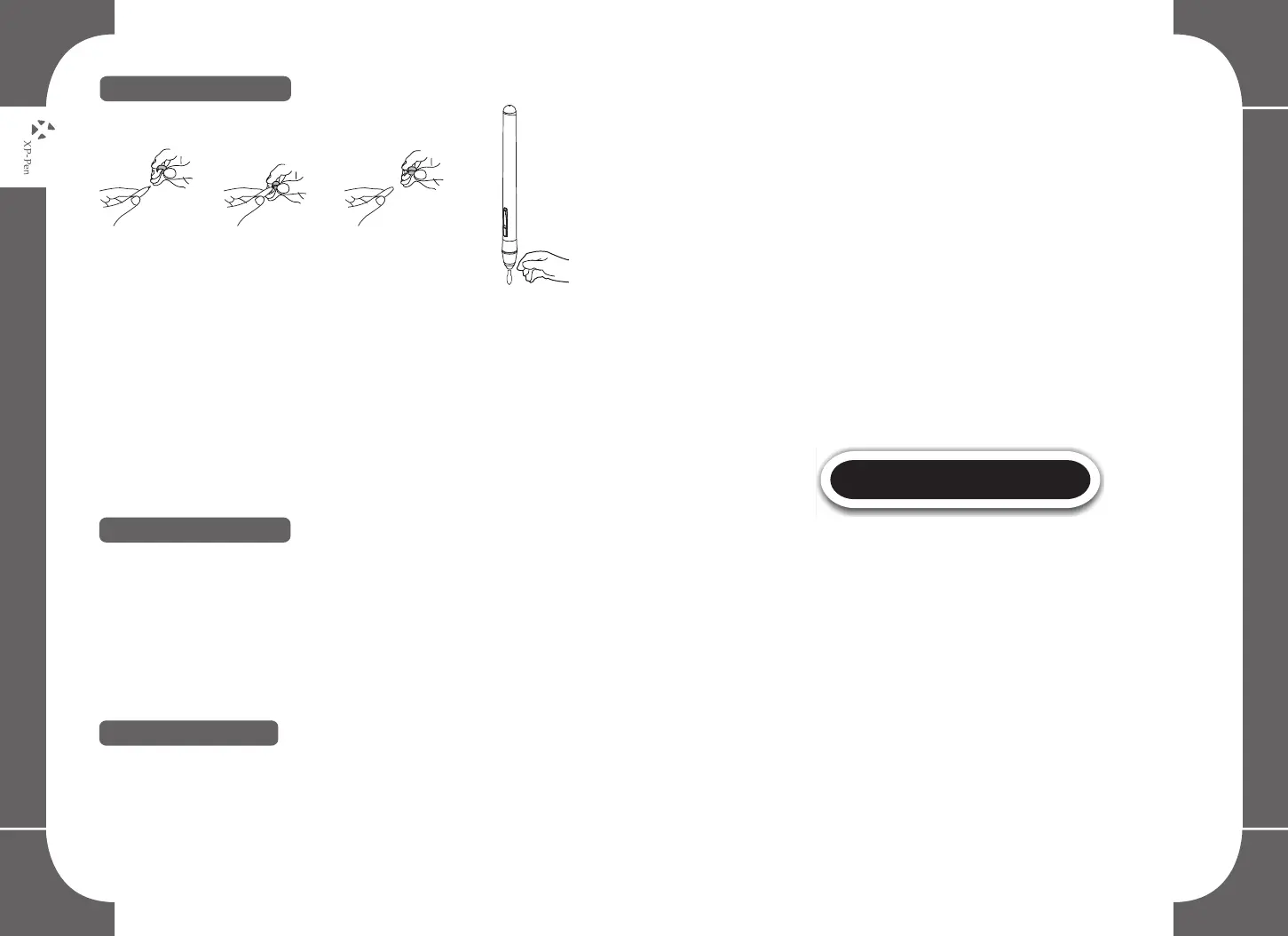
2. Replacement of pen tip
Image 3-2: Replacement of pen tip
(1)Pull out the pen tip from the digital pen by using the included
Pen Clip
(2)Install the new pen tip in the same manner as you pulled out
the old tip but rotating in the clockwise direction
(3)Push the pen tip into the digital pen
8 9
3. Double-clicking the pen
When you double-click the digital pen (equivalent to double clicking
with a mouse) you must keep the pen tip away from the tablet’s
surface, or try to lift the pen tip as fast as possible before the second
tap to avoid misinterpretation of a single click by the software.
4. Pen scrolling function
The digital pen has the same function as a normal mouse for
scrolling up and down pages. Press the first barrel button on the
digital pen (same function as mouse’s scrolling wheel) over the
tablet’s working area to scroll pages.
IV.Graphic Driver Tablet Settings


 To Next Page