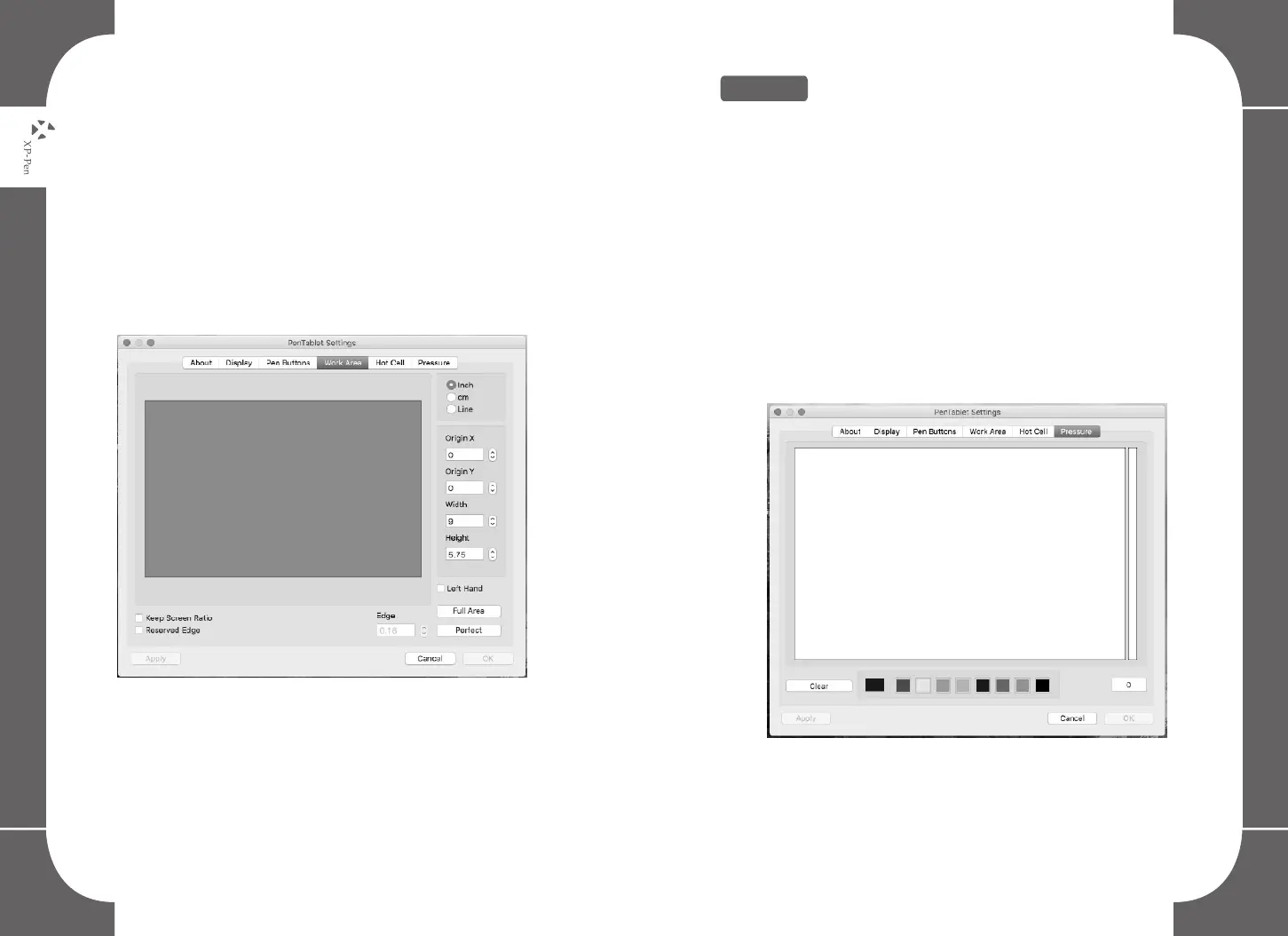
Perfect:
The perfect button will adjust the perfect working area with your monitor
ratio.
Keep Screen Ratio:
Set the tablet working area to the same as the screen size.
Reserve edges:
Tap on the Reserve edges button to allocate space for the tablet.
Image 6-5: Working Area
6.Pressure
There is a test area to alter the thickness of the line according to the
pressure applied by the pen on the tablet.
Clear:
Tap on the clear button to clean/delete the space within the pressure
test area.
Pressure Test color adjustment:
You may customize your preferred color setting within the options
under the Pressure setting tab.
Image6-6: Pressure
30 31


 To Next Page