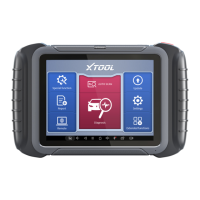
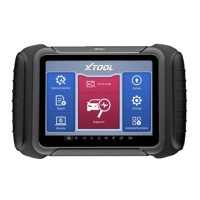
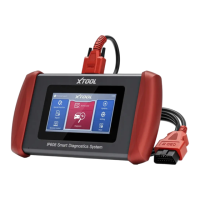
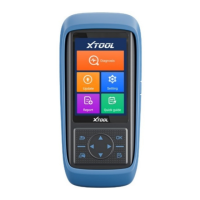
The XTOOL TP-series (TP150/TP200) is a smart TPMS Diagnostic Tool designed to assist with various aspects of Tire Pressure Monitoring Systems. It is powered by Xtooltech and supports a range of functions for most vehicles on the market, specifically targeting 315/433MHz tire-pressure sensors.
Function Description
The primary function of the TP-series tool is to perform comprehensive TPMS diagnostics and maintenance. Key capabilities include:
- TPMS Sensor Check: The tool can read sensor ID, pressure, temperature, and battery status of TPMS sensors.
- TPMS Diagnostics: It allows for checking and clearing Diagnostic Trouble Codes (DTCs) related to TPMS and reading sensor IDs from the vehicle's ECU.
- XTOOL Universal Tire-Pressure Sensor Programming: The device can program XTOOL universal tire-pressure sensors, enabling replacement of OEM sensors.
- TPMS Relearn: It supports various TPMS relearn procedures to ensure newly installed or programmed sensors are recognized by the vehicle.
- OEM TPMS Sensor Check: The tool can specifically check OEM TPMS sensors.
Important Technical Specifications
While specific technical specifications like dimensions, weight, or battery capacity are not explicitly detailed, the manual highlights several important aspects:
- Supported Frequencies: The tool is compatible with 315MHz and 433MHz tire-pressure sensors, covering a wide range of vehicles.
- Connectivity: It features a DB15 port for vehicle communications (OBD port connection) and device charging. It also includes a USB Type-C port for charging and data transfer to a PC.
- Display: The device is equipped with a screen to show contents and operational information.
- Power Source: The device can be charged via the DB15 port (when connected to OBD) or through a USB Type-C AC/DC charger.
- Software: The tool runs on a proprietary software platform that can be updated via Wi-Fi or PC.
Usage Features
The TP-series tool is designed for user-friendly operation with several features to streamline TPMS tasks:
Main Units (F400):
- Power Indicator: A red light indicates when the device is charging.
- Screen: Displays all operational content.
- Return Button: Used to navigate back to the previous menu or cancel selections.
- Direction Buttons: For choosing or selecting functions within the menu.
- Activate/Program Button: Triggers sensor activation or programming.
- DB15 Port: Connects to the vehicle's OBD port for communication and charging.
- OK Button: Confirms selections and initiates operations.
- Help Button: Provides detailed information for current operations.
- USB Type-C Port: For charging and transferring data to a PC.
- Nameplate: Displays vital information about the device.
- Sensor Triggering Area: The specific area where sensors should be placed for activation or programming.
Vehicle Communication:
- The device connects to the vehicle's OBD port.
- It requires the ignition to be turned on (but not necessarily the engine running).
- A crucial note advises that the vehicle's DLC (Data Link Connector) is not always located under the dash, and users should refer to the vehicle's owner's manual for its location.
- The tool supports voltage ranges of +9~+16V DC.
- It emphasizes the importance of using XTOOL-provided wiring harnesses to avoid damage.
Sensor Triggering:
- The tool guides the user on which tire sensor to trigger first, highlighting it on the screen.
- Users can manually select the tire to trigger using direction buttons.
- To trigger, the top of the tool must be placed close to the sensor (or valve).
- A warning advises placing other sensors at least 2 meters (7 feet) away to avoid interference during triggering.
Charging the Device:
- The device should be fully charged before first use.
- It can be charged via an AC/DC charger (120 VAC North American or 240 VAC European version) connected to the USB Type-C port.
- Alternatively, it can be charged via PC or OBD connection.
- It is recommended to charge the battery for at least 2 hours before usage for optimal performance.
TPMS Functions (Main Menu & Model Selection):
- Users select the TPMS menu, then the vehicle region, manufacturer, and model.
- A critical note warns that some vehicles are manufactured in the same model year but with different sensors or frequencies, requiring a check of the OEM sensor itself.
- Another note indicates that some models use indirect TPMS systems, which are not supported by the tool.
- The main menu offers options for "Sensor Check," "Diagnostics," "Programming," "Relearn," "Sensor Information," and "Recent Test."
- A general warning advises checking the support list on the official website if certain functions are not performing as expected.
Sensor Check & Triggering:
- The tool highlights the tire to be triggered on the screen.
- After triggering, it scans the closest sensor and displays its ID, pressure (kPa), temperature (degC), and power status.
TPMS Diagnostics:
- Requires prior "Vehicle Communication" setup.
- Establishes connection to the vehicle and checks TPMS information.
- Displays fault codes, allowing users to "View Fault Code" for details and "Clear fault code" after fixing issues.
- If sensors were checked before diagnostics, their IDs will be displayed.
- A warning emphasizes fixing the problem described by fault codes before clearing them.
Sensor Programming:
- Allows programming of XTOOL sensors to replace OEM sensors.
- Offers four programming methods:
- Auto-create ID: Programs up to 8 sensors simultaneously with random IDs. Relearn is needed after installation.
- Manually Input ID: Programs one sensor with a user-entered ID (decimal or hexadecimal). Relearn is needed if the ID doesn't match the system's stored ID.
- Copy ID via Activation: Obtains an ID from an activated sensor and programs it into an XTOOL sensor. Requires prior sensor checks on the vehicle.
- Copy ID via ECU Info: Retrieves an ID from the vehicle's TPMS ECU and programs it into an XTOOL sensor. Requires prior diagnostics.
TPMS Relearn:
- Addresses situations where new sensors are installed, and the TPMS light remains on because the sensor ID doesn't match the vehicle's system.
- Provides guidance on the entire relearning procedure.
- Highlights that different vehicles may require different relearn procedures.
- Four types of relearn are mentioned:
- Automatic Relearn: Sensors are automatically recognized after driving for a period (typically 20 minutes at 25km/h or 15mph).
- OBD Relearn: New sensor IDs are written into the system via the OBD port.
- Stationary Relearn: Requires triggering specific actions to activate sensors one by one.
- Copy Sensors: Not a relearn procedure itself, but ensures sensor IDs match the original ones, avoiding the need for relearn if IDs are copied via activation or OBD.
Sensor Information:
- Displays detailed information about OEM sensors from the database, including factory, frequency (e.g., 433MHz), OEM number, and learning type (e.g., S).
- Also shows the status of XTOOL sensors, including serial number, sensor ID, and program time.
Recent Test:
- A shortcut in the main menu to view the last model tested and all saved information.
Maintenance Features
The manual outlines several features related to device maintenance and software updates:
Settings:
- WiFi Settings: Allows connecting to available Wi-Fi hotspots for updates.
- Update: Accesses the software update menu.
- Pressure Unit Settings: Users can select between kPa, psi, or BAR.
- Temperature Unit Settings: Users can select between deg C and deg F.
- Sensor ID Format Settings: Allows choosing between decimal or hexadecimal ID formats.
- District Settings: Users select the vehicle's manufacturing area, with a note emphasizing that different markets may use different sensors or frequencies for the same model.
- Auto Power-off Settings: Configures the standby time before automatic device shutdown.
- Sound Settings: Enables or disables beep sounds when clicking buttons.
Update (Wi-Fi Update):
- Users connect to a Wi-Fi network, input the password, and then go to the update menu.
- The device automatically searches for and displays available updates.
- Users can select all updates and click "OK" to initiate the process.
- After the update, restarting the device is recommended to apply changes.
Update (PC Update):
- Users download the "TP200 Installer" from the XTooltech official website.
- After installation, the tool is connected to the PC.
- Users log into the application using the serial number and password (found on the qualification certificate or in device settings).
- The application recognizes the device, and users can select the language and click "Upgrade."
- Updates typically take around 5 minutes, depending on network status.
Warranty & Services:
- Shenzhen XTOOLtech Intelligent Co., LTD. provides a ONE-YEAR warranty to the original retail purchaser against defects in material or workmanship under normal usage.
- The warranty covers repair or replacement with new or rebuilt parts, with proof of purchase.
- The company is not liable for incidental or consequential damages.
- The warranty does not cover:
- Abnormal use, accidents, mishandling, neglect, unauthorized alteration, misuse, improper installation/repair, or improper storage.
- Products with removed, altered, or defaced mechanical or electronic serial numbers.
- Damage from excessive temperature or extreme environmental conditions.
- Damage from connection to or use of unauthorized accessories.
- Defects in appearance, cosmetic, decorative, or structural items.
- Damage from external causes like fire, dirt, sand, battery leakage, blown fuse, theft, or improper electrical usage.
Copyright and Trademarks:
- "XTOOL" is a registered trademark of Shenzhen XTOOLtech Intelligent Co., LTD.
- The manual's content is copyrighted, and reproduction without written consent from XTOOL is prohibited.
- XTOOL is not responsible for consequences arising from violating laws, misuse, or unauthorized modifications of the device.
- All information in the manual is based on the latest configurations and functions, and XTOOL reserves the right to make changes without notice.

 Need help?
 General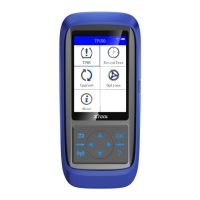

 To Next Page