Pro Tools Remote Layer 199
01V96—Owner’s Manual
Remote Control
17
8 In the same way, assign plug-ins to other channels.
9 When you finish assigning plug-ins, press the [AUX 8] button.
The button indicator turns off.
Editing Plug-ins
You can edit plug-ins inserted in the channel strips as follows:
1 Press the [F2] button to select Insert Display mode.
2 Press the corresponding [SEL] button to select the channel that was assigned
the plug-in you want to edit.
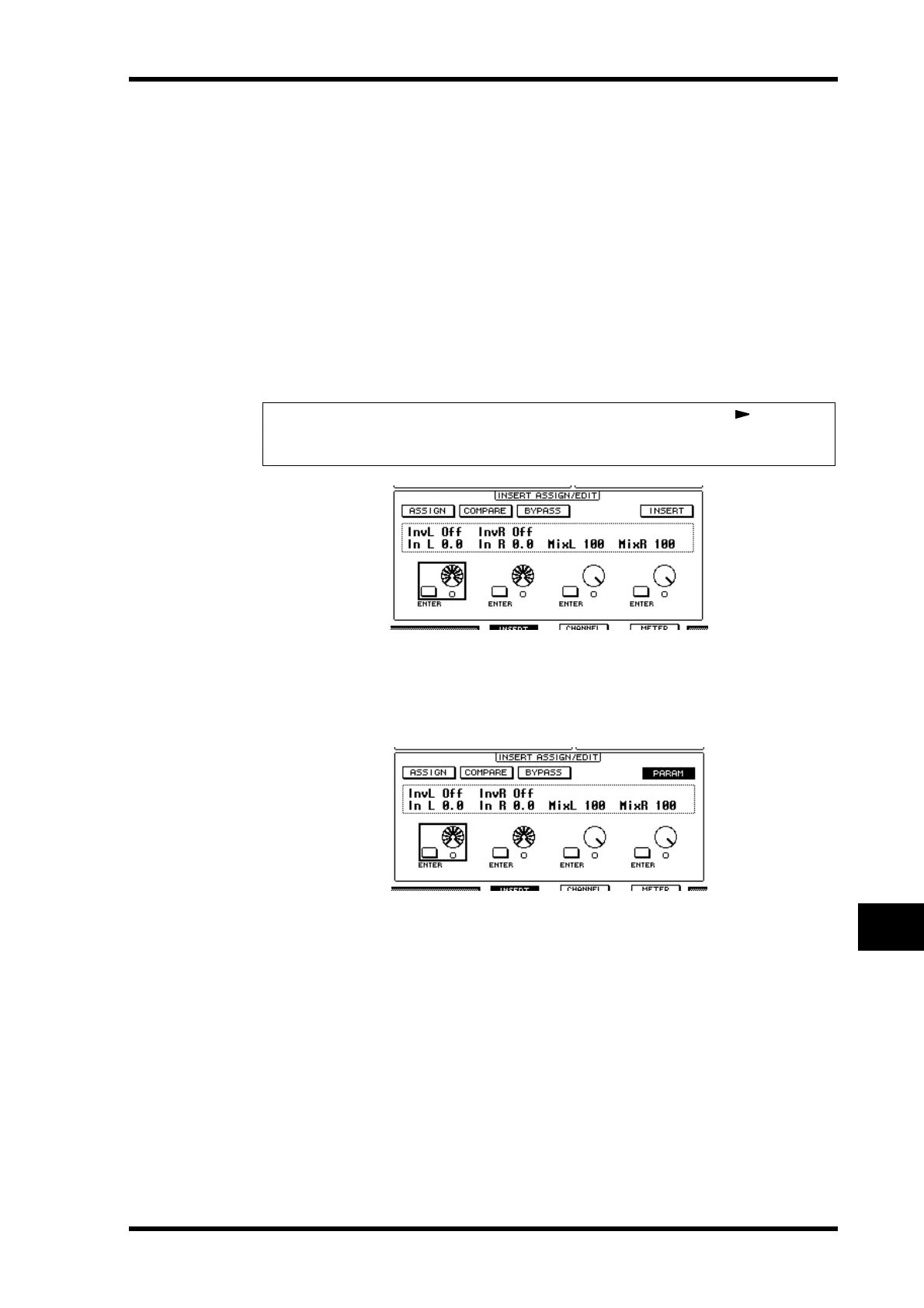
3 In the INSERT ASSIGN/EDIT section, move the cursor to the parameter con-
trol (Insert 1–4) that was assigned the parameter you want to edit.
4 Press [ENTER] to display the parameters.
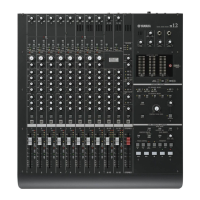
In the INSERT ASSIGN/EDIT section, the PARAM button is automatically selected and the
Information box indicates the selected plug-in parameters.
You can now use parameter controls 1–4 and the [ENTER] button to adjust the parameters.
5 Use the Tab Scroll buttons to display the parameter value you wish to
change.
Most plug-ins feature five or more parameters. To edit the fifth or subsequent parameters,
use the Tab Scroll buttons to display the desired parameters and their values in the INSERT
ASSIGN/EDIT section. The current page number and the plug-in name appear for a
moment immediately after you press the Tab Scroll buttons.
Note: To adjust a plug-in assigned to insert #5, press the Tab Scroll button [ ] to change
the parameter indication in the INSERT ASSIGN/EDIT section, then select a parameter con-
trol.





 To Next Page