Yanmar
®
600 Control Panel Operation and Troubleshooting
6 463-3000-09 Initial - 16-May-2008
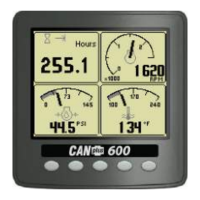
CANplus Display
Soft buttons simplify the user interface by displaying a button bar above the buttons when any of the first 4
buttons (buttons 1 to 4, starting from the left) are pressed. Icons on the button bar change to represent the
current function of each button. The button bar disappears after 5 seconds if no further buttons are pressed.
Note
Different software versions may have slightly different displays.
Analog Gauge Pages
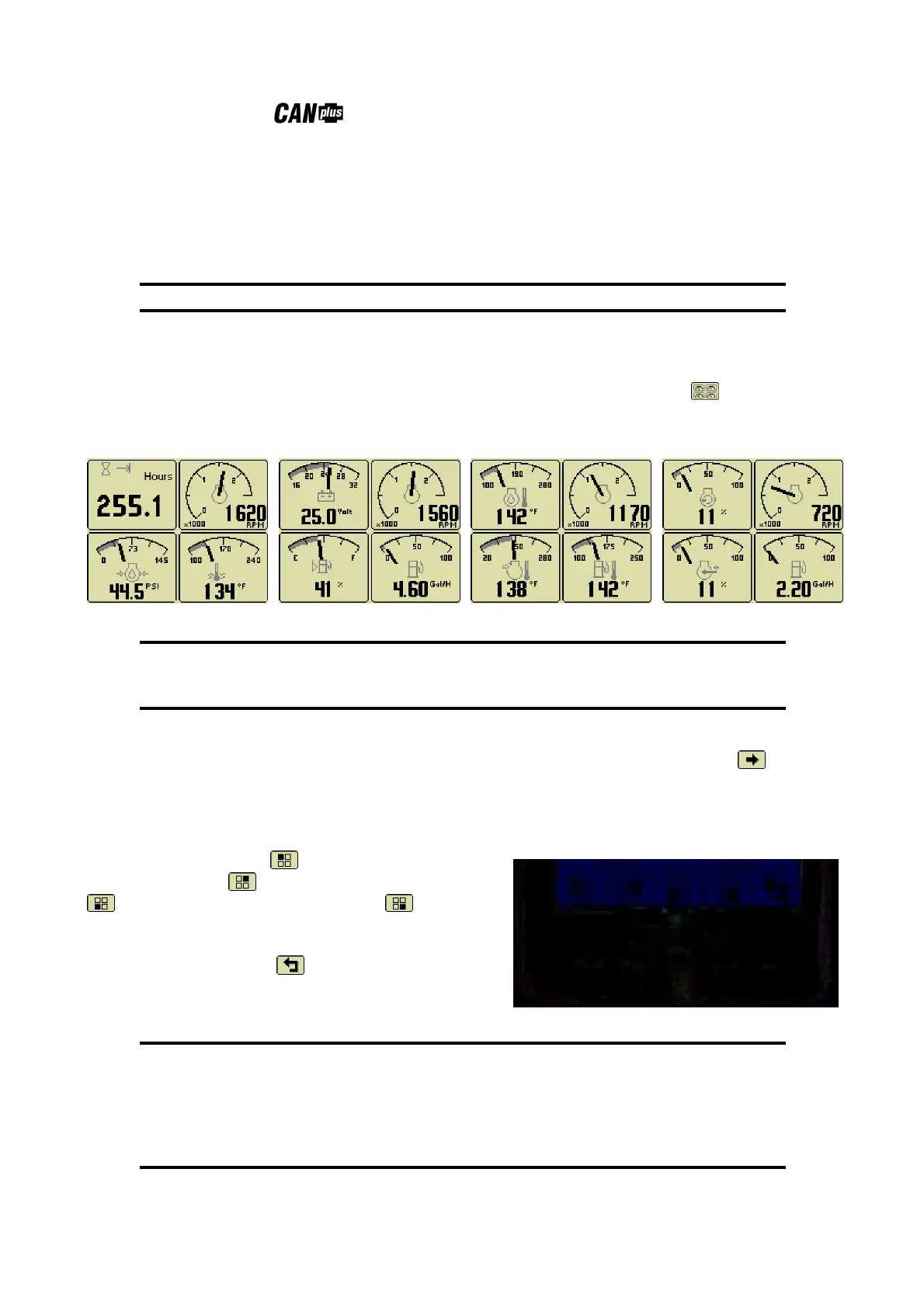
Analog Gauge Pages provide four independent pages of analog gauges. To enable Analog Gauge Pages,
press any of the first 4 buttons to show the top level button bar and then press button 1 . Alternate pages
are selected by repeated pressing of button 1. The four standard gauge pages are shown below.
Page 1 Page 2 Page 3 Page 4
Note
Engine Hours are displayed as a digital value even on Analog Gauge Pages.
The default gauge pages represent 13 selections since the
tachometer is repeated in the upper left quadrant of each page.
All 16 gauges may be configured by the user to create an application-specific view of CANbus data.
Gauges on the current page can be changed via Adjust Mode, accessed by pressing button 5 when the
button bar is visible. Gauges can be changed on any of the four pages by selecting the page to be changed
and then entering Adjust Mode.
In Adjust Mode a new button bar is displayed identifying the
button functions. Button 1 corresponds to the upper
left gauge, button 2 to the upper right gauge, button 3
to the bottom left gauge and button 4 to the
bottom right gauge. Successive presses of the buttons
selects a different parameter for the gauge. Adjust Mode is
exited by pressing button 5 and storing the new
configuration even when power is removed.
Note
A gauge selection can only appear once per page.
To move a gauge selection, the existing gauge location must be changed first.
Gauge selections are limited to the data currently being received.
Gauge pages can be configured in Demo mode to select any supported parameter.
See Data Parameters Monitored for a complete list of available parameters.


 To Next Page