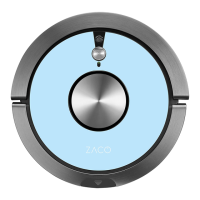
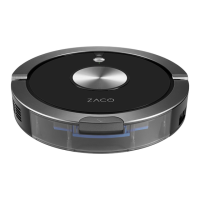
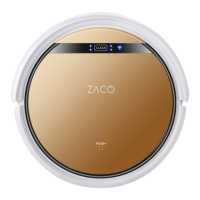
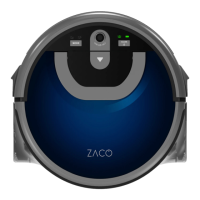
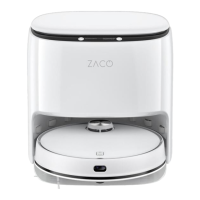
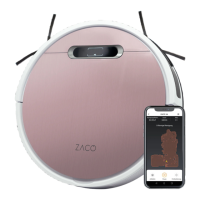
The ZACO-A9s Pro is a robot vacuum cleaner designed to automate floor cleaning in home environments. It offers both vacuuming and mopping functionalities, allowing for comprehensive floor care. The robot can be operated via a remote control or a dedicated smartphone app (ZACOHome), providing flexible control options.
Function Description:
The primary function of the ZACO-A9s Pro is to clean floors by vacuuming and mopping. It is equipped with various sensors and navigation capabilities to efficiently move around a room, detect obstacles, and avoid falls. The robot can automatically return to its charging station when its battery is low.
Usage Features:
The ZACO-A9s Pro offers several cleaning modes to suit different needs and environments:
- Auto Mode: In this mode, the robot cleans the room in an efficient "zig-zag" path, automatically calculating and cleaning missed areas. It is designed for general cleaning and will pause briefly during the process to re-plan its path based on the complexity of the environment. Manual intervention or remote control operation during this mode may cause the robot to re-plan its path, potentially re-cleaning already covered areas.
- Spot Mode: This mode is ideal for areas with highly concentrated dirt or dust. The robot focuses on a specific area, cleaning it in a circular path before returning to the charging station.
- MAX Mode: For very dirty floors, the MAX mode increases the suction power to provide a more thorough clean. Users can switch between normal and MAX suction power as needed.
- Edge Mode: This mode is designed to clean along walls and corners of a room. The robot drives along borders to ensure comprehensive cleaning of edges. After completing a full circle, it will return to its starting point or the charging station.
The robot can be started, paused, or put into sleep mode using either the auto clean button on the device itself or the remote control.
Scheduling:
For convenience, users can set up a regular cleaning schedule. Both the current time and the desired cleaning times need to be configured via the remote control or the ZACOHome app. Once scheduled, the robot will automatically clean at the designated times. The remote control allows for setting and canceling schedules, with a visual indicator on the display. When changing time settings, a prompt tone confirms that the changes have been saved. If no tone is heard, the changes were not saved, and the settings need to be re-entered. Batteries in the remote control should be replaced when scheduled settings are lost.
Charging:
The ZACO-A9s Pro can be charged in two ways:
- Auto Charging: When the battery is low in Auto mode, the robot will automatically search for its charging station. In standby mode, users can press a button on the remote control to instruct the robot to return to the charging station. It's important to ensure the charging pins on the robot and the station are clean to avoid negative effects on charging.
- Manual Charging: The robot can also be charged by directly plugging the power adapter into the robot and connecting it to an electrical socket. This method is not recommended when the robot is in schedule mode, as it may prevent the robot from performing scheduled cleaning tasks. For daily use, it is advised to keep the robot on the charging station with the power adapter plugged in and the robot turned on. If the robot will not be used for an extended period, it should be fully charged before being turned off and stored in a dry, ventilated place.
Mopping Function:
The ZACO-A9s Pro includes a mopping function, which is optional and used after vacuuming is completed. The dust bin is replaced with a water tank for mopping.
- Adding Water: The rubber plug on top of the water tank is opened to slowly pour in clean water through the nozzle, then securely closed.
- Installing Mop Cloth: The water tank is turned over, and the mopping cloth is attached by securing its edges first, then allowing it to stick to the velcro.
- Installation: The dust bin is removed, and the water tank is installed in its place.
- Starting Mopping: The Auto button is pressed to initiate the mopping function.
Important considerations for mopping:
- If the robot is stopped during mopping (e.g., to refill water or rinse the mop cloth), it will reprogram its cleaning path, potentially re-mopping already cleaned areas. For better results, it's recommended to use the mopping function in one room at a time.
- If another room needs mopping, the robot should be manually moved to that room, and water or the mop cloth should be refreshed if necessary.
- The water tank should not be used on carpets. If carpets are present, their edges should be rolled up to prevent the robot from climbing onto them and soiling them. Alternatively, the ZACOHome app allows users to declare "carpet areas" that the robot should vacuum but not mop.
- Water should be added, and the mop cloth rinsed regularly. The water tank must be removed from the robot for refilling.
- The water tank should always be removed while the robot is charging.
Invisible Wall:
The Invisible Wall is an accessory that creates an invisible barrier the A9s Pro will not cross. This feature is useful for preventing the robot from entering specific areas.
- Operation: Batteries are installed, and the power is turned on. The Invisible Wall is placed in front of the area to be protected, ensuring the transmitter is aligned as indicated on the device. After cleaning, the Invisible Wall should be turned off.
Maintenance Features:
Regular maintenance is crucial for the optimal performance and longevity of the ZACO-A9s Pro. Before any cleaning or maintenance, the robot's power switch must be turned off, and the power adapter unplugged from the charging station.
- Main Brush and Side Brush Maintenance:
- Side Brush Cleaning: The side brushes should be cleaned regularly to remove any tangled hair or debris.
- Main Brush Cleaning: The main brush should be removed, and hair and dirt should be cleaned using the provided cleaning brush.
- Dust Bin and Filter Maintenance:
- After each use, the dust bin and filters should be taken out and emptied.
- The dust bin is removed by pressing the release button and pulling it out.
- The dust bin is opened, and its contents are emptied into a trash can.
- The suction port should be checked and cleaned.
- The high-performance filter can be cleaned by tapping out dirt but cannot be rinsed or washed.
- The filters are taken out and cleaned.
- The tank parts are assembled after cleaning.
- The cleaning brush is used to clean the tank.
- Water Tank Maintenance:
- Mop Cloth Cleaning: After mopping, the water tank is removed from the robot, and the mop cloth is detached. The mop cloth is rinsed with water and air-dried.
- Water Tank Cleaning: After mopping, the water tank is removed, the mop cloth detached, and any remaining water poured out. The water tank is cleaned with a mildly wet and clean cloth. It should be air-dried with the rubber plug open. The tank should never be completely immersed in water.
- Drop Sensor and Charging Pin Maintenance:
- The robot's loading pins and drop sensors should be cleaned with a dry cloth to maintain their sensitivity.
Battery Maintenance:
- If the device will not be used for a long time, the battery should be removed to prevent leakage. If a battery leak occurs, the battery should be removed, the compartment cleaned, and ZACO Customer Service contacted.
- If the battery is deeply discharged or unused for a long time, its capacity may be reduced. To activate it, the robot should be manually placed on the charging station, removed after 3 minutes, and this process repeated 3 times. Afterward, the device should be charged for 3-5 hours.
- The product uses a long-life battery that does not require frequent replacement. For battery replacement, ZACO Customer Service should be contacted.
Troubleshooting:
When the robot encounters a problem, the Auto button will flash red, and a voice prompt will be played. Users should refer to the manual's troubleshooting table for specific issues and their solutions. If a problem persists after restarting the robot (by turning the power switch off and on), ZACO Customer Service should be contacted.

 Need help?
 General

 To Next Page