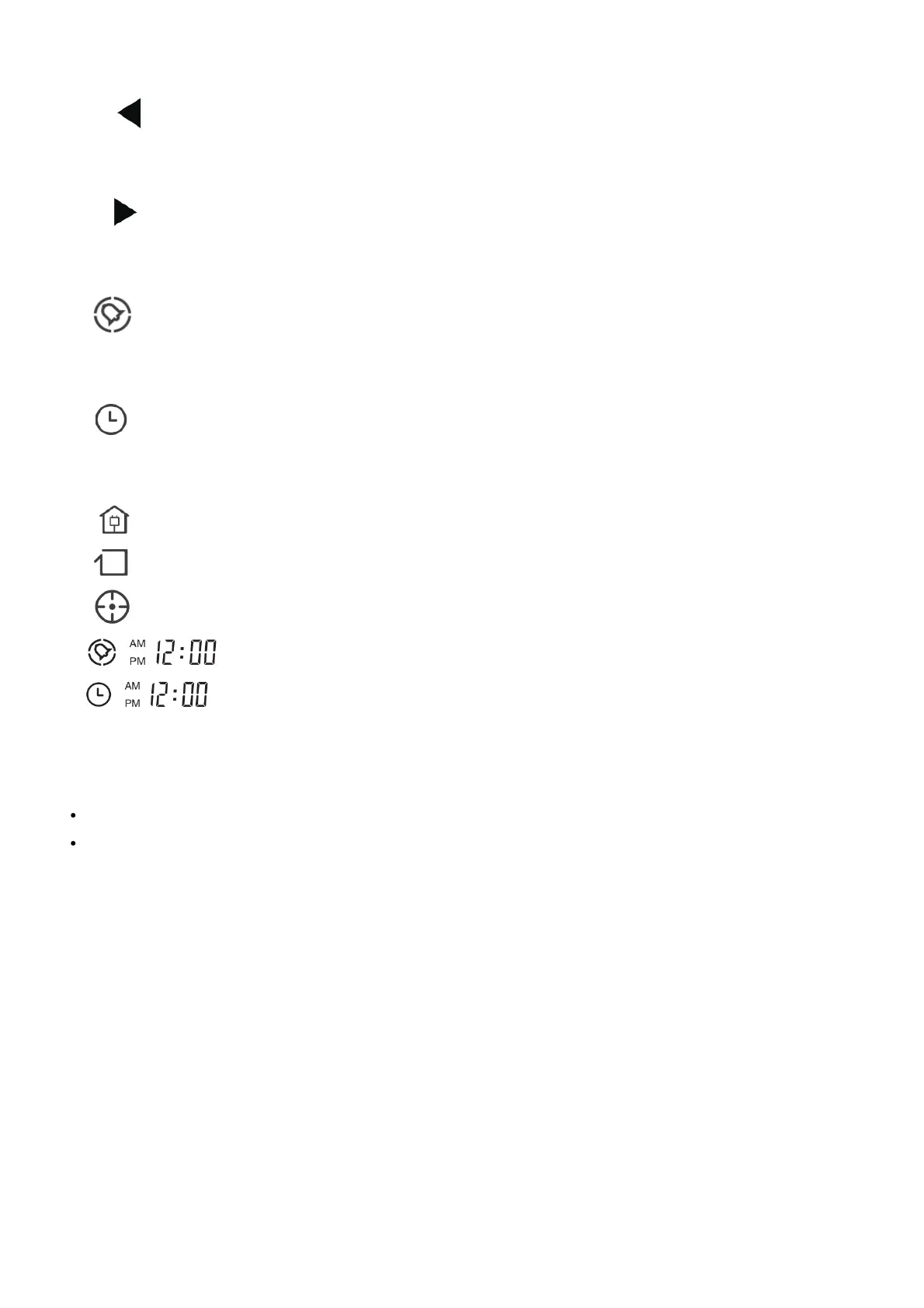
• Press this button to decrease the number in scheduling or clock mode.
• Press to make the robot move backward for a little step in the selected mode.
C. ” ” button:
• Press this button to exchange from minute to hour in scheduling or clock mode;
• Press this button to make the robot turn left.
D. “ ” button:
• Press this button to exchange from hour to minute in scheduling or clock mode;
• Press this button to make the robot turn right.
3. “ Plan
• Press this button to enter scheduling mode when in the selected mode.
• Press this button to confirm scheduling in scheduling mode.
4. ” ” Clock
• Press this button to enter clock mode when in the selected mode.
• Press this button to confirm dock setting in clock mode.
5. ” ” Home Press this button to return the robot to the charging dock.
6. “ ” Edge Press this button to make robot dean along wall.
7. “ ” Spot Press this button to make the robot start spot cleaning.
8. Shows the scheduling time.
9. Shows the dock time.
Note:
Install two AAA-type batteries into the remote control.
Take out the batteries if the remote control is not used for a long time.
Product Operating
1. Starting up/Pause/Sleeping How to get started
1>. Place charging dock, plug in the adapter, the signal light on the charging dock will turn solid.



 To Next Page