7 System Setting
28
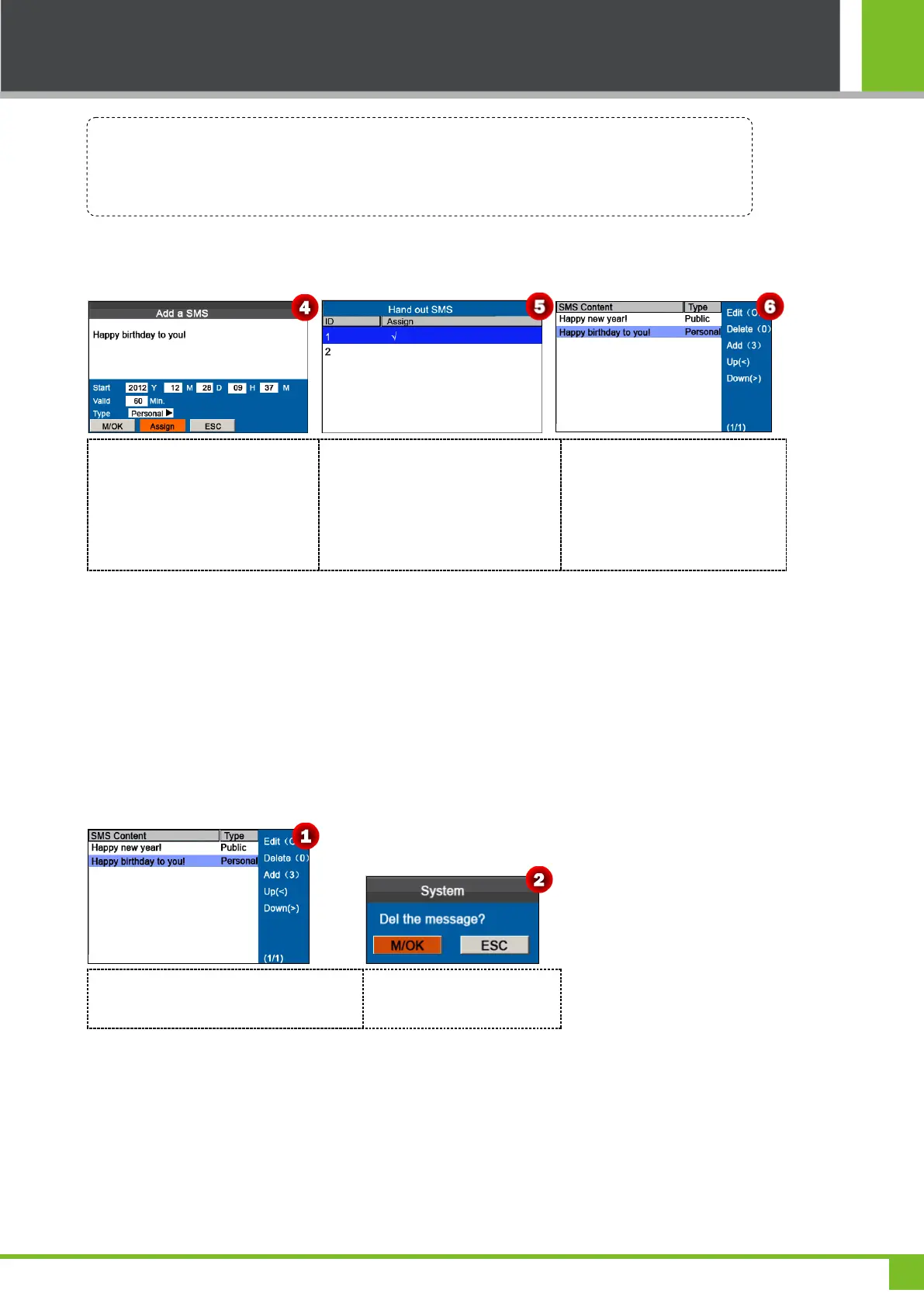
If Personal is chosen in Type option, press Assign to assign an SMS message to desired employees.
Operation:
Choose the SMS Type as
Personal, and then press ▼ key
to select [Assign] option, and then
press [M/OK] key to enter the
Hand out SMS interface.
Press ▼ to select a User, press
[M/OK] to mark √ to choose the
user, then press [ESC] to return, and
then select [M/OK] option and press
[M/OK] key to save the settings.
When adding successful, the
interface is shown as figure 6.
7.5.2 Edit an SMS Message
On the SMS Setting interface, press ▲/▼ to choose an SMS message and press [M/OK] to edit it.
The operations of SMS message editing are the same as those of SMS message adding.
7.5.3 Delete an SMS Message
On the SMS Setting interface, press ▲/▼ to choose an SMS message and then press numeric key '0' to delete it and all
information relating to the SMS message.
Press ▲/▼to select SMS then press
numeric key '0' to pop-up the prompt box.
Press [M/OK] to delete or
press [ESC] to quit.
7.5.4 View an SMS Message
View public SMS messages
Operation description
When the cursor hovers over the text box, press [M/OK] key to enable the T9 input method and then enter
the message content. You can press ▲/▼ to switch among the entry boxes and press ◄/► to choose a
desired value or enter one using the keypad.



 To Next Page