Touchscreen User Manual – Issue 1
Zytronic X-Y Controller (Serial and USB) 26
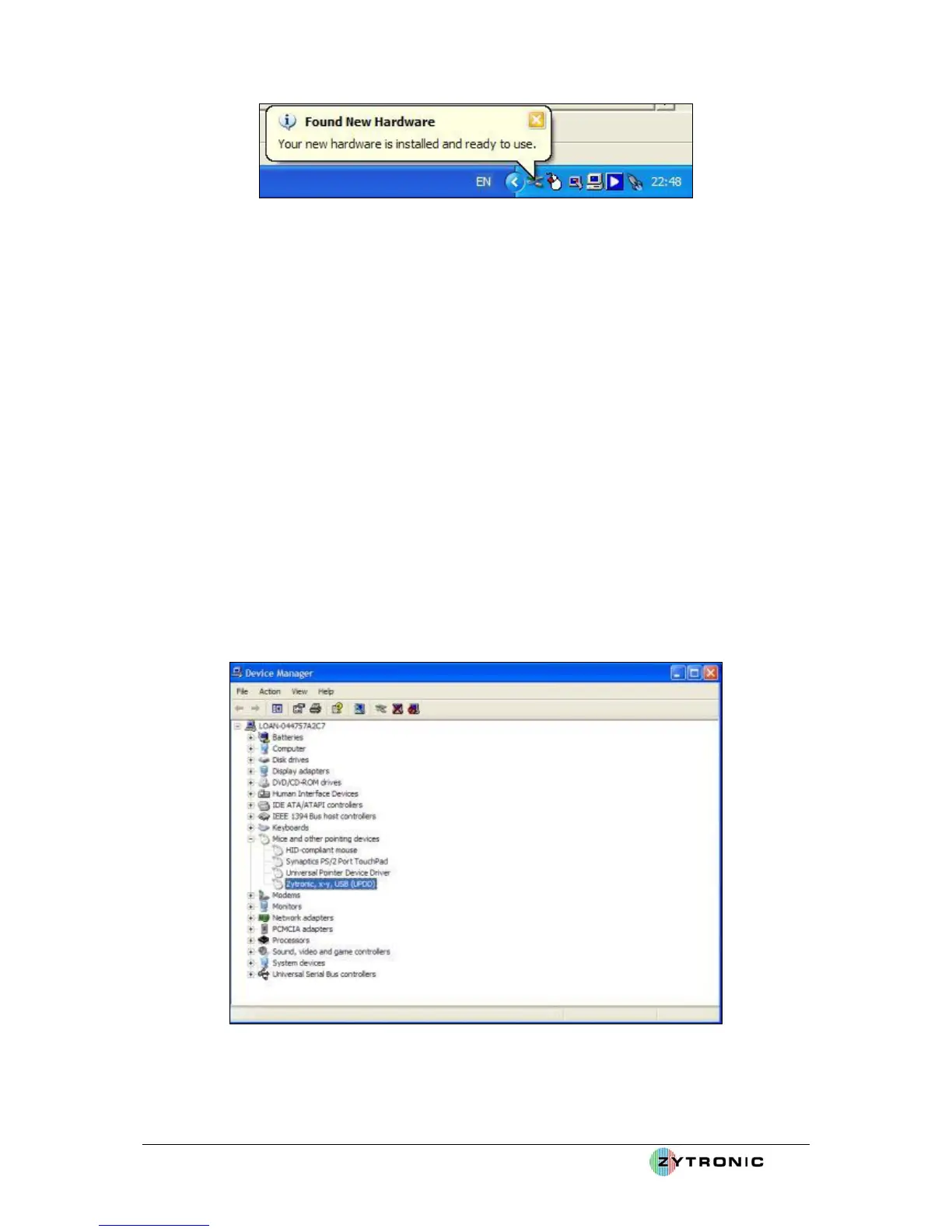
Figure 22: New Hardware installed and ready to use
Having installed the USB touchscreen, the device can be seen registered within the Windows device
Manager, as shown in Figure 23.
The Windows Device Manager can be opened by implementing the following steps:
• Double click on Windows Control Panel icon.
• Double click on the System icon.
• Click on the Hardware tab located at the top of the Window.
• Click on the Device Manager tab.
• This opens the Device Manager and lists all the connected devices to the host computer.
• The Zytronic, x-y, USB (UPDD) entry is located within the Mice and other pointing
devices sub menu, as shown in Figure 23.
• The device entry is only displayed when the USB touchscreen controller is attached to the host
computer.
• Only the USB controller is a Plug and Play device and hence is displayed within the Windows
device Manager. The Serial controller device is not listed within the Windows Device
Manager when connected to the host computer.
• The USB controller in now installed and ready for use.
Figure 23: Zytronic, x-y, USB (UPDD) device listed within the Windows Device Manager



 To Next Page