Touchscreen User Manual – Issue 1
Zytronic X-Y Controller (Serial and USB) 30
Step 3 – Setting the Click Mode of the Touchscreen
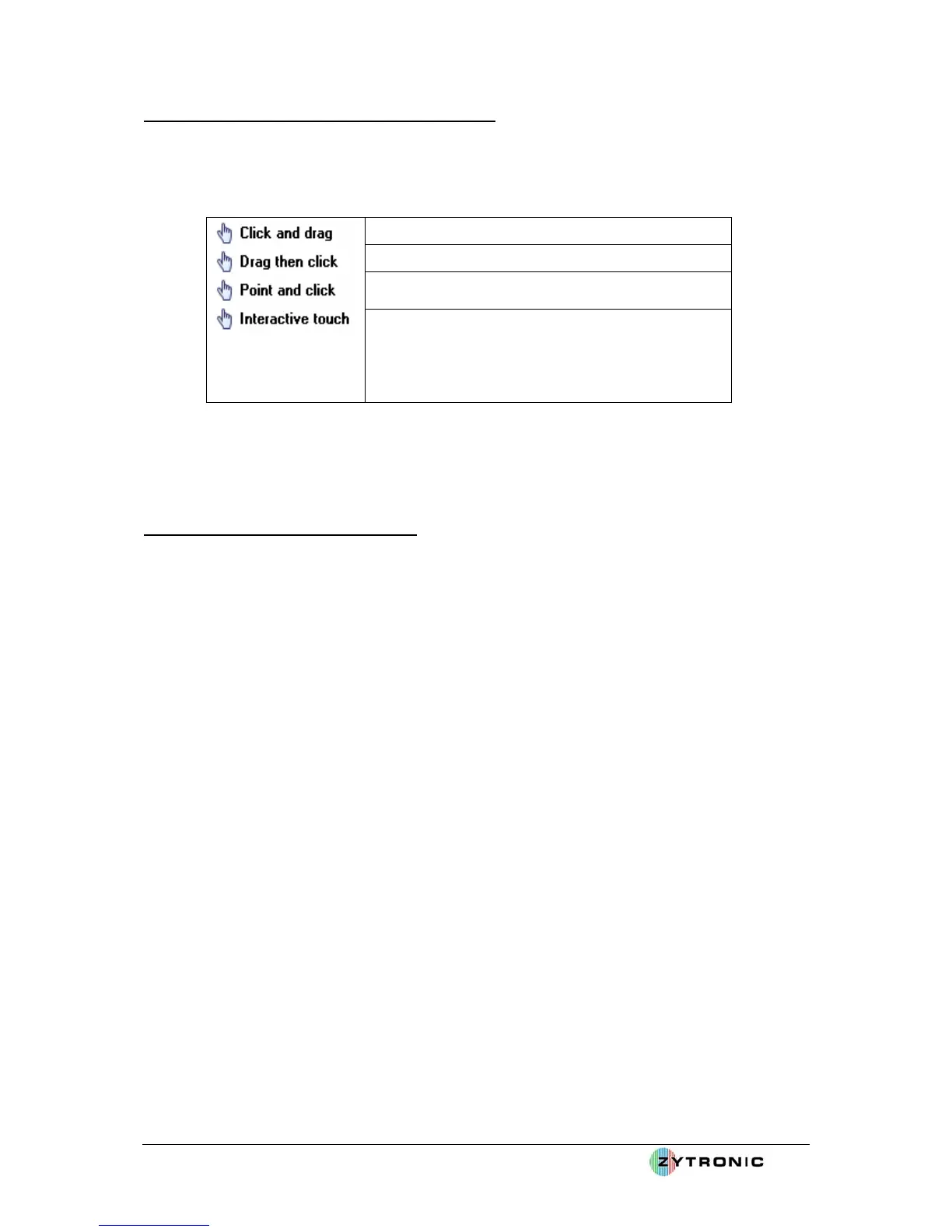
• The touchscreen can operate and emulate different mouse click modes depending of the user’s
requirement.
• These different modes are described below:
Pen down then drag. Pen up at lift off
Drag then click at lift off.
Pen down and pen up at point of touch. No
movement.
Left pen down then drag, left pen up at lift off.
Stationary stylus invokes right click. Interactive
switch delay determines right click delay. Visual
notification indicates if visual feedback is shown
during right click countdown.
• To set the desire click mode, click on the Click Mode tab of the UPDD console.
• From the drop down menu select one of the four available click modes.
• Click and drag is the default and generally covers most use requirements.
Step 4 – Calibration of the Touchscreen
• The final step is to calibrate the touchscreen to the LCD.
• This calibration step must be carried out when the touchscreen is fully mounted into its final
housing in front of the LCD.
• To launch a calibration click on the Calibrate button located in the bottom left hand corner of
the UPDD console.
• This will launch the default nine point calibration routine. Nine sequential cross-hairs will
be displayed on the screen. Very carefully touch the centre of the first cross-hair point.
Having touched the first point the second point will be displayed. Sequentially touch all nine
points as they are displayed on the screen, as shown in Figure 27.
• Important – The accuracy of the calibration will directly depend on how accurately you touch
the centre of each point displayed on the screen.
• Having touched all nine points a Confirm calibration box will appear on the screen. If you
feel the calibration has been correctly executed then press the Confirm button. If not the
calibration screen will time out if left untouched for more than 10 seconds or can be
terminated by pressing the Escape button on a connected keyboard.
• After pressing the Confirm button this completes the calibration of the touchscreen.
• Calibration can be repeated at any time.
• All calibration data is by default stored in the Windows Registry.



 To Next Page