Touchscreen User Manual – Issue 1
Zytronic X-Y Controller (Serial and USB) 29
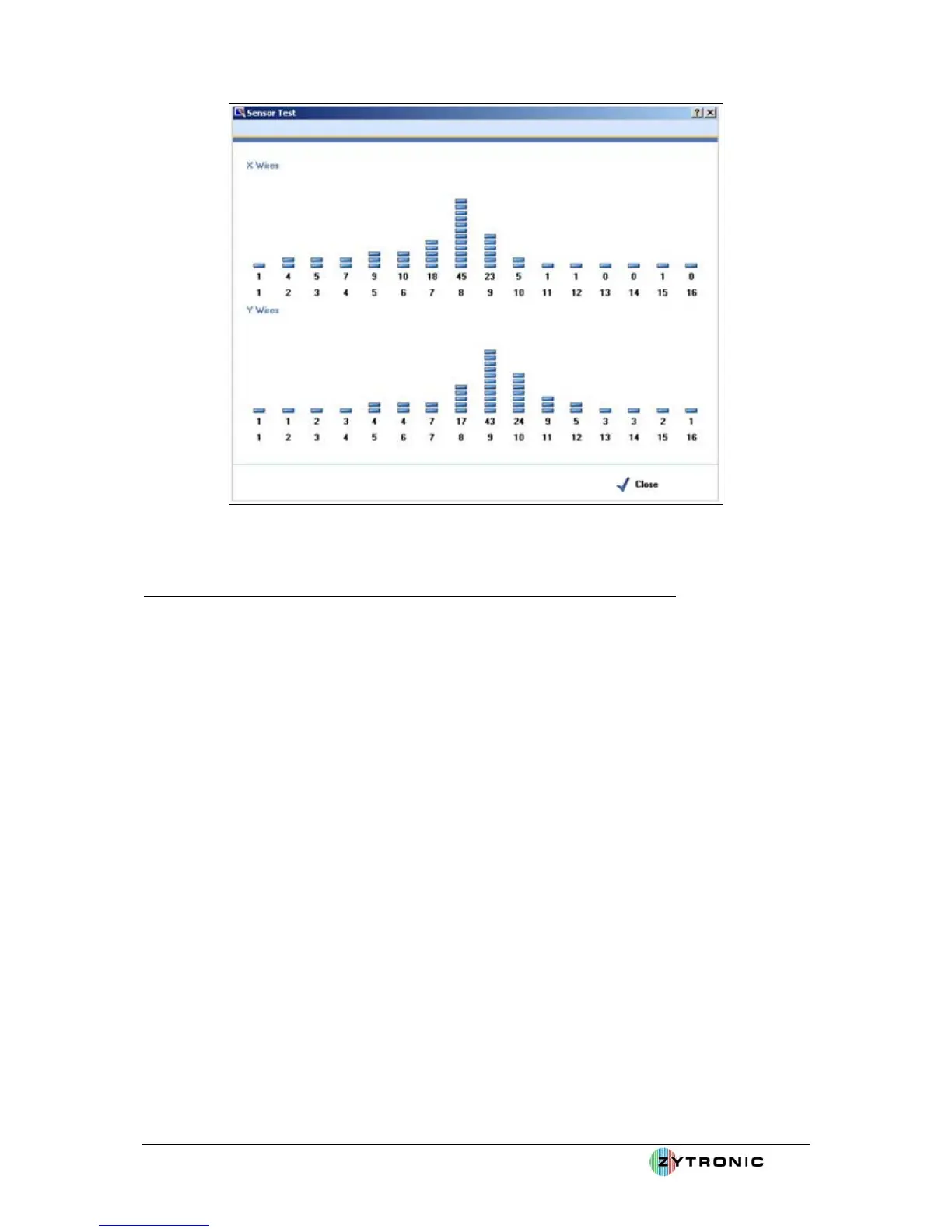
Figure 26: Sensor Test Page with wire level peaks as a result on an applied touch
Step 2 – Setting Sensitivity and Glass Thickness operation of the Touchscreen
• As the touchscreen works by projecting a capacitive field across the surface of the sensor the
strength of this filed and sensitivity of the field to an applied touch can be altered.
• The course field strength can be selected via the Glass Thickness option. There are three
possible options, Thin, Medium and Thick. These options are designed to allow different
thicknesses of glass sensors to be used and also the possibility of placing a further sacrificial
glass over the front of the sensor to be used in Though Touch Mode. The Medium setting is
the default and is usable for glass thicknesses of 3mm to 6mm. For thinner glass, the Thin
setting can be selected, this will also increase speed of response. For thicker glass the Thick
setting can be selected. On the Thick setting the speed of response is slower as the field is
projected further away from the front of the sensor.
• If in doubt leave the setting at the default of Medium.
• The sensitivity of the touchscreen to an applied touch can be increased or decreased by
altering the Threshold slider. Lower values provide greater sensitivity and higher values
provide reduced sensitivity. Default value is 22. The appropriate sensitivity setting should be
set relative to the glass thickness used and the desired user performance requirement.
• Setting the Threshold slider too high will potentially result in an applied touch not being
registered. Setting the Threshold slider too low will potentially result in the sensor
generating false touches due to background noise variations. The default value of 22 is
generally suitable for a 3mm thick front glass sensor.
• Having set the desired Threshold level, now click on the Close button on the Firmware
Settings page to close the window.



 To Next Page