Pannoramic 1000 1.2 – User’s Guide 4 Software and Work-flow
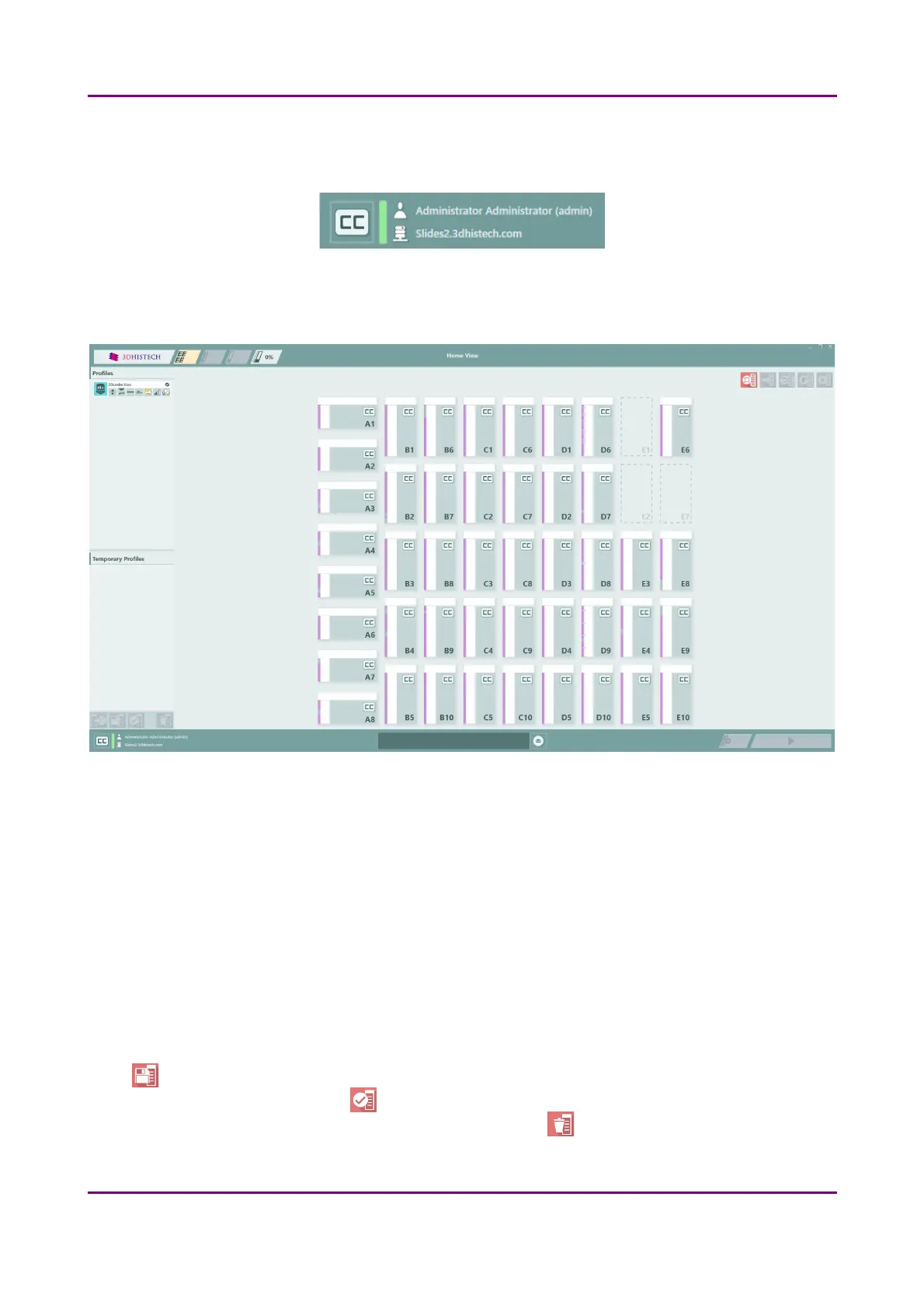
If connection to server is established, also the connection status and server information is displayed
at the bottom left corner of the main window.
Accordingly, each magazine thumbnail receives a CC stamp, to inform you that CaseCenter is selected
as scanning destination.
Figure 12 – Home View; Connection with CaseCenter is established
Scanning to server is available only if the Barcode parsing function is activated and configured in
CaseCenter and if the server is integrated with a HIS where a profile is applied for each Case ID
(readable from barcode). These unique profiles will be set and used for scanning to CaseCenter.
IV. Magazine selection
Select magazines and the required profile from the Profiles list.
It is advised to generate several different profiles in advance to create an inventory list from which
you can select the matching profile for your slides. If you modify a profile from the Profiles list, it will
become a temporal profile and displayed under Temporal Profiles list. Temporal profiles will be
deleted during software launch, but a temporal profile can be saved as a general profile by clicking
after selection. The default profile is marked with a check mark on the list, and if you want to set
another profile as default, click after selection. The default profile cannot be deleted. To delete a
profile (except for default), first select the profile, then click .
March 19, 2019 - Rev. 2 3DHISTECH Ltd.
32(78)


 To Next Page