
 Need help?
Do you have a question about the AAXA Technologies SLC450 and is the answer not in the manual?
Lists critical instructions to prevent injury or death from product misuse.
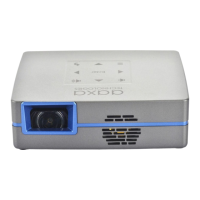
Identifies and labels the physical parts of the SLC450 projector.
Details the buttons and navigation pad on the remote control for operation.
Explains how the projector's physical keypad is used for menu navigation.
Displays the included power adapter and mini tripod accessory.
Shows the remote control accessory provided with the projector.
Steps to connect and turn on the SLC450 projector and enter standby mode.
Instructions for completely shutting down the SLC450.
Guide to adjusting the projector's focus for a clear image using the focus wheel.
Provides a chart correlating throw distance with diagonal screen size for optimal placement.
Steps for connecting external audio devices like speakers or headphones to the projector.
Explains that TF Card and USB drives can be used to load files, listing compatible formats.
Step-by-step guide on how to insert a TF card into the projector's slot.
Step-by-step guide on how to insert a USB drive into the projector's port.
How to find and open loaded files from the Main Menu's 'Files' icon.
Explains how to navigate and select options within the projector's main menu using directional buttons and OK.
Steps to change brightness settings to Eco, Standard, or Boost mode via the Settings menu.
Instructions on how to connect the projector to a wireless network via the Wifi Setup icon.
Guide to mirroring Android or iOS devices to the projector via the Mirroring menu.
Notes on connecting devices to the same Wi-Fi and DMCA content restrictions for mirroring.
Using "Smart View" on Android devices to screen mirror to the projector.
Connecting iOS devices by selecting "AAXA SLC450" in the mirroring menu.
How to select and open streaming services like Netflix, Hulu, etc., from the Main Menu.
Instructions to select the "Office" icon to open the N Docs application for documents.
How to load files via USB stick or Micro SD/TF Card for the Office app.
Guide to opening Word, Excel, PowerPoint files within the Office app after loading.
Steps to select the "Files" icon and navigate storage devices to open files.
How to access and use the web browser, including switching to mouse mode.
Guide to selecting the "Apps" icon and launching desired applications from the projector.
Overview of connecting various devices like computers, phones, and game consoles via digital input.
Steps for connecting devices using an HDMI cable to the projector's digital input port.
Instructions for enabling video output from a computer, specifically for Windows 10 systems.
How to navigate to the main Settings menu from the Main Menu interface.
Lists the available submenus within Settings for customizing projector features.
Details settings like Boot Signal Input, Boot APP, Power-on Mode, and HDMI Control.
How to select the preferred language for the projector's user interface.
Adjustments for Projection Mode, Zoom, Keystone, Vertical, and Horizontal correction.
Describes the different projection modes like Front Table, Rear Table, Rear Ceiling, and Front Ceiling.
How to use Vertical and Horizontal Correction for basic keystone adjustment.
Using Corner Correction for intricate keystone adjustments by manipulating screen corners.
Detailed steps for adjusting screen corners using the remote or keypad for precise correction.
Steps to pair the projector with Bluetooth devices for audio output only.
Instructions on how to perform a factory reset on the SLC450 from the Backup/Reset menu.
How to access and view detailed system information about the projector, like model and version.
Solutions for common issues connecting iOS devices and AirPlay not working.
Solutions for issues with wirelessly mirroring copyrighted content like Netflix, Amazon Prime.
Solutions for issues related to image focus and projector alignment.
Solutions for problems related to no sync or no signal from connected computers.
Solutions for the projector not turning on, not showing a picture, or unsupported file formats.
Guidance on file types and codecs supported by the projector.
Solutions for the projector not charging, related to power source and mode settings.
Detailed technical specifications including brightness, resolution, video, and file support.
Legal note regarding the HDMI trademark and AAXA Technologies' affiliation.
 General
| Brand | AAXA Technologies |
|---|---|
| Model | SLC450 |
| Category | Projector |
| Language | English |

 To Next Page