EasyManua.ls Logo

Abus TVVR35000 - User Manual

Abus TVVR35000
43 pages
Print Icon
To Next Page IconTo Next Page
Loading...
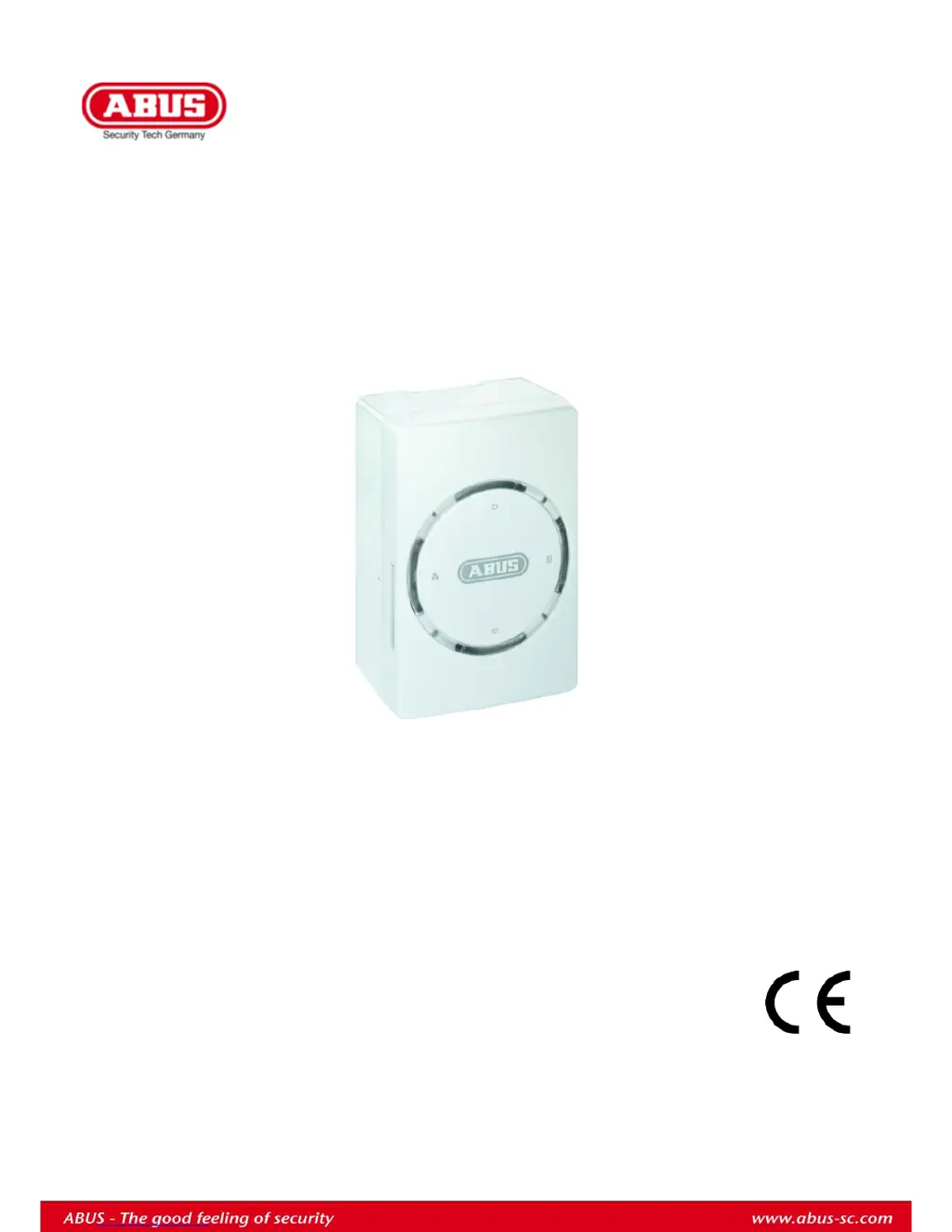
ABUS 4-channel video storage
TVVR35000
User manual
Version 1.0

Table of Contents

Questions and Answers

  • T
    Timothy PatelAug 10, 2025
    Why does my Abus TVVR35000 Enclosure suddenly deactivate?
    • H
      hopkinsjenniferAug 10, 2025
      If your Abus Enclosure suddenly deactivates, it might be due to the temperature inside the device being too high. To resolve this, clean the device and ensure there are no obstructions blocking the ventilation area.
  • K
    Kevin ClarkeAug 16, 2025
    What to do if my Abus TVVR35000 has no power?
    • J
      John JenkinsAug 16, 2025
      If your Abus Enclosure shows no power, ensure the mains cable is securely connected to the socket. Also, check if the power socket is working by testing it with another device. If the cable is damaged, replace it.
  • K
    Karen JonesAug 22, 2025
    How to fix network access not possible on Abus TVVR35000 Enclosure?
    • W
      William PowersAug 22, 2025
      If network access is not possible with your Abus Enclosure, first, ensure the network cable is properly connected. Then, verify that the network settings (DHCP, IP address, etc.) are correctly configured.
  • P
    Pamela BoydAug 27, 2025
    Why is recording not possible on my Abus Enclosure?
    • T
      Theresa GarzaAug 27, 2025
      If recording is not possible on your Abus Enclosure, ensure that a drive is connected and declared as a storage drive.
  • H
    Hannah HarrisSep 3, 2025
    What to do if USB port is not working on Abus Enclosure?
    • R
      Rachel WilliamsSep 3, 2025
      If your Abus Enclosure's USB port isn't working, it could be due to an unsupported device or the use of a USB hub. Try connecting a compatible USB 2.0 medium directly to the enclosure.

Summary

Quick Guide

Before You Start

Outlines preparatory steps, including reviewing general information and checking package contents before device installation and setup.

Establishing the Connections

Details the process of connecting network cameras and the LAN connection to the device, and setting up the power supply.

Configuring the Device

Guides users through the essential configuration steps for the device, including camera, I/O module, drive, network, security, and other settings.

Important Safety Information

Power Supply

Details safe power supply practices, including using specified voltage, avoiding overvoltage, and safe disconnection procedures.

Overloading and Overvoltage

Warns against overloading power sockets and recommends overvoltage protection to prevent damage and electrical hazards.

Installation Location and Operating Environment

Specifies environmental conditions and placement requirements, including surface stability, temperature range, and avoidance of heat, light, and magnetic fields.

System Operation

Starting the Device

Explains how to connect the device to the mains power supply and the expected behavior of the Power LED upon successful startup.

Setting up a Connection

Setting up the System

Guides users to install and start the 'IP Installer' software from the CD to detect and connect to NAS devices on the network.

Login

Instructs users on how to log into the system by selecting a language and entering the default username 'eytron'.

Installing the Plug-in

Explains the process of installing browser plug-ins (ActiveX, Quicktime) required for camera activation and viewing, including security settings adjustments.

Live Image

Camera Control

Explains how to control camera movement (pan/tilt) and zoom using the on-screen operating panel and numeric field.

Activating and Deactivating Cameras

Details the drag-and-drop method for activating cameras into live windows and deactivating them by moving them out of the frame.

Playback

Configuration

Setting up an IP Camera

Provides a step-by-step guide for setting up an IP camera, including detection, naming, and configuring recording types and storage.

I;O Module

Drive

SD Card, USB-1 and USB-2

Explains how to configure drives (SD card, USB-1, USB-2), including selecting, using, formatting, viewing contents, and safely disconnecting them.

Actions

Recordings

Explains how to set up recording schedules, detailing permanent recording and other types like activity detection, with a visual representation of recording types.

Creating a Schedule

Details the step-by-step process for creating an individual recording schedule, specifying camera, time period, and recording type.

Notifications

Explains how to set up notifications triggered by events like movement or camera disconnection, and how to configure destinations like e-mail or browser.

Commands

Details how to set up commands triggered by events, such as going to a preset position or activating relays, and specifying the event type.

Network

E-mail

Describes how to set up e-mail notifications for errors or alarms, including configuring SMTP server details and sender information.

Security

Other

Firmware Update

Guides users on updating the device firmware by downloading the latest version from the website and uploading it via the interface.

Resetting

Explains how to restore the device to its delivery status by resetting VMS settings or factory settings, including an alternative method using a USB stick.

Troubleshooting

Troubleshooting

Provides a troubleshooting guide for common malfunctions like no power, no image, network access issues, and recording problems, with corresponding causes and solutions.

Technical Data

Abus TVVR35000 Specifications

General IconGeneral
BrandABUS
ModelTVVR35000
CategoryEnclosure
Protection ClassIP66
LockingYes
MountingWall