EasyManua.ls Logo

Abus TVVR35000 - Creating a Schedule

Abus TVVR35000
43 pages
Print Icon
To Next Page IconTo Next Page
To Previous Page IconTo Previous Page
Loading...
Actions
28
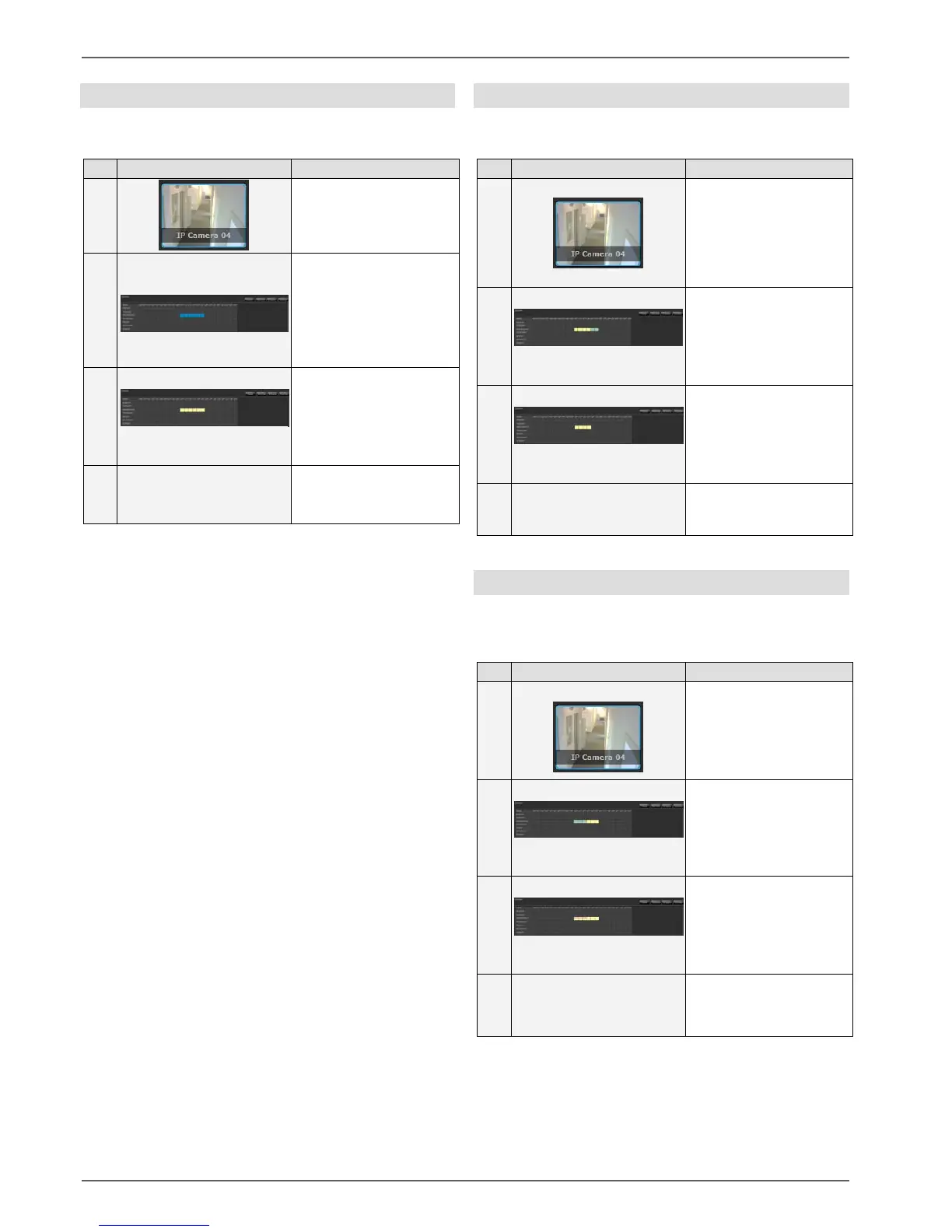
Creating a schedule
To create an individual schedule, proceed as follows:
No.
Symbol
Meaning
1
Select a camera in the
preview bar
2
Click on the desired
starting time and keep
the left mouse button
pressed. Select the de-
sired area.
(10.00 16.00)
3
Click on the type of re-
cording you want
(permanent recording)
4
Click on Save”
If you want to select a whole day, click on the weekday
you want.
To select a specific period for the entire week, click on
the corresponding time.
Deleting a schedule
To delete the schedule, proceed as follows:
No.
Symbol
Meaning
1
Select a camera in the
preview bar
2
Select the period you
want to delete
3
Click on “Delete”
4
Click on “Save”
Changing a schedule
To change the schedule for your recording, proceed as
follows:
No.
Symbol
Meaning
1
Select a camera in the
preview bar
2
Select the period you
want to change
3
Click on the type of re-
cording you want to add
(activity detection)
4
Click on “Save”
You can set up the schedule to meet your requirements.
Up to 3 recording types are possible at the same time.

Table of Contents