Other
39
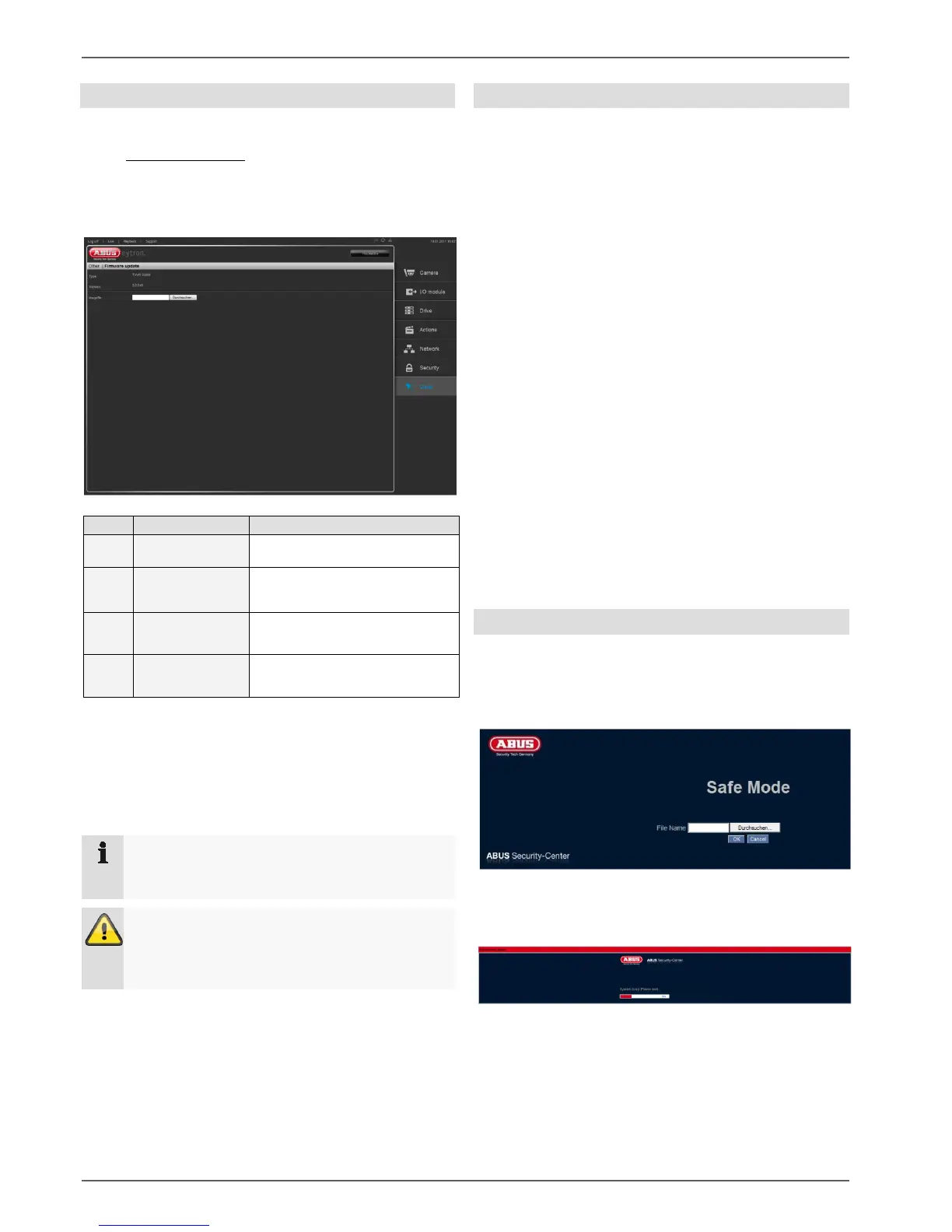
Firmware update
Here you can update your firmware.
Under
www.abus-sc.com you can download the latest
firmware for your product at any time.
Please always ensure that you are using the latest firm-
ware on your 4-channel video storage.
1
Type
Shows the product name
2 Version Version of the installed firm-
ware
3 Image file
Click on “Search” and select
the firmware file
4 Upload
Click on “Upload” to load the
firmware
It takes a moment to install the new firmware, and the
progress display shows this.
After a firmware update, the device restarts and you have
to login to the system again.
Note
To be able to perform a firmware update, please
connect a drive.
Important
Never disconnect the device from the power sup-
ply during a firmware update, as this can damage
the device.
Resetting
Here you can restore your device to its delivery status.
Settings:
Restores all the VMS settings to the delivery status.
Factory settings:
Restores all network settings to the delivery status.
Alternative:
1. Format the USB stick FAT-32
2. Create the following text file:
a. Name: factoryreset
b. In the file, write a 1 and save.
3. Disconnect the video buffer from the power sup-
ply.
4. Insert USB stick, then connect the power supply
again.
5. The device restarts automatically after success-
fully restoring the factory settings.
Restarting:
Restart the device.
Shutting down:
All services end and the device is shut down.
Safe mode
If your device will not start correctly, e.g. after a firmware
update, then it is in the safe mode.
Starting screen in safe mode:
In safe mode, please install the latest firmware.
Progress display in safe mode:
Afterwards, your device starts as usual and you can login
to the system again.



 To Next Page