Playback
20
Playback
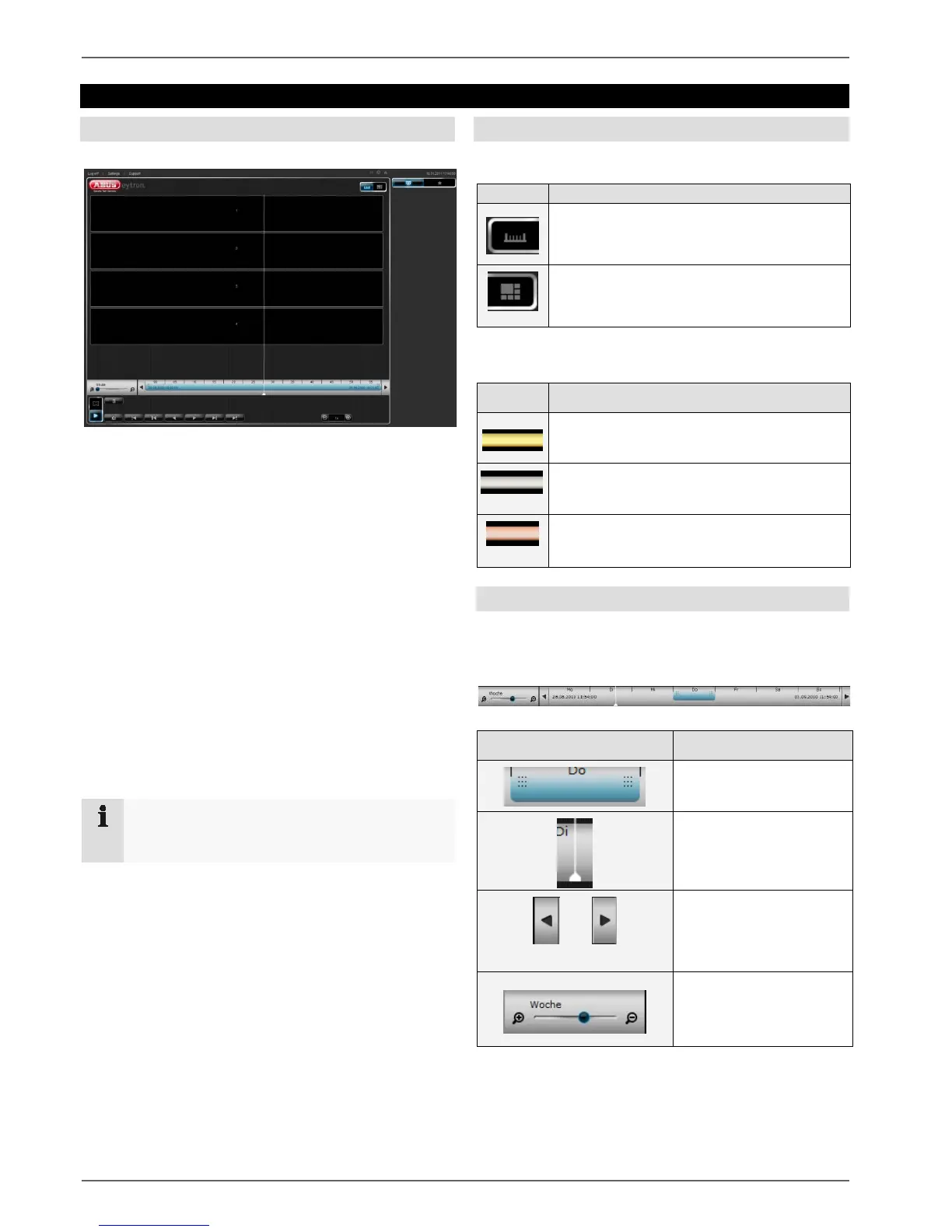
Overview
Click on the playback symbol to go to the playback mode.
When switching to playback mode, the keyboard at the
lower edge of the screen is replaced by the playback
controls. A time stream is also added to the interface,
which is used for selecting when playback starts and for
defining the backup space.
If you have switched to the playback mode, all the cam-
era fields that can be used are empty. To start a play-
back, you first have to activate the camera to be played
back in one of the fields.
The process here is the same as for activat-
ing/deactivating the cameras in the live mode.
If any cameras are already activated when the system
switches to database playback, these cameras are used
for playback (synchronous playback).
Note
For more information on creating archives, see
page 31.
Presentation view
There are two different presentation views in the play-
back mode:
Playback in bar view
Playback with full-screen database playback
The bar view is used to present the current recording.
Here we differentiate between the following colours:
Symbol Meaning
Continuous recording (yellow bars)
Activity recognition (grey bars)
External data (copper-coloured bars)
Time stream
The time stream enables quick access to the saved video
data.
Explanation of the time stream:
Symbol Meaning
Backup period



 To Next Page