Installation and Operation Manual Chapter 3 Operation
ASMi-54 Ver. 1.0 Configuration and Management Alternatives 3-9
Help Screen Example
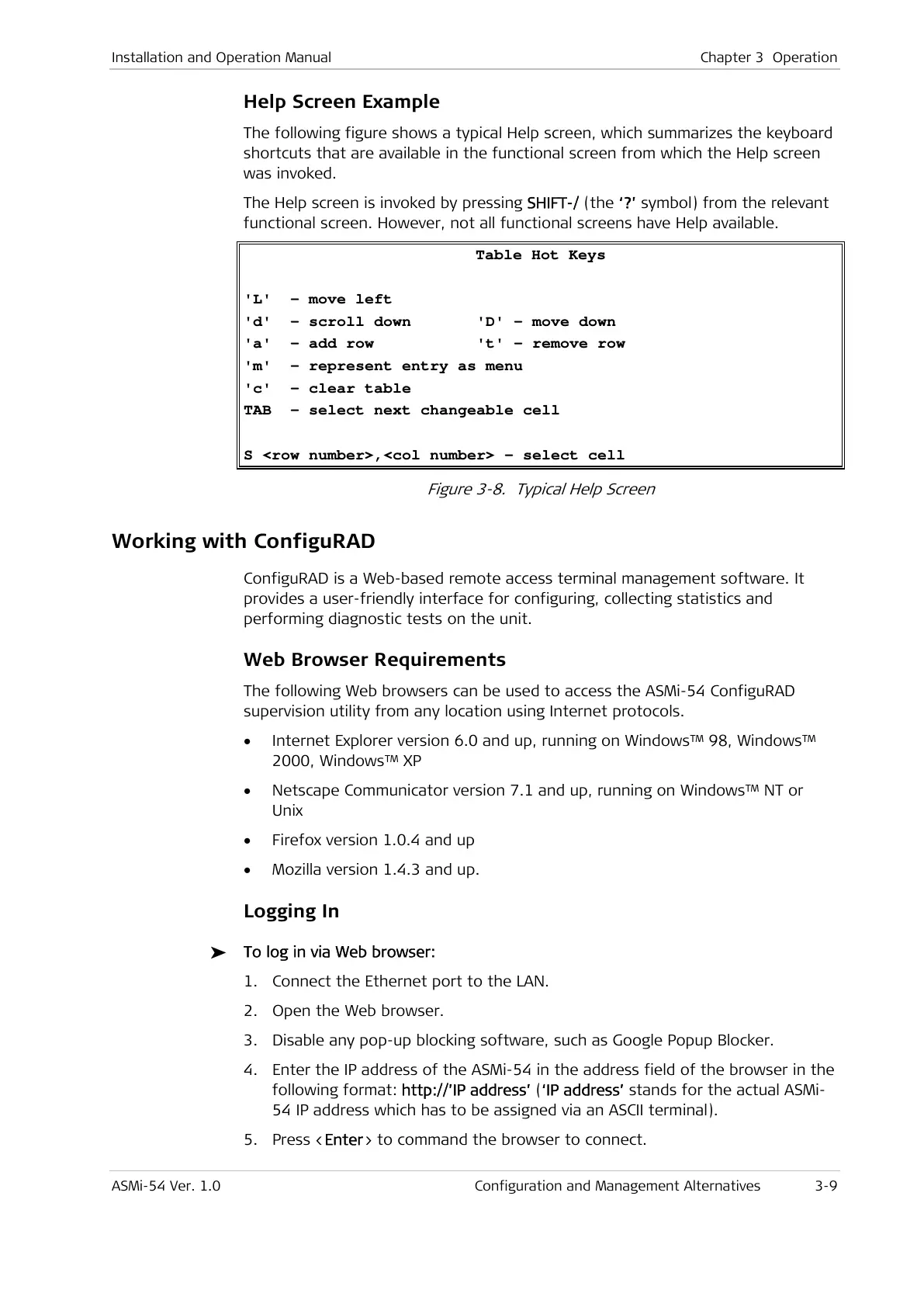
The following figure shows a typical Help screen, which summarizes the keyboard
shortcuts that are available in the functional screen from which the Help screen
was invoked.
The Help screen is invoked by pressing SHIFT-/ (the ‘?’ symbol) from the relevant
functional screen. However, not all functional screens have Help available.
Table Hot Keys
'L' - move left
'd' - scroll down 'D' - move down
'a' - add row 't' - remove row
'm' - represent entry as menu
'c' - clear table
TAB - select next changeable cell
S <row number>,<col number> - select cell
Figure 3-8. Typical Help Screen
Working with ConfiguRAD
ConfiguRAD is a Web-based remote access terminal management software. It
provides a user-friendly interface for configuring, collecting statistics and
performing diagnostic tests on the unit.
Web Browser Requirements
The following Web browsers can be used to access the ASMi-54 ConfiguRAD
supervision utility from any location using Internet protocols.
• Internet Explorer version 6.0 and up, running on Windows™ 98, Windows™
2000, Windows™ XP
• Netscape Communicator version 7.1 and up, running on Windows™ NT or
Unix
• Firefox version 1.0.4 and up
• Mozilla version 1.4.3 and up.
Logging In
To log in via Web browser:
1. Connect the Ethernet port to the LAN.
2. Open the Web browser.
3. Disable any pop-up blocking software, such as Google Popup Blocker.
4. Enter the IP address of the ASMi-54 in the address field of the browser in the
following format: http://’IP address’ (‘IP address’ stands for the actual ASMi-
54 IP address which has to be assigned via an ASCII terminal).
5. Press <Enter> to command the browser to connect.


 To Next Page