OSD navigation
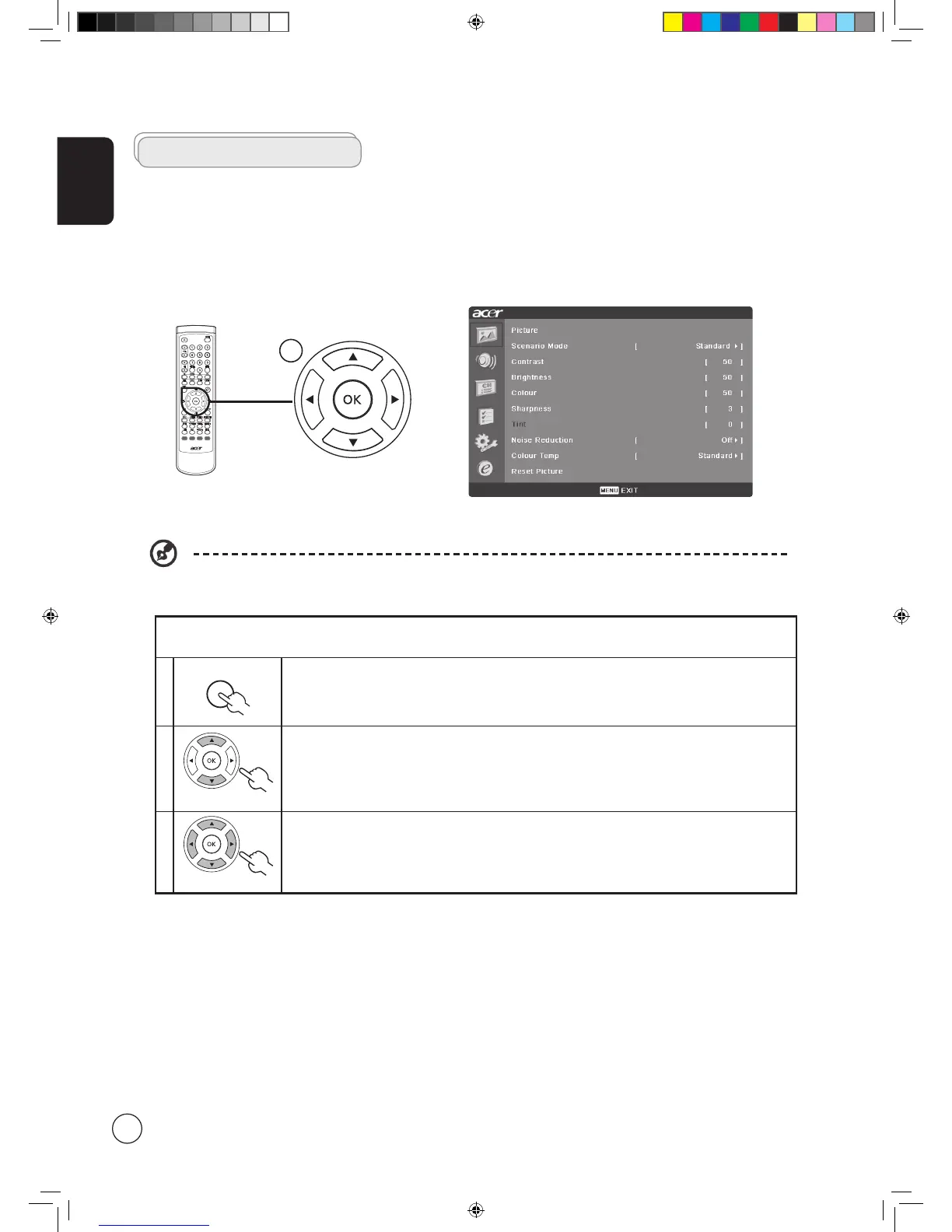
Many of the advanced settings and adjustments are available through using the OSD (onscreen display) menus, as shown in the
example screenshot below.
Basic operations required to navigate these menus (Picture, Audio, Channel management, Options, Settings, Empowering) are
described in this section.
There are six main OSD menus. These are: Picture, Audio, Channel management, Options, Settings and Empowering.
Use the following method to navigate these menus.
1
Press the MENU button on the remote control or the MENU button on the control panel.
2
Select your desired menu by using the up and down directional keys to switch between the six
menus.
3
Use the directional keys to interact with the menu. The up / down directions will scroll through the
menu options, while left/right will adjust the different settings (for example, in the Picture menu,
settings such as brightness, contrast, etc.). Press MENU to exit.
You can also interact with these menus using the front panel controls. Please see "Front panel view" on page 6 for
details.
Navigating the OSD with the remote control
AT201X.EU.UK.indb 16 3/21/2006 8:07:38 PM



 To Next Page