EasyManua.ls Logo

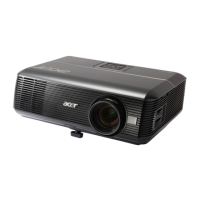
Acer P5630 - User Manual

Acer P5630
68 pages
Print Icon
To Next Page IconTo Next Page
Loading...
Acer Projector
P5630/N368/PN-WU17/PR642/MF-542/
DWU1703
P5530/N358/PN-817/PR542/MF-442/
D1P1704
P5330W/N328/PN-W17/PR442/MF-342/
DWX1705
P5230/N318/PN-X17/PR242/MF-142/
DNX1706
User's Guide

Questions and Answers

  • A
    Annette ChavezSep 12, 2025
    How to fix vertical flickering bar on Acer P5630 image?
    • R
      Rachel HunterSep 12, 2025
      If your Acer Projector image has a vertical flickering bar: * Use "Frequency" to make an adjustment. * Check and reconfigure the display mode of your graphics card to make it compatible with the projector.
  • A
    Austin CollinsSep 12, 2025
    What to do if Acer Projector image freezes displaying photo or document?
    • M
      Matthew RobertsSep 12, 2025
      If the image hangs up when displaying a photo or document in Media on your Acer Projector, power off the projector and then power it on again.
  • G
    greenerichardSep 12, 2025
    How to stabilize flickering image on Acer Projector?
    • L
      Linda HughesSep 12, 2025
      If the image from your Acer Projector is unstable or flickering: * Adjust the "Tracking" to correct it. * Change the display color depth settings on your computer.
  • B
    Benjamin HendersonSep 10, 2025
    Why is Acer P5630 image partial or scrolling from notebook?
    • C
      Christopher DukeSep 10, 2025
      If your Acer Projector displays a partial, scrolling, or incorrectly displayed image from notebooks, follow these steps for an incorrectly displayed image: * Follow the steps for item 2 to adjust the resolution of your computer. * Press the toggle output settings. Example: [Fn]+[F4], Compaq [Fn]+[F4], Dell [Fn]+[F8], Gateway [Fn]+[F4], IBM [Fn]+[F7], HP [Fn]+[F4], NEC [Fn]+[F3], Toshiba [Fn]+[F5] * If you experience difficulty changing resolutions or your monitor freezes, restart all equipment including the projector.
  • K
    kevin19Sep 8, 2025
    Why is my Acer P5630 Projector image out of focus?
    • G
      George AdamsSep 8, 2025
      To correct an out-of-focus image on your Acer Projector: * Ensure that the lens cap is removed. * Adjust the focus ring on the projector lens. * Make sure the projection screen is within the required distance of 3.3 to 29.7 feet (1.0 to 9.1 meters) for XGA series / 3.3 to 25.2 feet (1.0 to 7.7 meters) for WXGA series / 3.3 to 24.6 feet (1.0 to 7.5 meters) for 1080p series / 3.3 to 24.0 feet (1.0 to 7.3 meters) for WUXGA series from the projector.
  • M
    Morgan ParkerSep 7, 2025
    Why does my Acer P5630 Projector lamp burn out or pop?
    • A
      Anthony Lowe DDSSep 7, 2025
      When the lamp reaches the end of its useful life, it will burn out and may make a loud popping sound. If this occurs, the projector will not turn on until the lamp module has been replaced. To replace the lamp, follow the procedures in the "Replacing the Lamp" section.
  • E
    Eric MontgomeryAug 23, 2025
    How to adjust image size on Acer Projector?
    • R
      rodriguezmikeAug 23, 2025
      To adjust the image size, try the following: Adjust the zoom ring on the projector; move the projector closer to or further from the screen; or press "MENU" on the remote control, navigate to "Image - -> Aspect Ratio", and experiment with different settings. You can also directly press "RATIO" on the remote control.
  • R
    Riley MarshallSep 5, 2025
    Why is Acer P5630 image stretched with widescreen DVD?
    • L
      lbrooksSep 5, 2025
      When you play a DVD encoded in anamorphic or 16:9 aspect ratio, you may need to adjust the following settings: If you play a 4:3 format DVD title, change the format to 4:3 in the projector OSD. If the image is still stretched, adjust the aspect ratio and set up the display format to 16:9 (wide) aspect ratio on your DVD player. If you play an Letterbox (LBX) format DVD title, change the format to Letterbox (LBX) in the projector OSD.
  • J
    jenniferwrightSep 4, 2025
    How to remove vertical flickering bar on Acer Projector?
    • M
      Miguel CalhounSep 5, 2025
      Use "Frequency" to make an adjustment; refer to the "Image" section for more details. Also, check and reconfigure the display mode of your graphics card to ensure it is compatible with the projector.
  • Z
    zmasonSep 4, 2025
    How to stabilize a flickering image on Acer P5630?
    • A
      Angela HoffmanSep 4, 2025
      Adjust the "Tracking" to correct the flickering. You can find more information in the "Image" section. Also, try changing the display color depth settings on your computer.

Summary

Safety and Handling Information

General Safety Precautions

Crucial warnings on water, stability, ventilation, electrical hazards, and vibration.

Power Supply and Accessibility Guidelines

Guidelines for safely connecting/disconnecting power and ensuring outlet accessibility.

Electrical Power and Servicing Guidelines

Electrical Power Usage and Safety

Advice on proper power source selection, cord safety, and avoiding outlet overload.

When to Seek Professional Servicing

Identifies conditions requiring qualified service personnel for repairs.

Operational Safety and Environmental Restrictions

Lens Safety and Environmental Conditions

Warnings about lens safety, environmental conditions, and handling to prevent damage.

Lamp, Mounting, and Component Safety

Lamp and Component Handling Safety

Safety instructions for handling hot parts, the lamp module, and electronic components.

Mounting and Placement Safety Guidelines

Recommendations for projector orientation, ceiling mounting, and tilt angle limits.

Usage Notes and General Precautions

Recommended Do and Dont Practices

Key actions to perform and avoid for proper projector operation and maintenance.

Maximizing Projector Lifespan

General precautions and warnings to ensure the projector's longevity.

Introduction to Product Features

Key Projector Technology and Specifications

Highlights of DLP technology, resolutions, 3D support, and color features.

Projector Control Panel Functions

On-Projector Button Layout and Descriptions

Explanation of the projector's control panel buttons and indicators.

Remote Control Layout and Functions

Remote Control Buttons: Basic Functions

Description of key buttons like POWER, SOURCE, MODE, KEYSTONE, and navigation controls.

Remote Control Advanced Functions

Remote Control Buttons: Advanced Operations

Explanation of secondary buttons like FREEZE, ZOOM, MEDIA, LAN/WIFI, and Laser Pointer.

Connecting the Projector: Input Sources

Input Connection Diagrams and Notes

Visual guide for connecting devices and important notes on cables and MHL.

Turning the Projector On

Powering On and Source Detection Process

Steps for powering on and how the projector automatically detects input sources.

Turning the Projector Off

Shutdown Procedure and Cooling Cycle

Instructions for powering off, the cooling process, and warning indicators.

Optimizing Image Size and Distance (XGA Series)

XGA Projection Distance and Screen Size Chart

Table for optimal screen sizes and distances for XGA projectors.

Optimizing Image Size and Distance (WXGA Series)

Optimizing Image Size and Distance (1080 p Series)

Optimizing Image Size and Distance (WUXGA Series)

Adjusting Image Size with Distance and Zoom (XGA)

Adjusting Image Size with Distance and Zoom (WXGA)

Adjusting Image Size with Distance and Zoom (1080 p)

Adjusting Image Size with Distance and Zoom (WUXGA)

User Controls: Installation Menu

Onscreen Display (OSD) Menus

Image Color Settings

Image Adjustments and Configuration

Security Features

Enabling Projector Security and Timeouts

How to enable security and set up password timeouts.

User and Administrator Password Management

Setting and managing user and administrator passwords for access.

Management Features

Acer LAN Webpage Management: Home and Control Panel

Acer LAN Webpage Management: Network and Alerts

Troubleshooting Common Issues

No Image and Display Resolution Problems

Resolving issues with no image, incorrect display, and resolution settings.

Notebook Display and Image Stability Issues

Troubleshooting notebook connectivity, image flickering, and scrolling issues.

Image Focus, Stretch, and Aspect Ratio Solutions

Image Focus, Stretch, and Aspect Ratio Solutions

Solutions for focus, stretching, and aspect ratio problems, including DVD titles.

Image Size, Alignment, and Reversal Solutions

Image Size, Alignment, and Reversal Solutions

Solutions for images that are too small/large, slanted, or reversed.

OSD Messages and Projector Problems

Troubleshooting Projector Unresponsiveness and Lamp Issues

Solutions for projector control unresponsiveness and lamp burnout.

Replacing the Projector Lamp

Lamp Replacement Procedure and Safety Precautions

Step-by-step guide and safety warnings for changing the projector lamp.

Ceiling Mount Installation Guide

Projector Specifications Overview

Projector Specifications: Distance, Power, and I;O

Acer P5630 Specifications

General IconGeneral
Resolution1024 x 768 (XGA)
Lamp Life (Eco)4000 hours
Display TechnologyDLP
Projection Size30 - 300 inches
Weight2.4 kg
Zoom1.2x
Input ConnectorsHDMI, VGA, Composite Video, S-Video
Brightness4000 ANSI Lumens (Standard)

Related product manuals