9
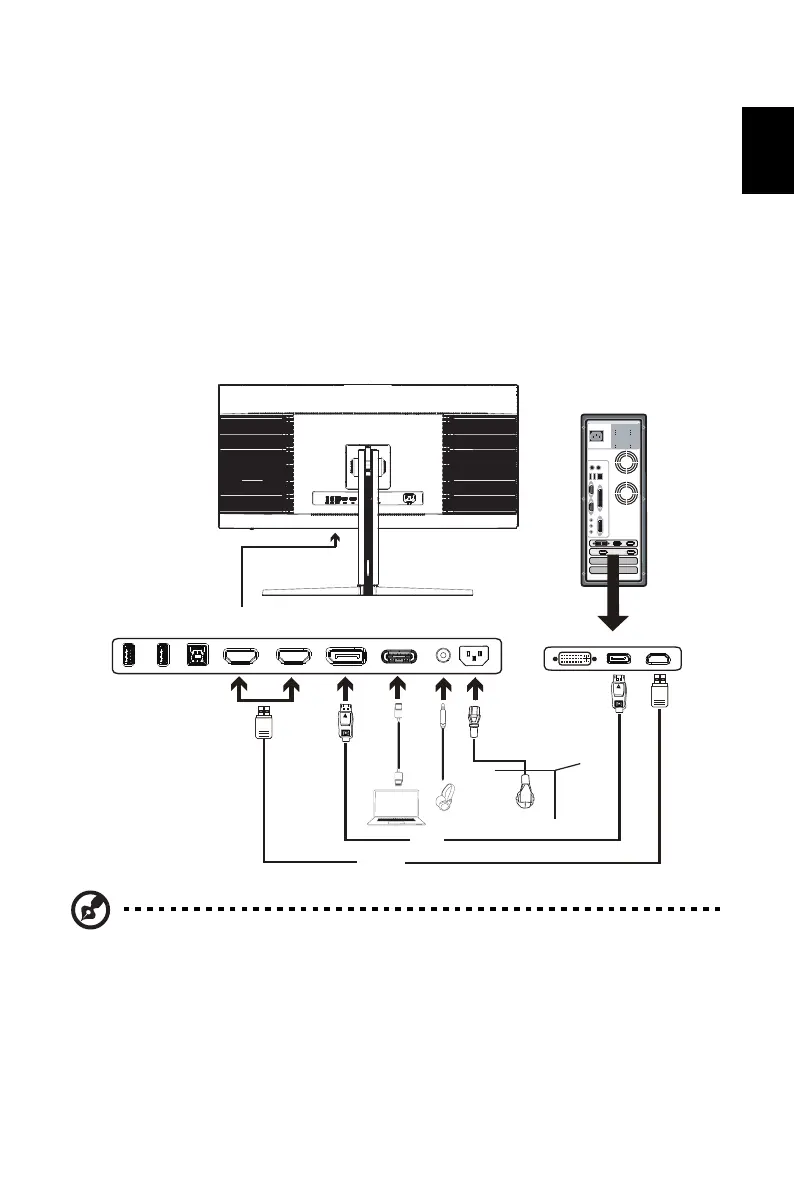
Connecting Your Monitor to a Computer
1. Make sure both the monitor and computer are powered-OFF.
2. Connect DP Cable (Only DP-input model)
a. Make sure both the monitor and computer are powered-OFF.
b. Connect the DP cable to the computer.
3. Connect HDMI Cable (Only HDMI-input model)
a. Make sure both the monitor and computer are powered-OFF.
b. Connect the HDMI cable to the computer.
4. Connect Type-C Cable (Only DP ALT-input model)
a. Connect the Type-C Cable to the computer.
5. Plug the power cords of your computer and your monitor into a nearby electrical outlet.
Note: 1. The audio output function depends on models. Please refer to User's Guide
for more information.
2. DP: Support max timing resolution 3440x1440-175Hz, also support
FreeSync Premium and HDR function.
3. DP ALT: Support max timing resolution 3440x1440-175Hz, also support
FreeSync Premium.
4. HDMI1/2 : Support max timing resolution 3440x1440-100Hz, also support
FreeSync Premium and HDR function.
DP
HDMI
AUDIOHDMI2 HDMI1 DP ALTDPUSB-A
AC
USB-A USB-B


 To Next Page