13
Main Menu
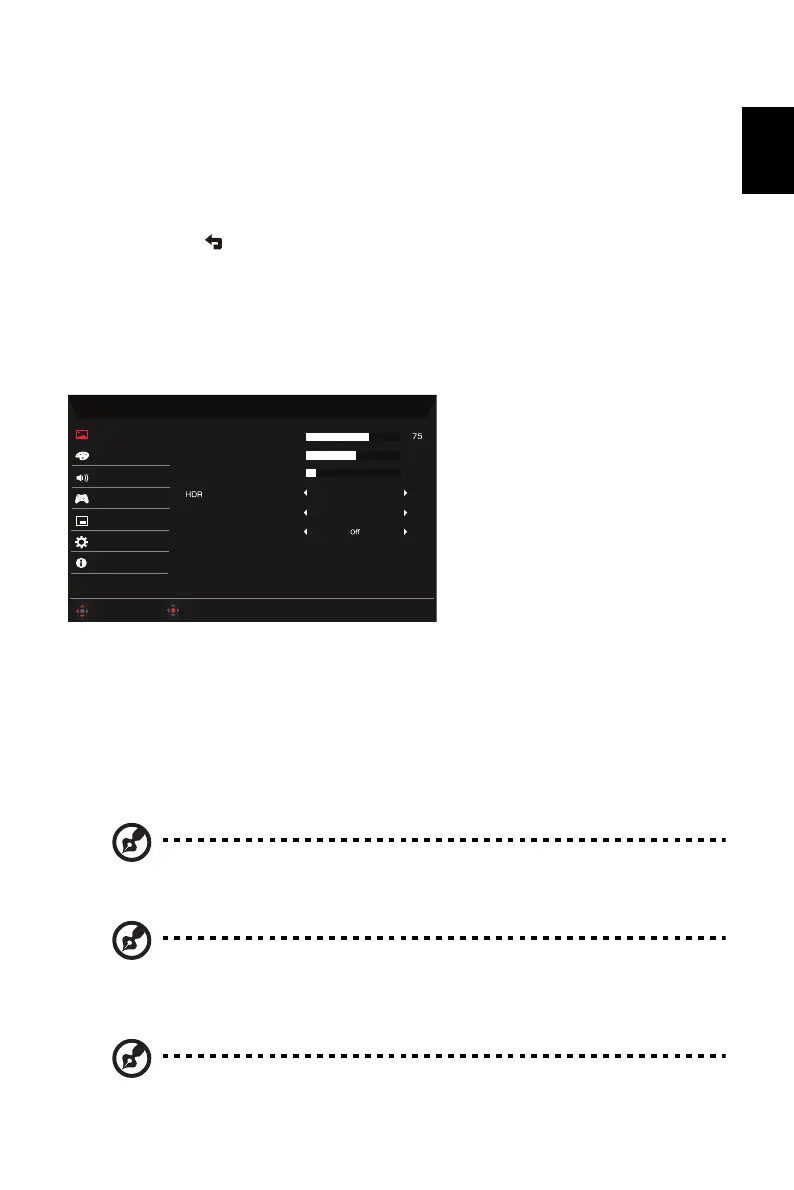
The Function page
Open the Function page to select a menu function, and adjust the settings which you want
using the arrows. You can also view your monitor’s system information from this page. When
you are done, use to go back one level.
1. Press the Main Menu key to open the OSD.
2. Use direction key to the up or down to select Picture from the OSD. Then press Enter to
go into the element you wish to adjust.
3. Use direction key to the left or right to adjust the sliding scales.
Picture
1. Press the MENU key to bring up the OSD.
2. Using the button, select Picture from the OSD. Then navigate to the setting you
wish to change.
3. Use the keys to adjust the sliding scales.
4. Open the Picture page to adjust Brightness, Contrast, Black Boost, HDR and Super
Sharpness, Max Brightness.
5. Brightness: Adjust the brightness from 0 to 100.
Note: Adjusts the balance between light and dark shades.
6. Contrast: adjust the contrast from 0 to 100.
Note: Sets the degree of difference between light and dark areas.
7. Black Boost: Adjust the black level from 0 to 10. Enhances shadows by increasing the
brightness without changing lighter shades.
Note: If the image is very bright or has few shadow areas, adjusting this setting
may not result in any noticeable changes to the image.
Mode - Standard
50
O
ff
O
ff
Color
Gaming
OSD
Brightness
Contrast
5
Black Boost
System
Super Sharpness
Information
Audio
Move
Enter
Max Brightness
Picture


 To Next Page