-
18 -
OMNIVERSA
®
ULTRASOUND / ELECTROTHERAPY SYSTEM USER MANUAL
COPYRIGHT © 2017-2020, ACCELERATED CARE PLUS CORP., ALL RIGHTS RESERVED
Operational Flow
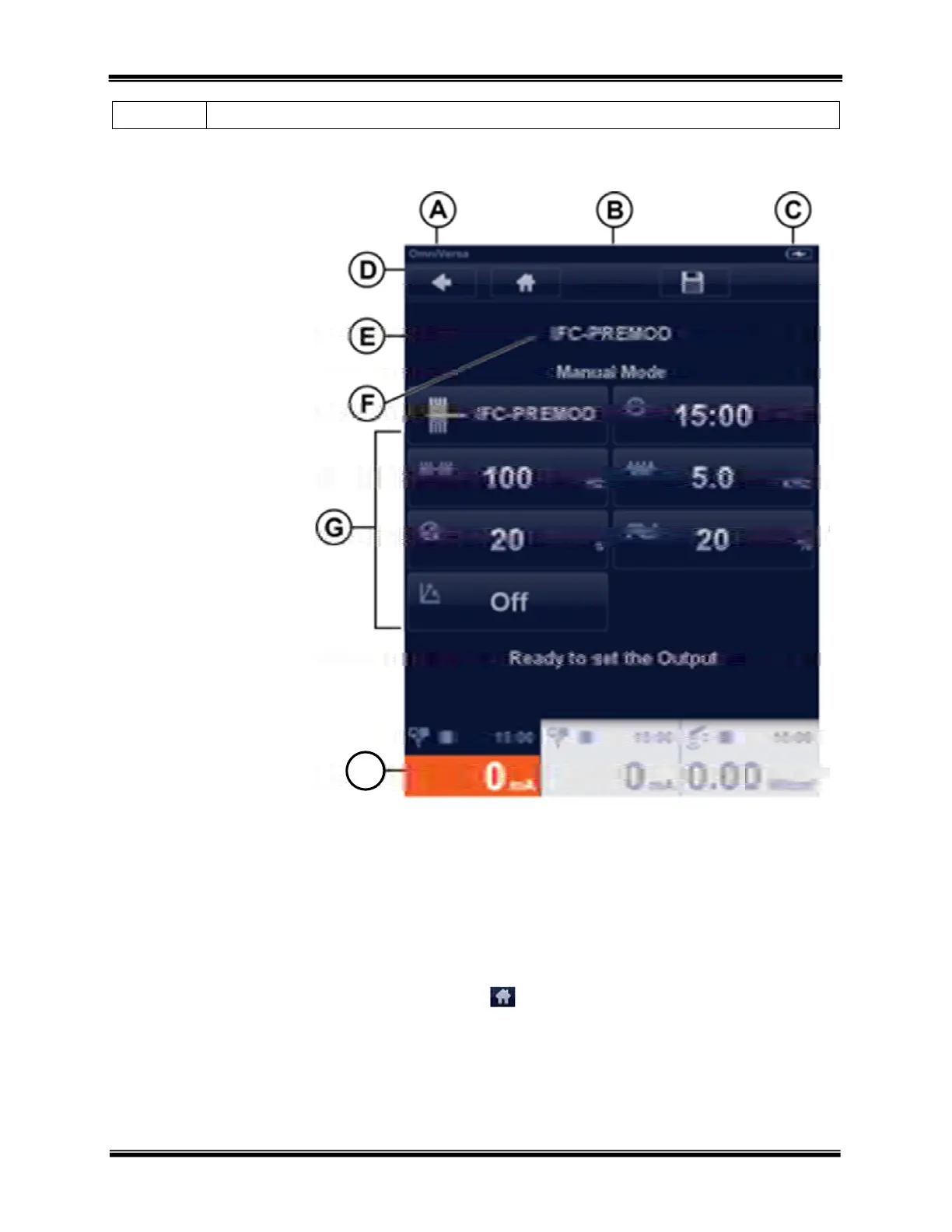
[A] DEVICE name
[B] NAVIGATION Level – On
some screens a white box
will display the page
number and total pages of
an area i.e. 1/4.
[C] BATTERY INDICATOR –
Displayed as either
charging or a traditional
battery icon
[D] NAVIGATION BAR -
Provides screen dependent
buttons for several
functions
[E] SCREEN HEADER –
Displays the name of the
selected program i.e. IFC-
Premed Sensory or the
name of the selected
electrotherapy waveform
[F] PARAMETERS - Are
indicated with icons. When
a parameter is selected its
name appears here
[G] SCREEN BODY –
Displays the parameters of
a selected channel or, when
no channels are selected,
the menu buttons
[H] CHANNEL TAB - Used
to select a channel and to
display and adjust the
output amplitude of that
channel
The visual display is organized as a series of menus that provide access to groups of parameters for each channel.
The output channels are located on the front of the unit labeled as A, B, C, and D. The menu can be selected by
touching its channel tab. The channel tab [H] shows information such as the output amplitude and the remaining
treatment time.
When you turn on the unit, you will first enter the Home menu. The Home menu provides access to all therapies
available within the unit. To select a therapy, touch its button and navigate to its main menu. You can navigate back
to the previous screen by touching the back arrow at the top of the screen. Anywhere in the navigation, you can
jump back to the Home menu, by touching the home button .
H


 To Next Page