ACT1000/2000 Operating Instructions Software Version 4.00-00
7
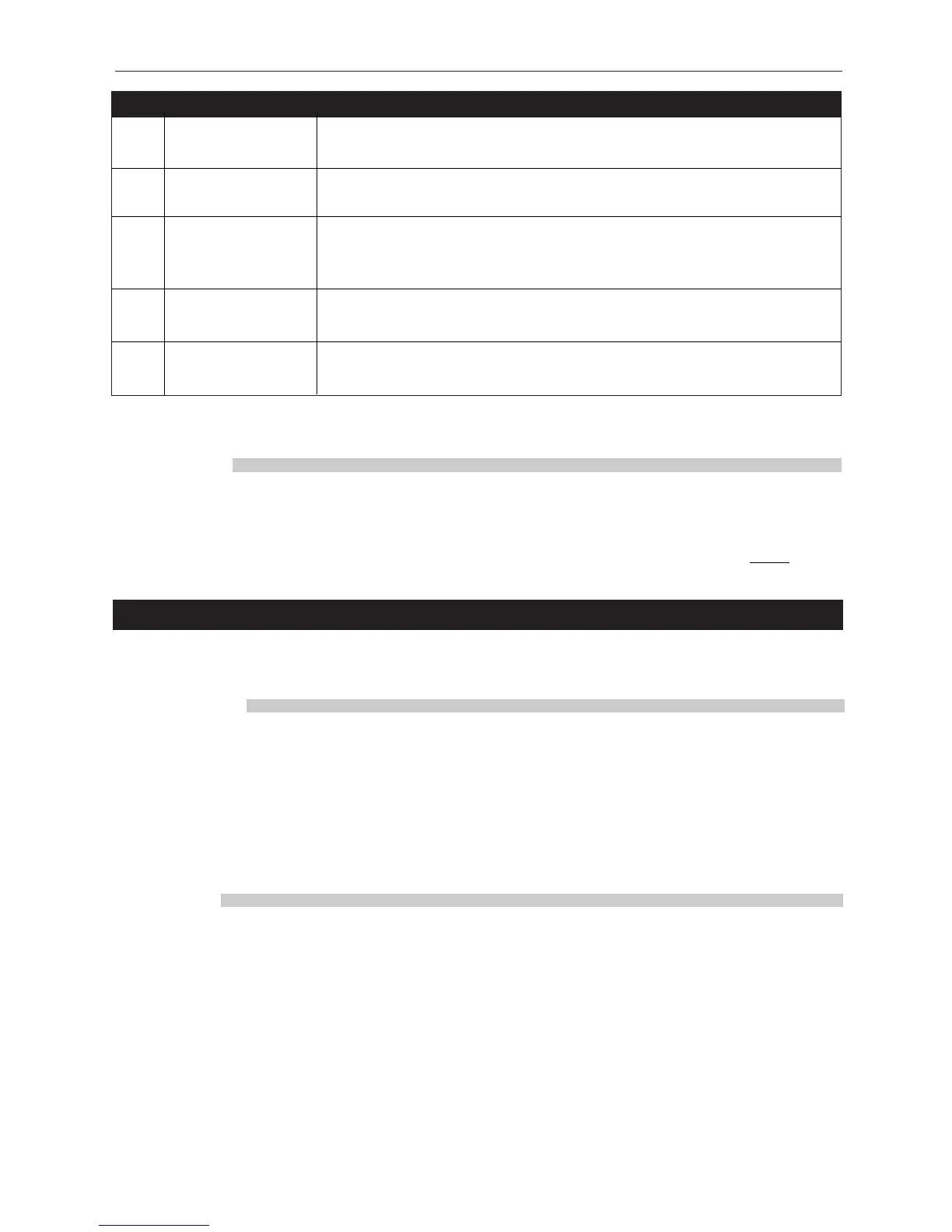
Option Description
2 Activate O/P 2 The general-purpose output OP2 is activated for its programmed
duration when users in this group are granted access.
3 Activate O/P 3 The general-purpose output OP3 is activated for its programmed
duration when users in this group are granted access.
TToggle Relay When the user is granted access, the relay is toggled so the door
will remain permanently open until the next time the card or
token is read.
XAuxiliary Door On ACT1000 only, if the auxiliary door has been enabled, only
groups with this option selected are allowed access.
BTrack Bypass On ACT2000 only, if tracking bypass is enabled, then users in
this group are always allowed access through antipassback doors.
Note: The options assigned to an individual user operate in addition to those assigned to the
group.
ASSIGN PINS
The Assign PINs function allows a different PIN to be assigned to each group of users. Initially, the
PIN will be unset. Pressing the
✔
key will prompt for the PIN for the displayed group to be entered
(it will not be displayed). The PIN must then be re-entered for verification. The PIN will be accepted
as long as it does not conflict with any existing PIN (or duress PIN). The actual PIN is ne
ver shown
on the display. If set, a PIN directly assigned to a user will take priority over this PIN.
System Log
The System Log menu allows the operator to view events in the historical event log, and to request
a printout of the entire log.
DISPLAY LOG
The Display Log function allows the operator to view events in the historical log directly on the
LCD display. When this option is selected, the latest event in the log is displayed with the time
and date on the top line of the display, and the event details being scrolled across the bottom line.
Each log event will be displayed in turn (stepping backwards in time) until the end of the log is
reached. Pressing the 0 key advances immediately to the previous event without waiting for it to
be displayed. Pressing the ✔ key locks the current event on the display until ✔ is pressed again.
Pressing the ✘ key exits from the display log function.
PRINT LOG
The Print Log function allows the user to request the immediate printing of the entire system log
on an attached serial printer. If real-time log printing is enabled, new events will be buffered until
the complete log print is completed. Note that selection of this function only starts the log printing,
and this may take a few minutes to complete. The display will indicate that printing has
commenced, and return to the previous menu. If this function is re-selected before the log has been
completely printed, then the option to stop the printout is given.


 To Next Page