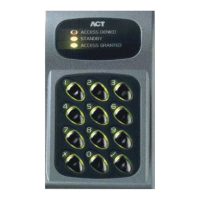
ACT1000/2000 Operating Instructions Software Version 4.00-00
10
Time Zones
A timezone is a combination of times and days. Timezones are part of the group configuration,
and provide the times and days when users assigned to a group may have access.
As an example: In a manufacturing environment, production workers are allowed access Monday
to Thursday from 8.30 to 17.00, and on Friday from 8.30 to 15.00 only. To grant access to the
workers at these times only, the times and days would be set up in a timezone, and then group
would be configured with this timezone using the Access Rights menu. Users assigned to this
group would only have access at the specified times and days.
Each timezone consists of up to five periods of time and a corresponding combination of assigned
weekdays or holidays. The timezone is in force during the hours specified in an
y of the five time
periods, but only on the days specified for that period.
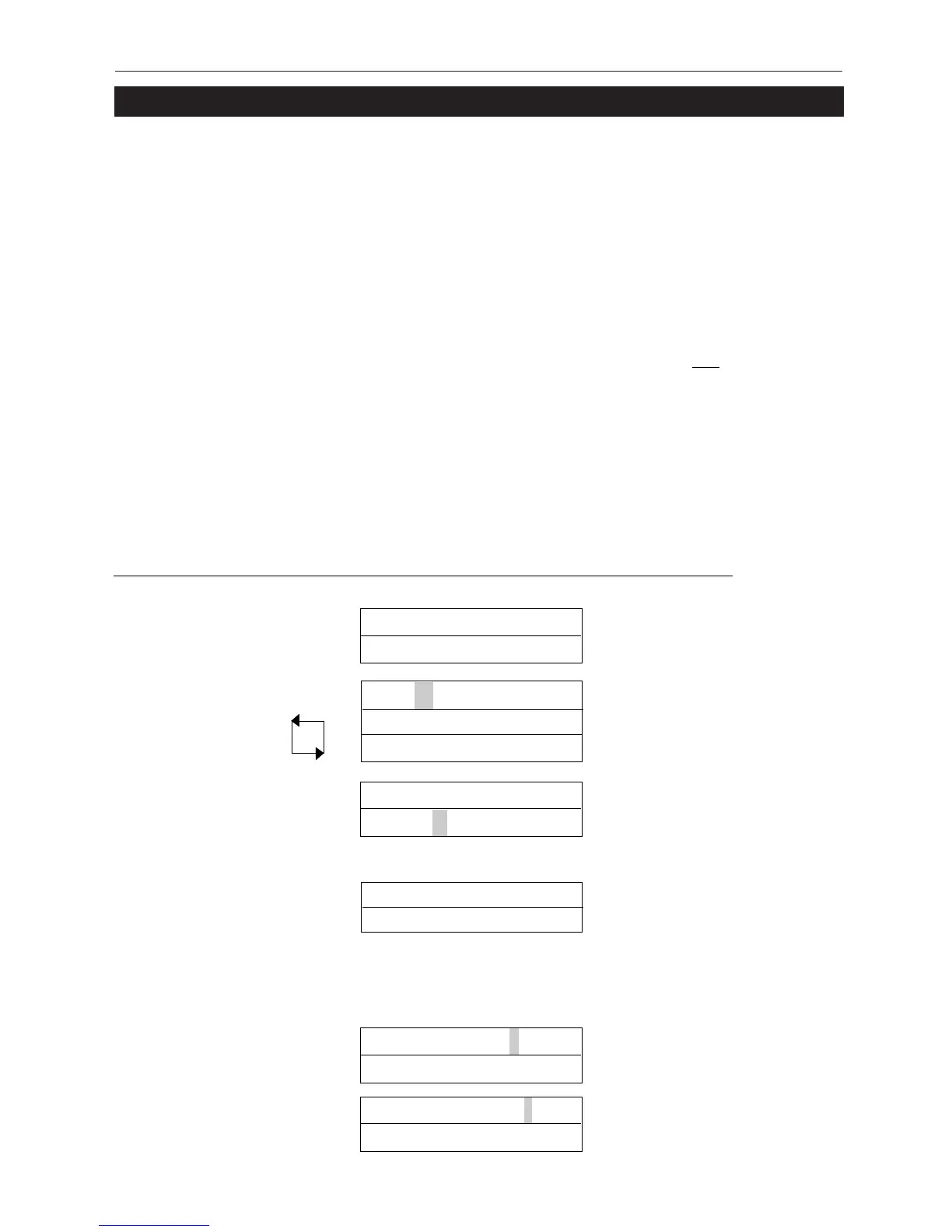
The current timezone number will be displayed on the top line of the display. The desired
timezone may be selected using the 0 key or directly by entering the timezone number. The lower
line on the display will indicate if that timezone is active or inactive. Pressing the ✔ key allows
the timezone to be edited. In edit mode, the top line of the display shows the available periods in
the form ABCDE * -. The 0 key allows one of the five periods to be selected and pressing ✔
allows the period to be set.
Note:
Timezones are also used by Timed Actions, which are part of Door Settings.
3) Changing days/holidays Wednesday 0 for next day/holiday
[TWTF---1—4]
✔ to select/deselect
✘ when done
4) Changing time period Period 0-9 to set time
08:30 -> 17:00 ✔ for next minute/hour
✘ when done
1) Select Timezone Timezone 3 0 for next timezone
Inactive
✔ to edit timezone
2) Select period A B C D E + - 0 for next period
Week Days ✔ to edit period
08:30 -> 17:00
▼
▼
5) Assigning timezone name A B C D E * - ✔ to assign name
Assign name?
6) Clearing a timezone A B C D E * - ✔ to clear timezone
Clear?
In addition, the timezone may be assigned a name or all time periods cleared quickly by
highlighting and selecting the * or - symbols respectively:


 To Next Page