Using The Scan Tool
3 – 24 • • • • • • • • • • • • • • • • • • • • • • • • • • • • • • • • • • • • • • • • • • • • • • • • • • • • • • •
Connecting The Scan Tool
To diagnose a vehicle, connect the DLC cable to the vehicle’s DLC.
Refer to “Data Link Connector (DLC)” on page 2-8 of Getting
Started.
If you just want to power up the tool to do self-tests, code lookup, review
or printing data from the last vehicle tested, then you do not need to
attach the cable to the DLC. The internal battery provides power for this
.
✓ For more information on OBD II connectors, go to
http://www.obdclearinghouse.com/oemdb.
Vehicle Selection
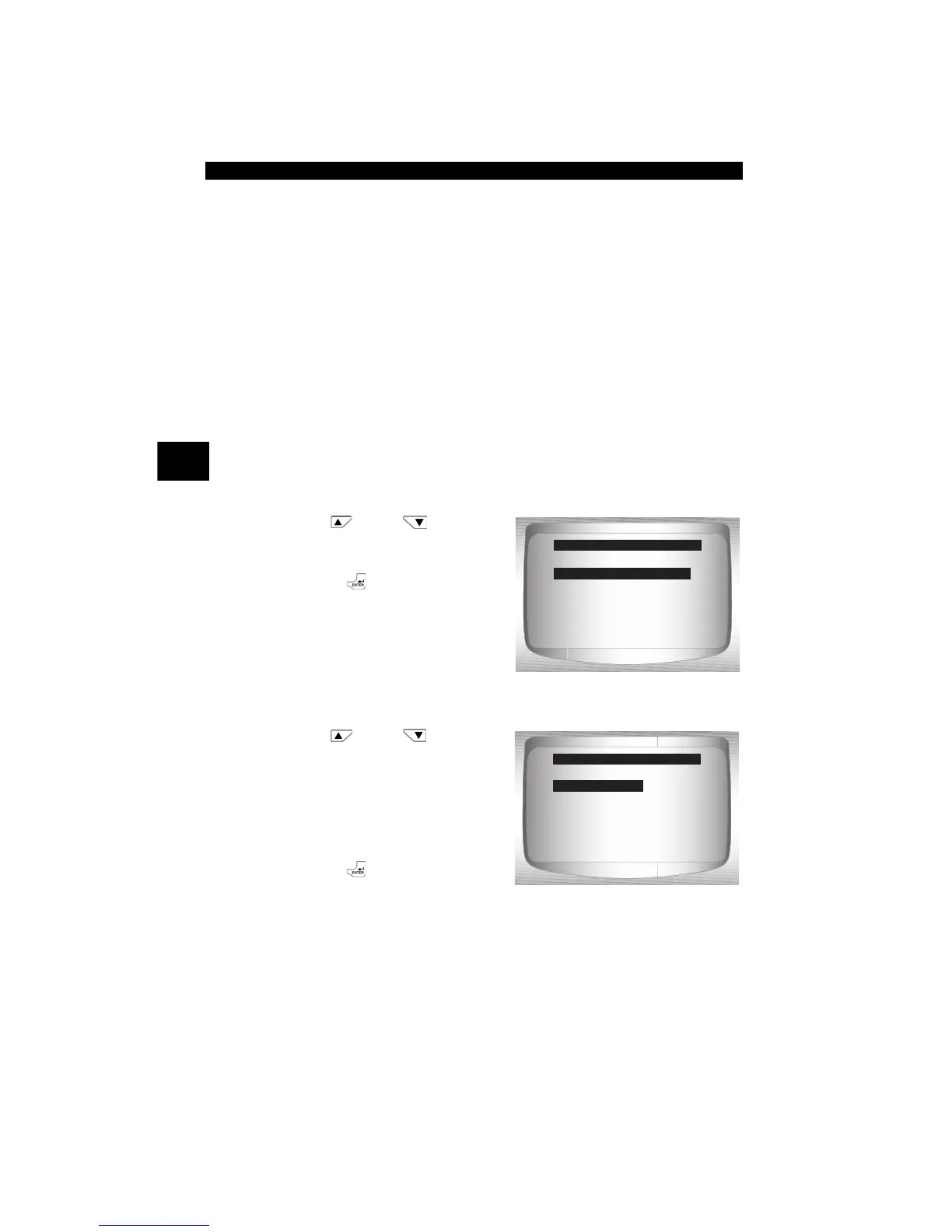
From Main Menu:
1.Select Vehicle Diagnostics.
•Use
UP
or
DOWN
arrow key until Vehicle
Diagnostics is highlighted.
•Press
ENTER.
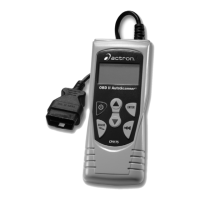
2.Select appropriate region for vehicle.
•Use
UP
or
DOWN
arrow key to highlight:
❒ Global OBD II
❒ Domestic Vehicles
❒ European Vehicles
❒ Asian Vehicles
❒ Previous Vehicle
•Press ENTER.
✓ The Global OBD II selection is provided for vehicles that are not listed.
It is a good idea to always select your specific vehicle when listed to
get the most benefit from your tool.
✓ If you have previously selected a vehicle it will appear as a menu
selection after Asian vehicles. On the screen shown, the 2003
Corvette is the previous vehicle.
=====================
Vehicle Diagnostics
Review Data
Print Data
System Setup
Main Menu
Vehicle Diagnostics
=====================
Global OBD II
Domestic Vehicles
European Vehicles
Asian Vehicles
03 Corvette
Vehicle?
Global OBD II


 To Next Page