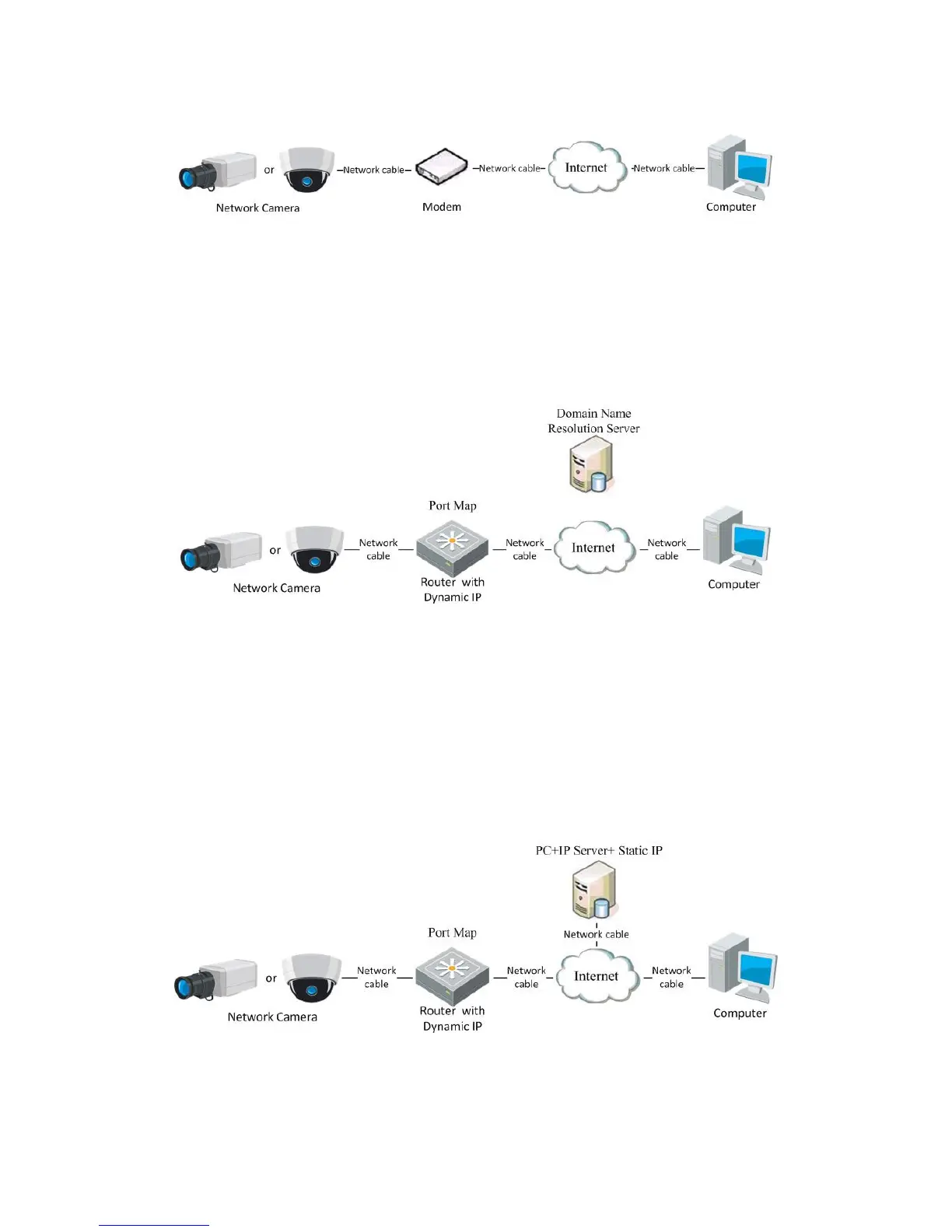
Configuring PPPoE Settings for detailed configuration.
Figure 2-6
Accessing the Camera with Dynamic IP
Note: The obtained IP address is dynamically assigned via PPPoE, so the IP address
always changes after rebooting the camera. To solve the inconvenience of the
dynamic IP, you need to get a domain name from the DDNS provider (E.g.
DynDns.com). Please follow below steps for normal domain name resolution and
private domain name resolution to solve the problem.
Normal Domain Name Resolution
Figure 2-7
Normal Domain Name Resolution
Steps:
1. Apply a domain name from a domain name provider.
2. Configure the DDNS settings in the DDNS Settings interface of the network
camera. Refer to Section 5.3.4 Configuring DDNS Settings for detailed
configuration.
3. Visit the camera via the applied domain name.
Private Domain Name Resolution
Figure 2-8
Private Domain Name Resolution
Steps:
1. Install and run the IP Server software in a computer with a static IP.


 To Next Page