6.1 Configuring NAS Settings
Before you start:
The network disk should be available within the network and properly configured to
store the recorded files, log files, etc.
Steps:
1. Add the network disk
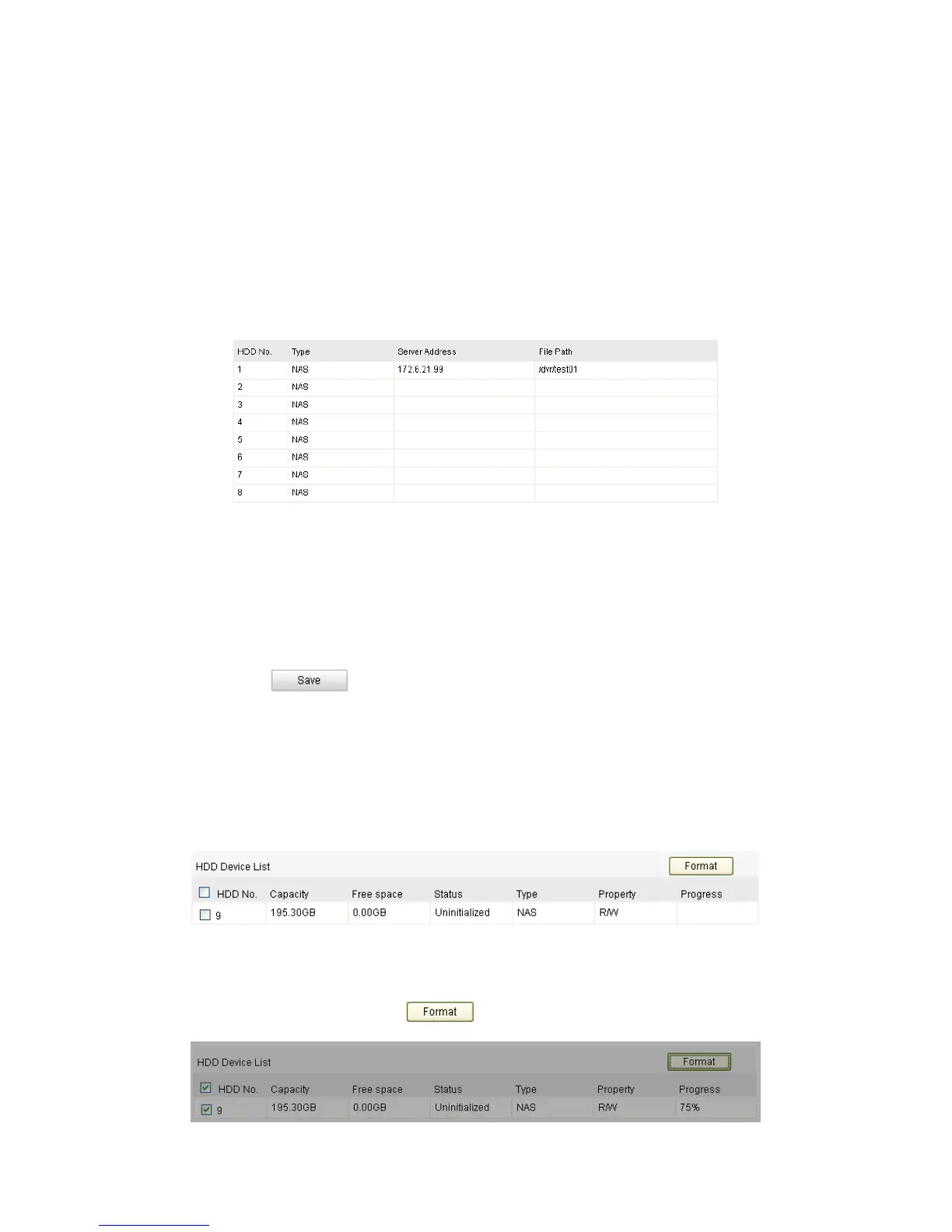
(1) Enter the NAS (Network-Attached Storage) Settings interface:
Configuration > Advanced Configuration > Storage > NAS
Figure 6-1
Add Network Disk
(2) Enter the IP address of the network disk, and the default file path is
/dvr/share.
Note: The network disk file path name share is user-defined while creating the
DVR network storage. Please refer to the User Manual of NAS for creating the file
path.
(3) Click to add the network disk.
Note: After having saved successfully, you need to reboot the camera to activate
the settings.
2. Initialize the added network disk.
(1) Enter the HDD Settings interface (Advanced Configuration > Storage >
Storage Management), in which you can view the capacity, free space, status,
type and property of the disk.
Figure 6-2
Initialize Disk
(2) If the status of the disk is Uninitialized, check the corresponding checkbox to
select the disk and click to start initializing the disk.


 To Next Page