Click the zoom/iris/focus buttons to realize lens control.
Notes:
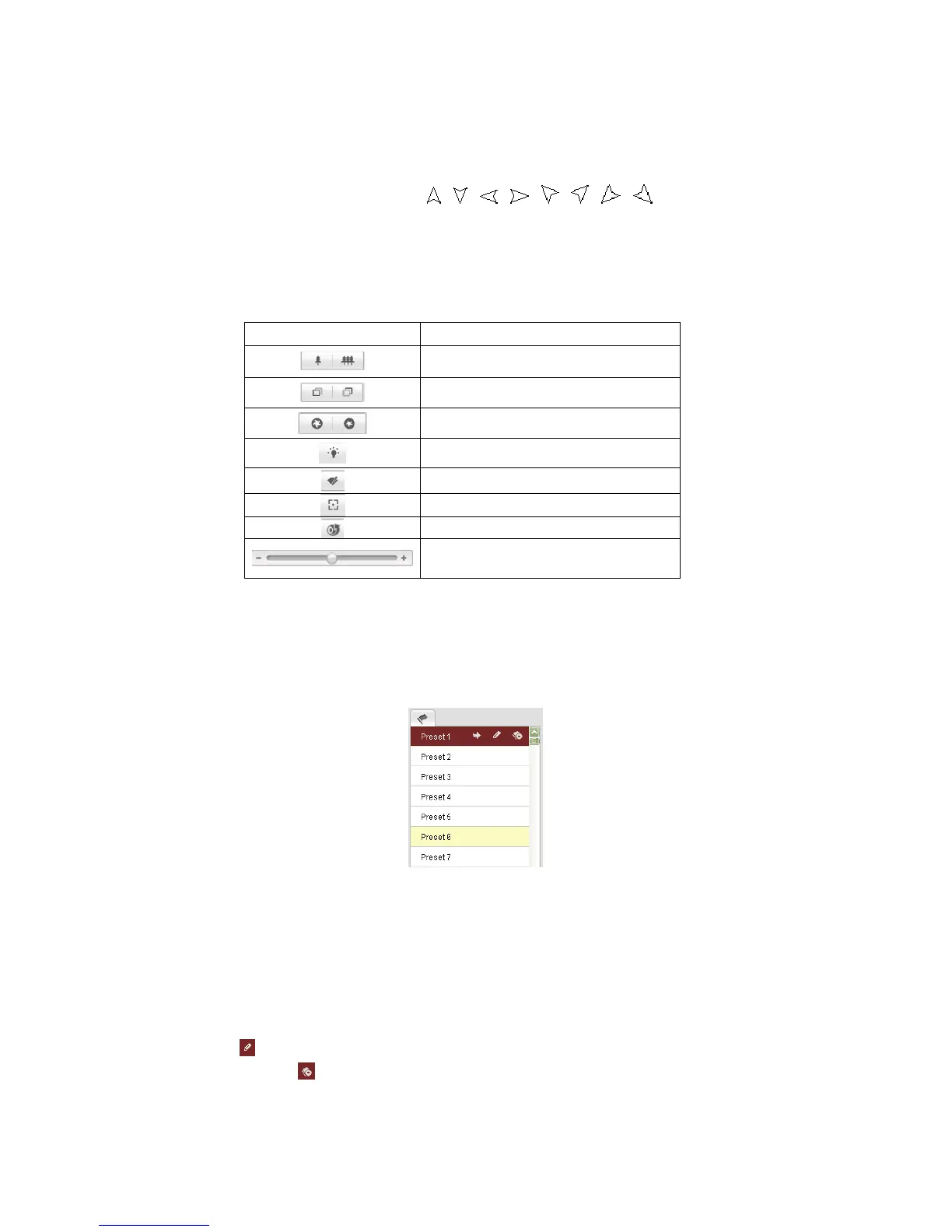
There are 8 direction arrows ( , , , , , , , ) in the live view
window when you click and drag the mouse in the relative positions.
For the cameras which support lens movements only, the direction buttons are
invalid.
Table 4-2
Descriptions of PTZ Control Panel
Button Description
Zoom in/out
Focus near/far
Iris open/close
Light on/off
Wiper on/off
One-touch focus
Initialize lens
Adjust speed of pan/tilt movements
4.4.2 Setting / Calling a Preset
Setting a Preset:
1. In the PTZ control panel, select a preset number from the preset list.
Figure 4-4
Setting a Preset
2. Use the PTZ control buttons to move the lens to the desired position.
• Pan the camera to the right or left.
• Tilt the camera up or down.
• Zoom in or out.
• Refocus the lens.
3. Click to finish the setting of the current preset.
4. You can click to delete the preset.
Note: You can configure up to 128 presets.


 To Next Page