8
CONNECTING
The AGD 650 Dual Zone Stop-line Detector has been designed with eiciency and ease of use in mind. It can be set
up simply by connecting to it by WiFi and using a browser window. No additional soware needs to be installed.
This step-through process describes the actions required to set up the detector upon initial deployment when
first removed from the box.
CONNECTING WIFI
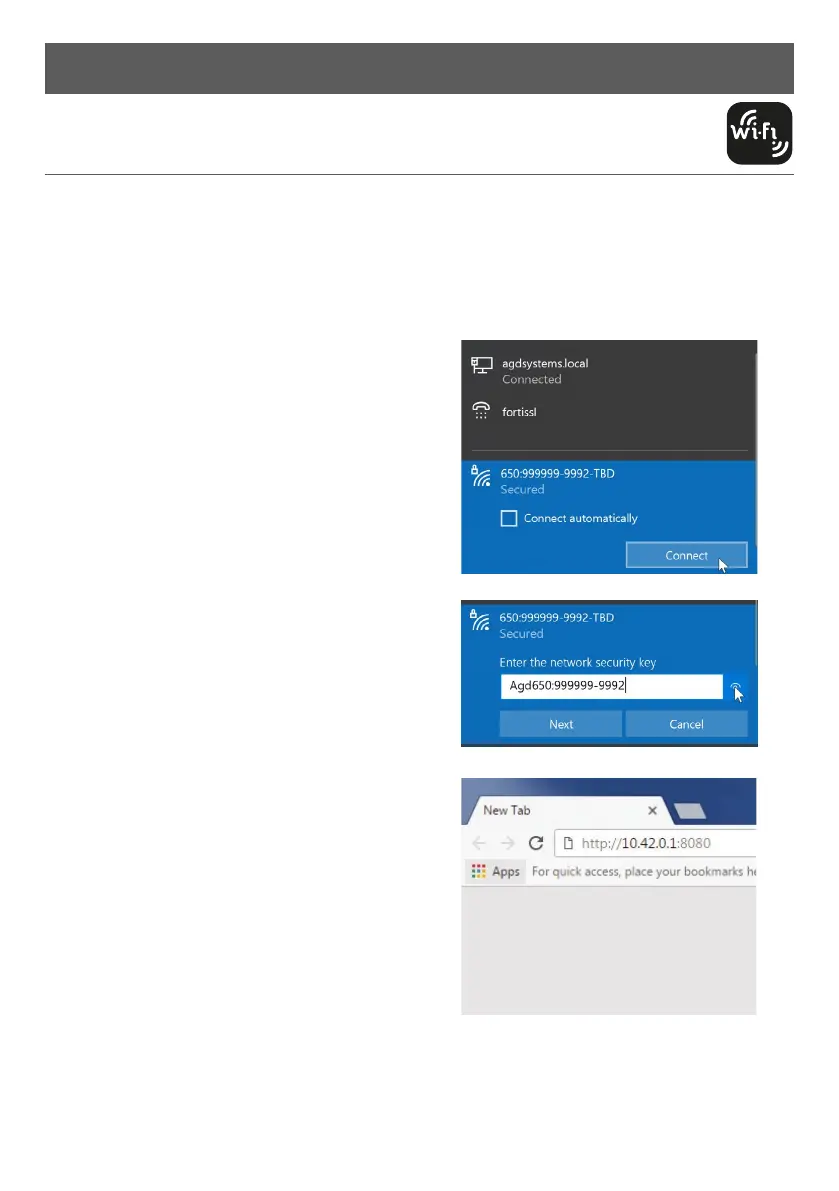
Check the red LED has illuminated and flashed 5 times on
the rear of the unit. Search for the unit and identify it by
its serial number (SN):
650:XXXXXX-XXXX-TBD (the ‘X’ denotes the S/N, TBD is a
renamable field used to name the pole location the 650 is
installed on)
Click ‘connect’ and input the default password:
Agd650:XXXXXX-XXXX (the ‘X’ denotes the S/N)
AGD Systems recommend you change the password via
STEP 1 of the 3-click touch set-up process.
The LED on the front of the unit should now be
illuminated blue to show WiFi is successfully connected
and your device should show connected.
CONNECTING DEVICE
Complete Wifi connection step as above.
Launch a browser on your smartphone, tablet or laptop
(Modern versions of Google Chrome, Safari, Firefox and
Microso Edge are all supported).
In the address bar of your browser, enter the ‘IP Address’:
http://10.42.0.1:8080
You will be presented with your initial AGD
Touch-setup page.
Installation and Commissioning


 To Next Page