71
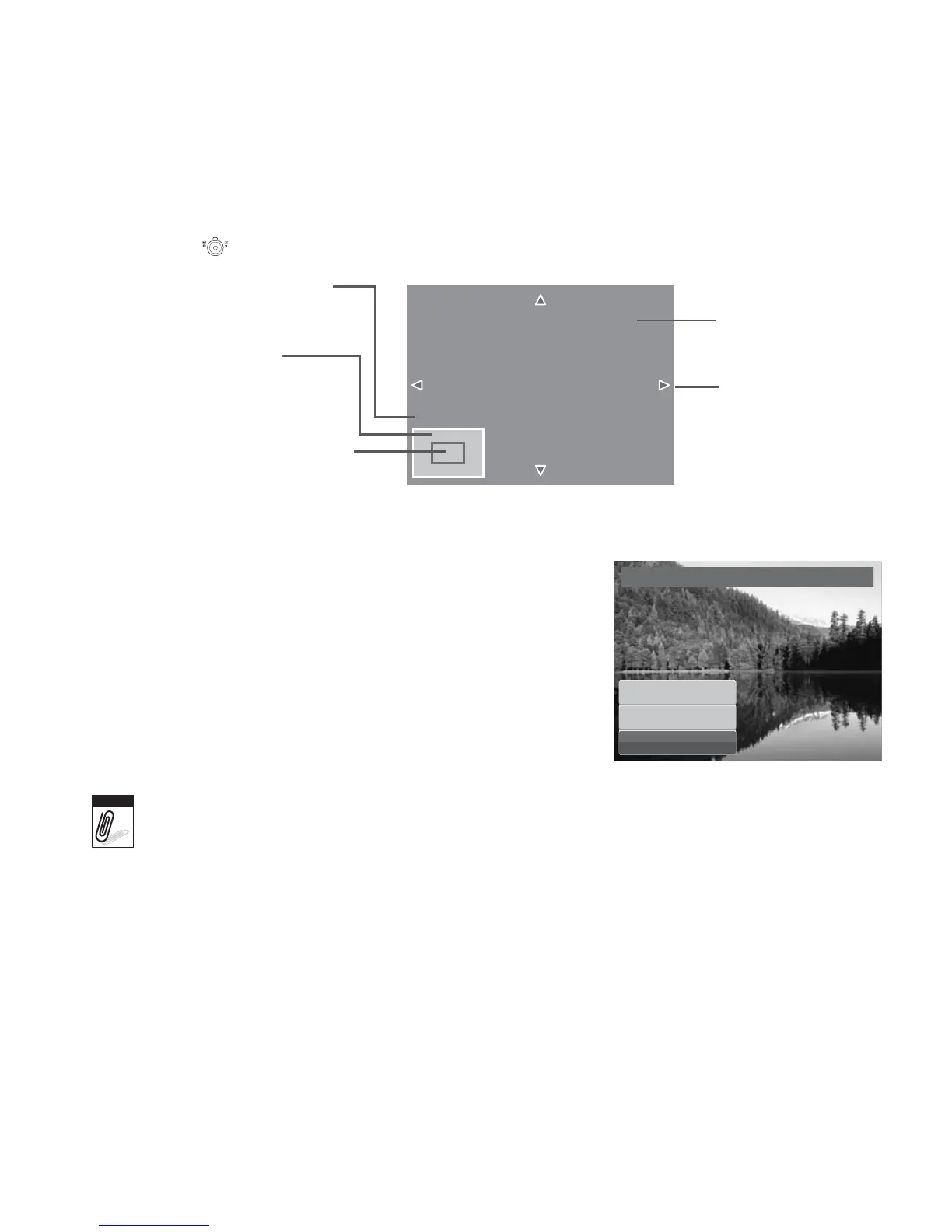
4. Select Trim. The Trim screen layout is displayed on the LCD monitor.
5. Use the control to change size.
6. Use the navigation controls to move the image.
7. Press the SET button to apply changes. A menu
selection appears.
8. Select whether to:
• Overwrite. Save and replace the old file with
the new one.
• Save As. Save the new file as a new one.
• Cancel. Cancel resize.
9. Press the SET button to save/cancel changes.
• Trim function is not available for photos with image size set to 3:2, 16:9, and VGA.
• All images will be trimmed in 4:3 ratio regardless of its original image ratio.
SET: 5M
SET: 5M
Shows the approximate location
of the displayed area.
Current image size.
4-way indicator.
Enlarged image.
Display area.
Trim
Overwrite
Save As
Cancel
Note




 To Next Page