- 13 –
7 Evaluate measured values in AMR
WinControl
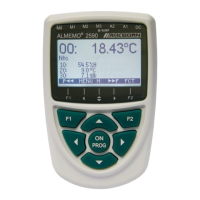
7.1 Connecting the ALMEMO
®
measuring device to the
AMR WinControl software
! The AMR WinControl software must be installed on the PC and have at least
software version WC3.
! The AMR WinControl climatic chamber calibration assistant must be
installed.
! The ALMEMO
®
measuring device must be switched on.
1. Connect the ALMEMO
®
measuring device to the PC (e.g. via the ALMEMO
®
USB data cable).
2. Open the device manager of the PC.
You can call up the Device Manager by simultaneously tapping the
Windows key and R on the PC keyboard and typing
devmgmt.msc
in the dialog box that opens and then pressing the Enter key.
The Device Manager dialog box opens.
3. Click on the arrow next to
Connections (COM & LPT).
4. Read the number of the COM port after
Silicon Labs.
5. Open the AMR WinControl software.
6. Enter the activation code that you receive from akrobit
®
software GmbH.
7. Click on
Start software.
8. Click on
Settings.
9. Click on Add connection.
10. Click on Network (for WLAN or Ethernet) or COM Port (for USB)
depending on the connection type.
11. Click on the corresponding COM port number for the COM port connection
type.



 To Next Page
 Loading...