13
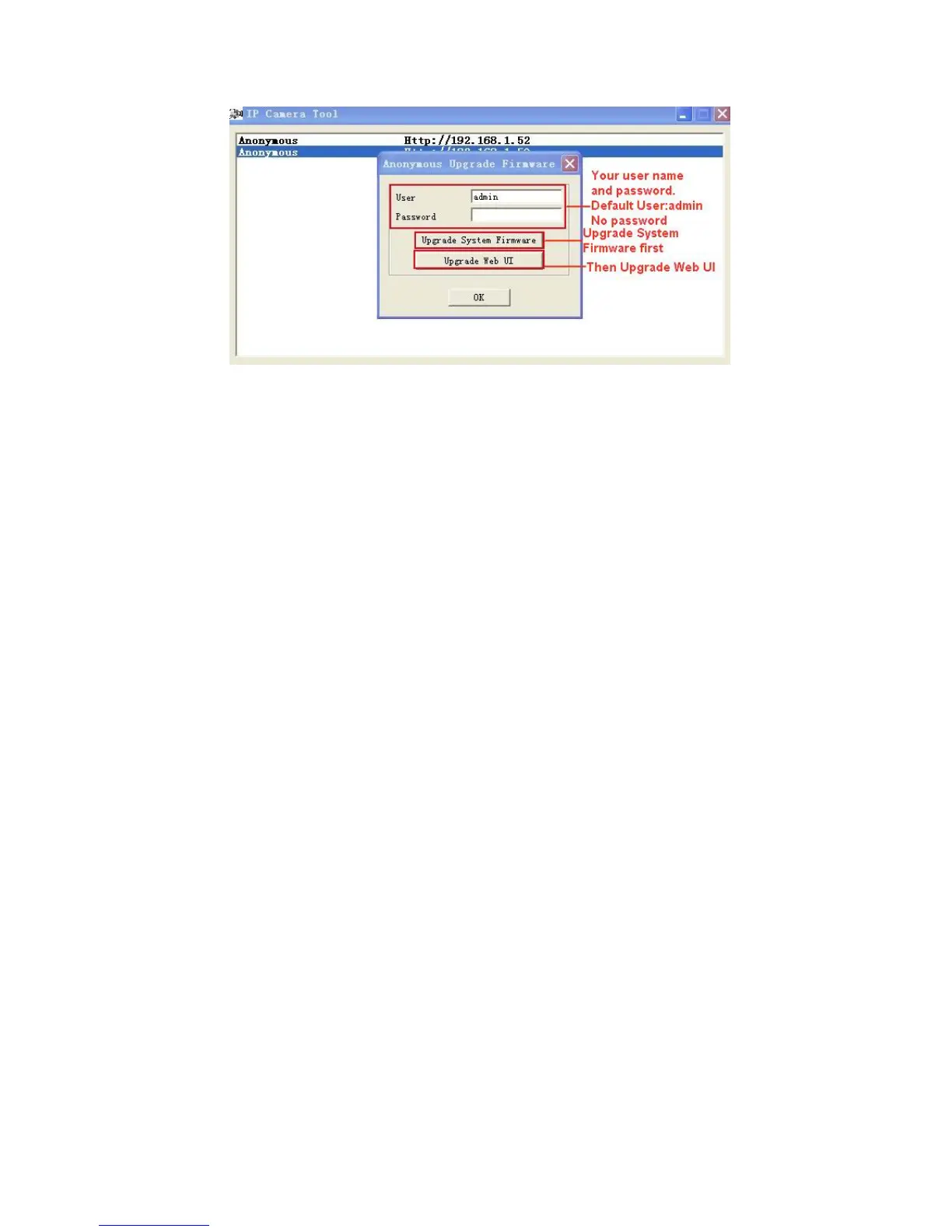
Fig
ure 2.4
Please download the firmware package for the correct type of your camera before you upgrade.
Follow the upgrade document carefully to upgrade. Please see readme file first before you upgrade.
CAUTION: You should not upgrade the firmware unnecessarily. It is possible to damage the camera if a
mistake is made during the upgrade. If your camera works well with the current firmware, we recommend that
you don’t upgrade it.
NOTE: When doing an upgrade, remember you must keep the power on, and it’s best to use wired mode,
connected via the network cable.
2.1.1.4 Refresh Camera List
Refresh camera list manually.
2.1.1.5 Flush Arp Buffer
When cable network and wireless network of the device are fixed IP address, you may encounter a problem
where you can search the camera IP but can’t open the camera web page. In this case use Flush Arp Buffer.
2.1.1.6 About IP Camera Tool
Check the IP Camera Tool Version and IP Camera ActiveX Control Version here.
2.2 Camera Login
You can access the camera through IP Camera Tool or IE, Firefox, Safari, Google Chrome or other standard
browser directly.
1.
Double click the IP address of the IP Camera listed (Figure 1.9). The default browser you use will ru
n
aut
omatically and go to the camera login interface. (Figure 2.6).
2.
To access the camera by IE Browser directly, just type the camera’s IP address, for example, if th
e
c
amera’s IP address is 192.168.1.123:



 To Next Page