22
Rate and Resolution:
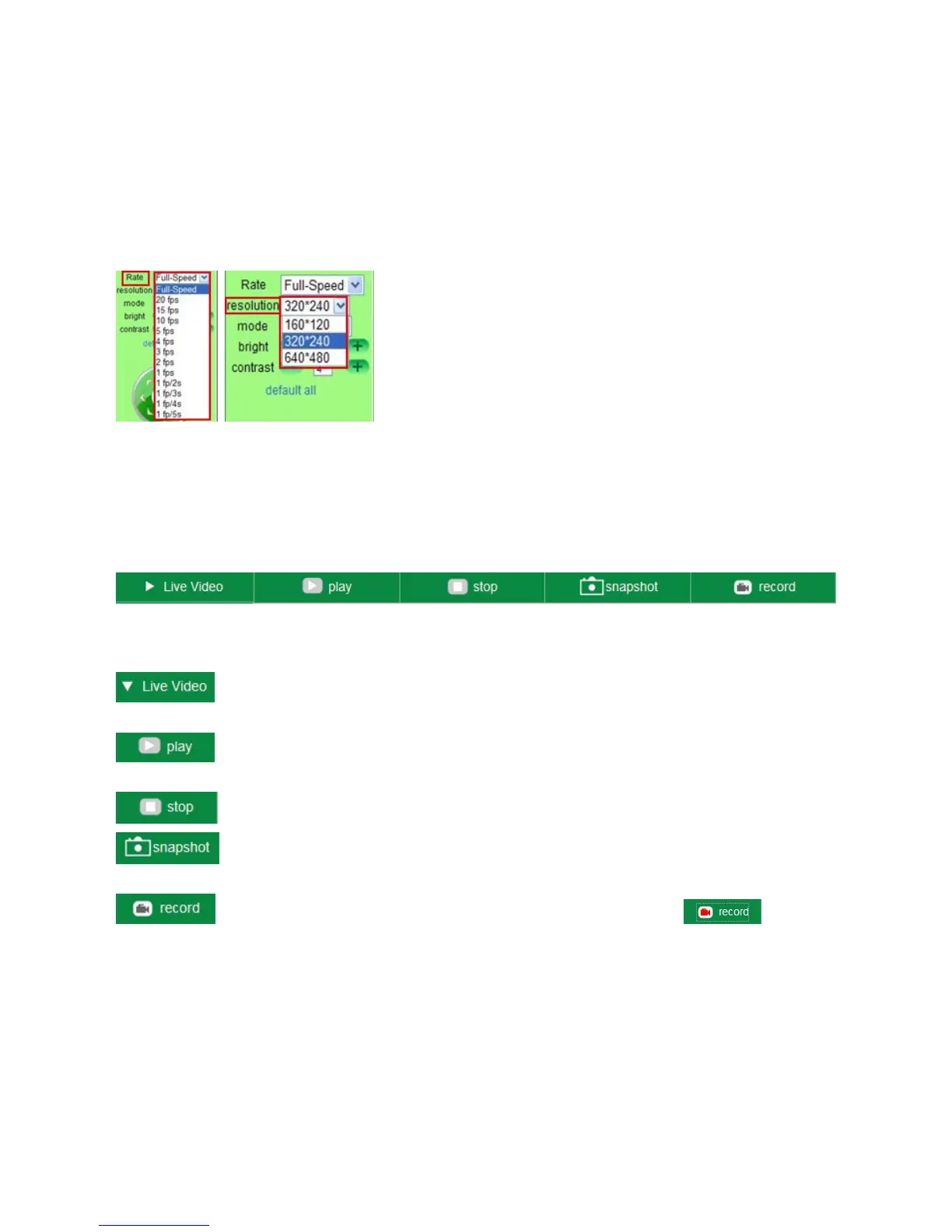
Rate: Set video frame here, from “full-speed to 1fp/5s”. (Figure 3.9)
Resolution: Set the resolution to be 160*120, VGA(640*480), QVGA (320*240). (Figure 4.0).
NOTE: When doing recording, Rate and Resolution parameter settings is very helpful for getting small
size record files, the lower parameter to get the smaller file.
Figure 3.9 Figure 4.0
TOP Menu:
Figure 4.1
Click to get live video. When you want to get back to live video from other menus, just click it.
Only under live video, you can do the operation on the right side, such as play, stop, snapshot etc.
Click to get into play mode, when you click the stop icon, the video will be stopped, then if you
click the play icon, it will show the video again.
Click to stop the live video. You can click the play icon if you want to see live video again.
Click to get snapshot. It will show the date and time of the snapshot you get, if you save it, you
will find the snapshot file named by “snapshot_MAC ID_date_time”
.
Click to start recording manually, and the icon will change to red color click it
again, it will stop recording. The record file will be saved to the folder you set. (Figure 10.6 – Figure 10.9).
NOTE: For visitor, if you click other menus which visitors don’t have the right to operate, there will be a pop-up
for the login interface (Figure 2.6), please input the user name / password for at least 3 times to login again.



 To Next Page