Open serial port and start monitoring
First set the baud rate and serial port on the upper computer, then connect the BMS board with the RS232 / RS485
communication line, and then insert the USB interface of the communication line into the USB port of the computer. At
this time, the upper computer will automatically search the serial port and start monitoring. If the automatic search fails,
you need to manually select the newly connected serial port on the upper computer, then click button to
open the serial port, and then click button to start monitoring.
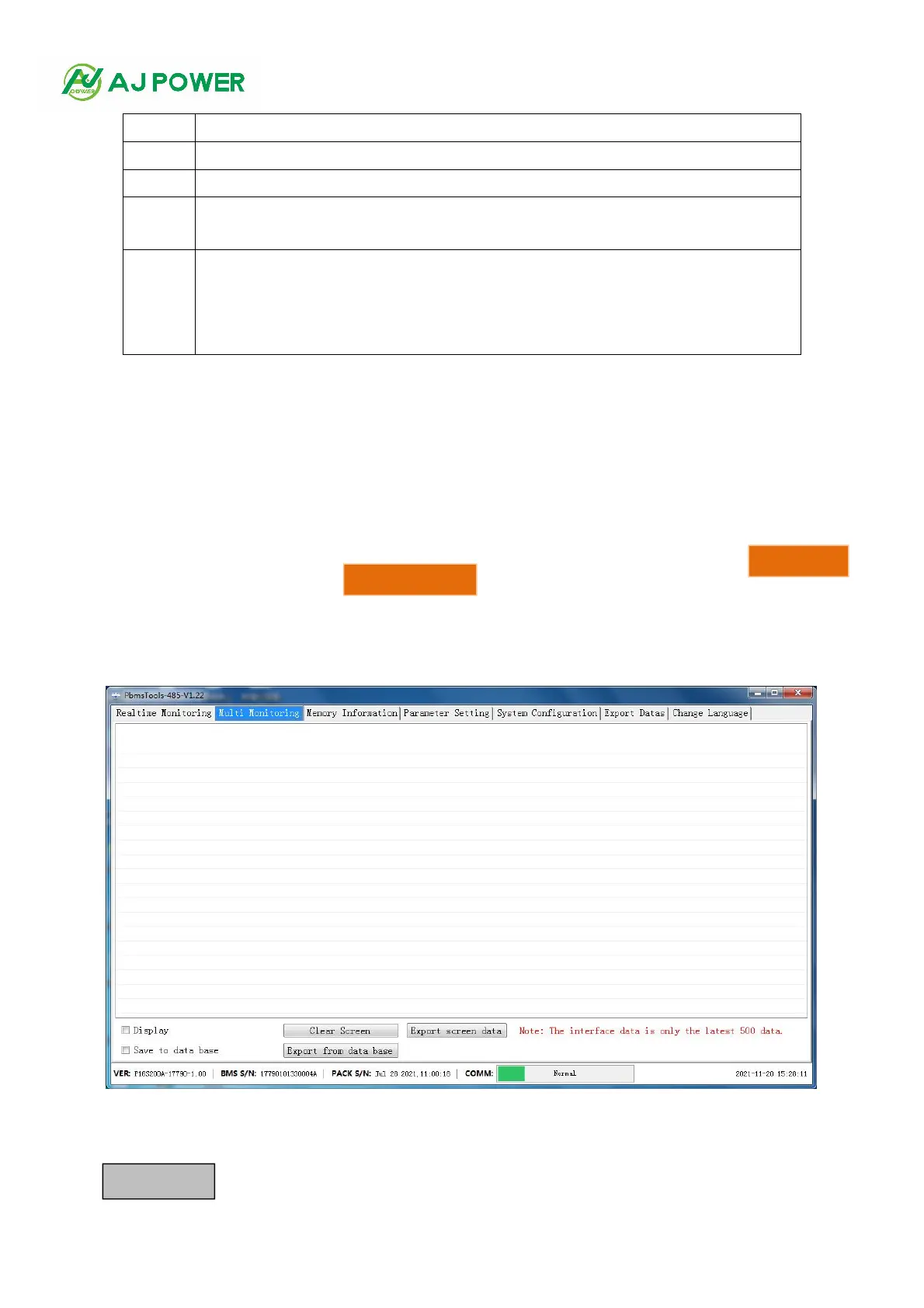
【Multi Monitoring】
Check
【
Display
】
at the bottom left to display the monitored real-time data in the data area. Note: there is data only
when the monitoring is started normally. If there is no data, please check whether the monitoring is normal.
Click button to clear the real-time data on the interface.
Version: software version number of BMS
Communication status: the communication status between the software and BMS board.
It is valid when monitoring is started and communication is normal
Administrator password column: some setting functions can only be used after entering
the administrator password, such as some functions in system settings. (Note: when the
password is entered correctly, the input box will turn green, and you have obtained the
permission of the administrator)



 To Next Page