16
3.4 Contacts..............................................
Contacts enables quick and easy access to the contact you want to reach.
You can view and create contacts on your phone and synchronize these
with your Gmail contacts or other applications on the web or on your phone.
To open Contacts, touch the Application tab from the Home screen,
then touch the Contacts icon. To create a new contact, touch
in the contacts list.
3.4.1 Consult your Contacts
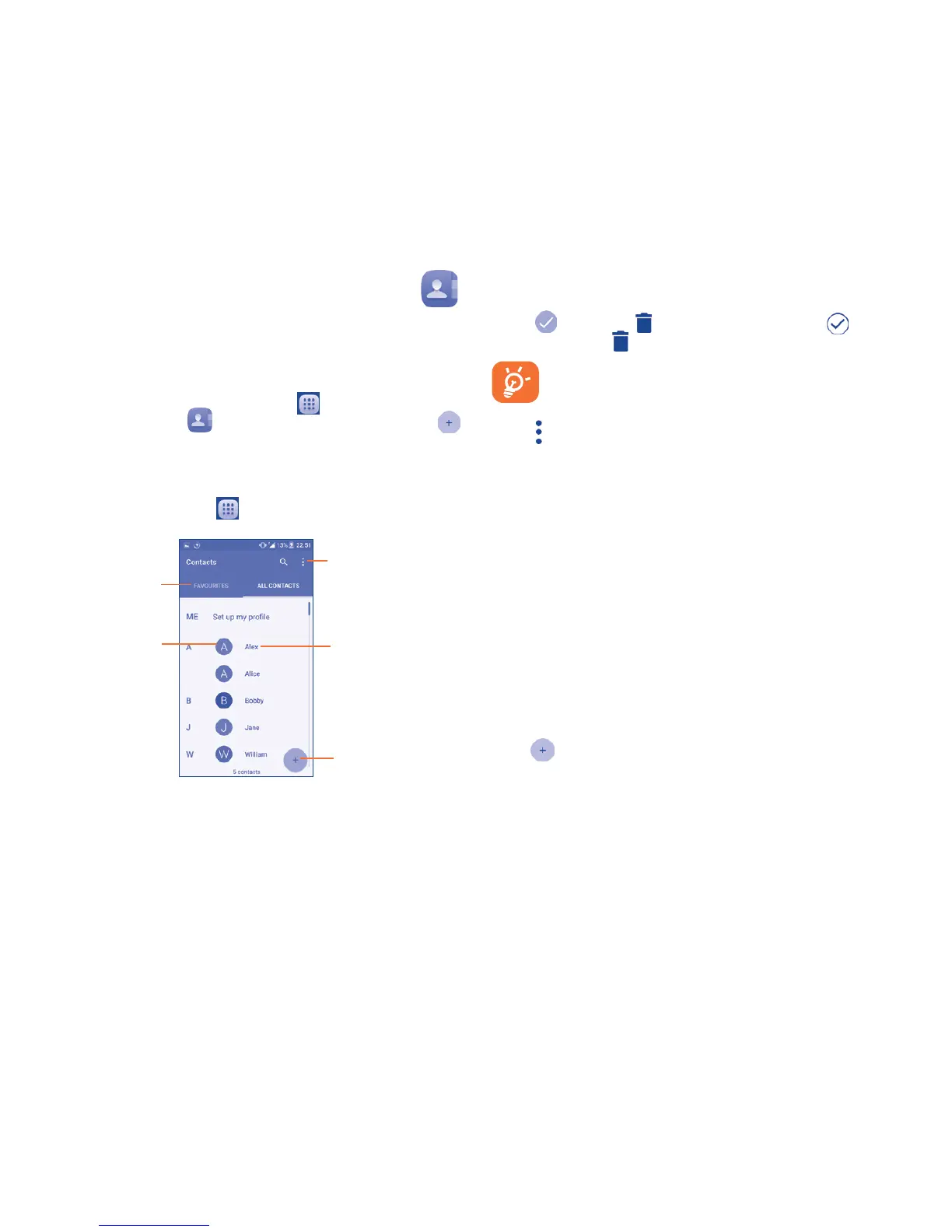
To access this feature, touch from the Home screen, then select
Contacts.
Touch name to open
Quick Contact panel.
Touch to select the
current contact or all
contacts to delete.
Touch to view your
favorite contacts.
Touch to search
in Contacts
Touch to add
new contact.
Delete a contact
To delete a contact, touch the contact you want to delete, the icon will
turn to , then touch and confirm to delete. Touch to select all
contacts, then touch and confirm to delete all contacts.
The contact you have deleted will also be removed from other
applications on the phone or web the next time you synchronize
your phone.
Touch to display the contacts list options menu. The following actions
are available:
• Contacts to
display
Choose contacts to display.
• Import/export Import or export contacts between phone, SIM card,
microSD card
(1)
and phone storage.
• Accounts Manage the synchronization settings for different
accounts.
• Settings Touch to change the display of the sort list and
contact names.
3.4.2 Adding a contact
Touch in the contact list to create a new contact.
You are required to enter the contact's name and other contact information.
By scrolling up and down the screen, you can move from one field to
another easily.



 To Next Page