35
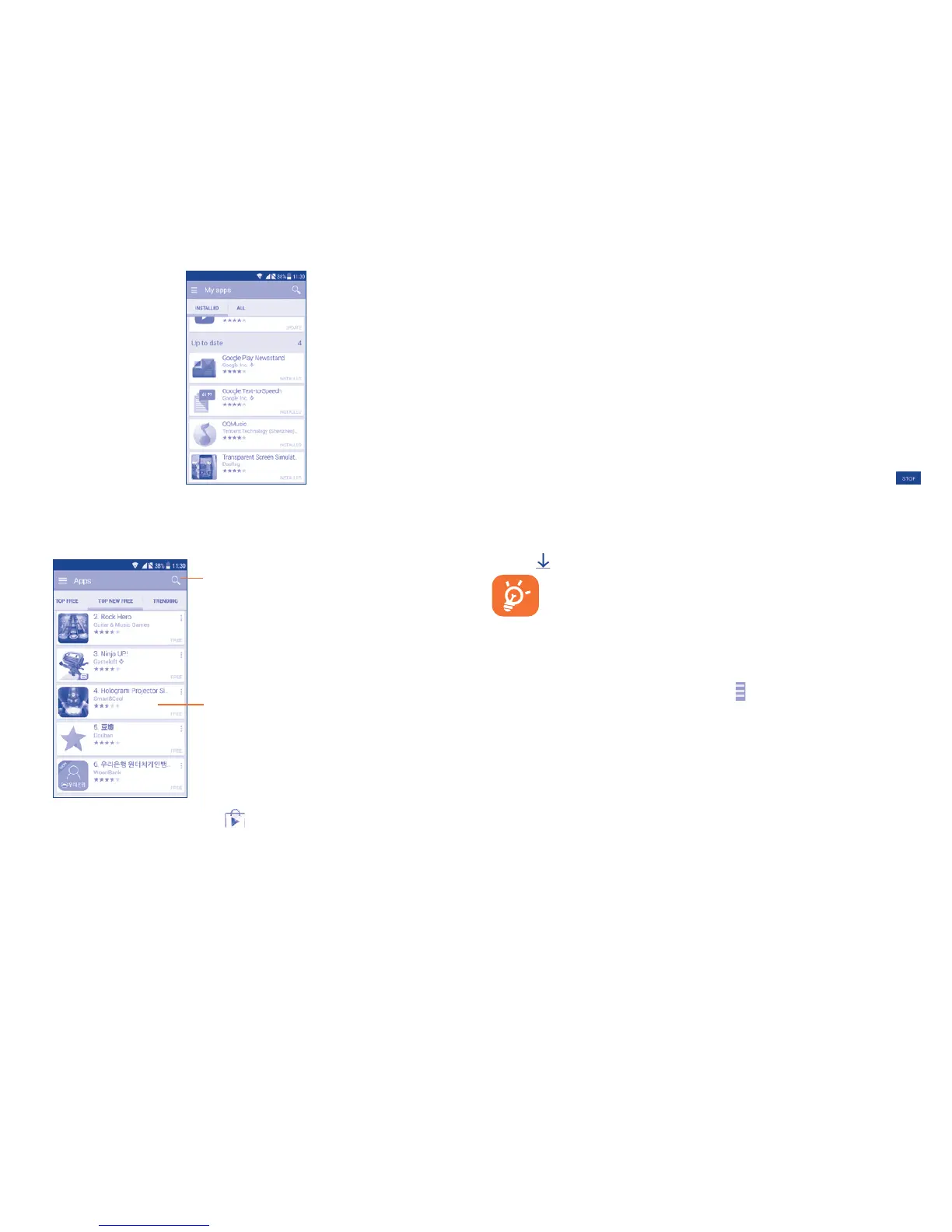
Touch a category on Google Play Store screen to browse its contents. You
can also select a subcategory if there is any. Within each category you can
select to view items sorted by Top free, Top new free and Trending, etc.
Touch to search in Play Store.
Slide left and right to see all categories.
Touch the Google Play Store icon on the top left of the screen or touch
the Back key to return to the previous screen.
7.2 Download and install
To download & install:
• Navigate to the item you want to download, and select to enter the
details screen from which you can read its description, overall rating or
comments, view developer’s information, etc.
• Touch Install to preview the functions and data the application can
access on your phone if you install it.
• Touch Accept.
• The progress of the download will show on the details screen, touch
to stop downloading the item. You can also access this screen through
the Notification panel.
• After download and installation have finished, you will see a notification
icon on the status bar.
Be especially cautious with applications that have access to
many functions or to a significant amount of your data. Once
you accept, you are responsible for the results of using this
item on your phone.
To open the application you have downloaded:
• On the Google Play Store screen, touch and My Apps.
• Touch the installed application in the list, then touch Open.
To buy an application
In Google Play Store, some applications are labelled as free, while some of
them are to be paid for before downloading and installing.
• Touch the application you want to buy.
• Touch the price on the upper-right of the screen to preview the functions
and data the application can access on your phone if you install it.
• Touch Continue to confirm.



 To Next Page