37
8
Multimedia applications ...
8.1 Camera/Camcorder............................
Your cell phone is fitted with a Camera and a Camcorder for taking photos
and shooting videos.
Before using the Camera or Camcorder, be sure to remove the protective
lens cover to avoid it affecting your picture quality.
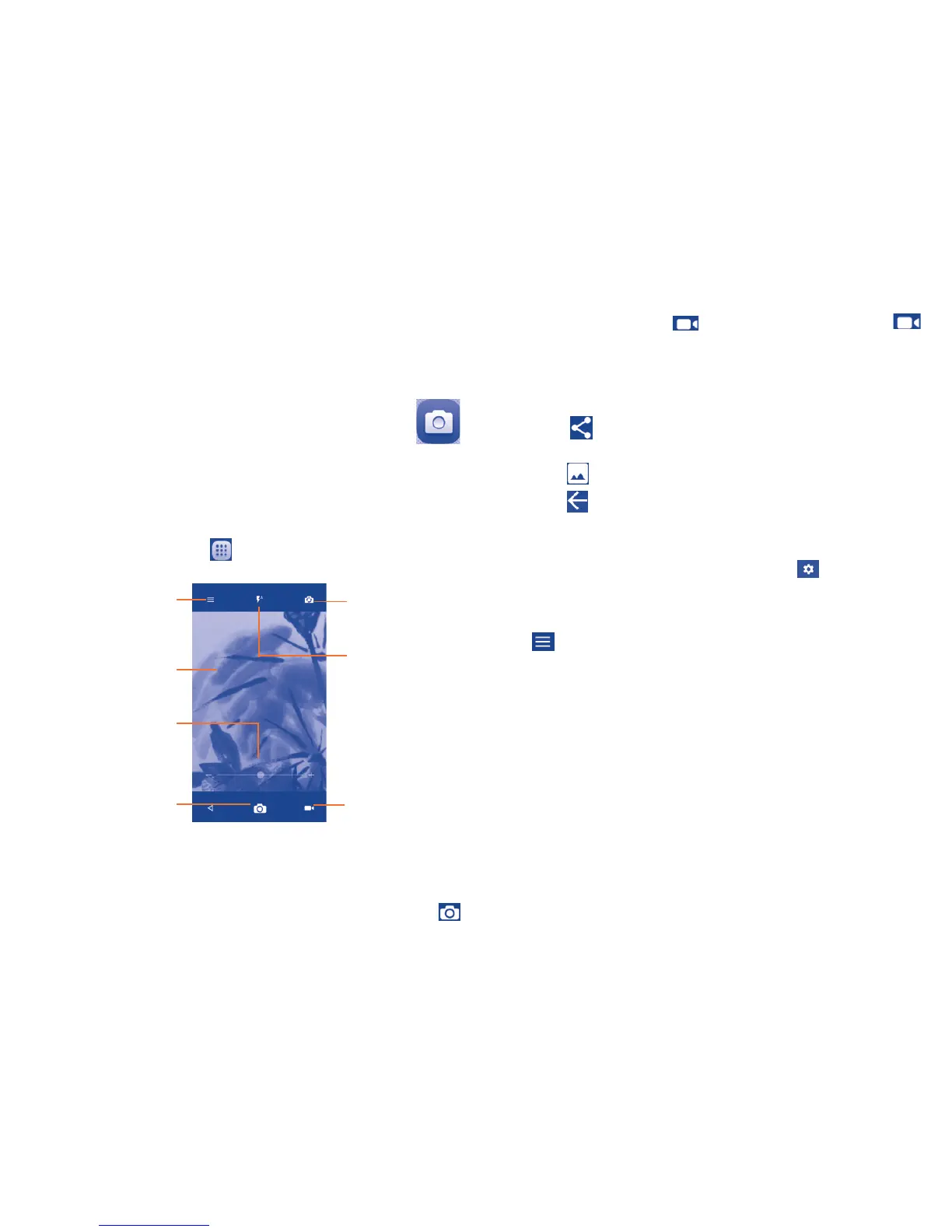
To access this function, touch from the Home screen and then touch
Camera.
Touch to select
modes and settings
Double touch then
drag or pinch/spread
two fingers together
to zoom in/out
Touch to switch
between front/
back camera
Touch to take a picture
Touch to switch
to Video mode
Touch the screen
to set a focus
Touch to select
flash mode
To take a picture
The screen acts as the viewfinder. First, position the object or landscape in
the viewfinder, touch the screen to focus if necessary and touch the
icon to take the picture which will be automatically saved.
To shoot a video
Switch Camera mode to Video mode. First, position the object or landscape
in the viewfinder and touch the icon to start recording. Touch the
icon to stop recording. The video will be automatically saved.
Further operations when viewing a picture/video you have taken
• Slide left to quick view the picture you taken.
• Touch the icon then use Gmail, Bluetooth, MMS, etc to share the
photo or video you have taken.
• Touch the icon to access the Gallery.
• Touch the icon to return to the Camera or Camcorder.
8.1.1 Settings in framing mode
Before taking a photo/shooting a video, touch the icon to adjust a
number of settings in framing mode.
Back camera shooting mode
Touch to access camera settings and the following options will be
available:
• Auto Mode Touch to turn on Auto Mode.
• Polaroid Touch to enable the Polaroid function.
• HDR Touch to turn on HDR (high-dynamic range) function.
HDR photos can better reflect the visual effects
people have in the real environment by synthesizing
images under different exposure time. The phone will
then automatically save the photo.
• Scanner Touch to scan QR codes.



 To Next Page