PODD – Installation, Operation and Maintenance Manual
A l e n c o n S y s t e m s L L C - P a g e | 22
7.6 Establishing a Network Connection
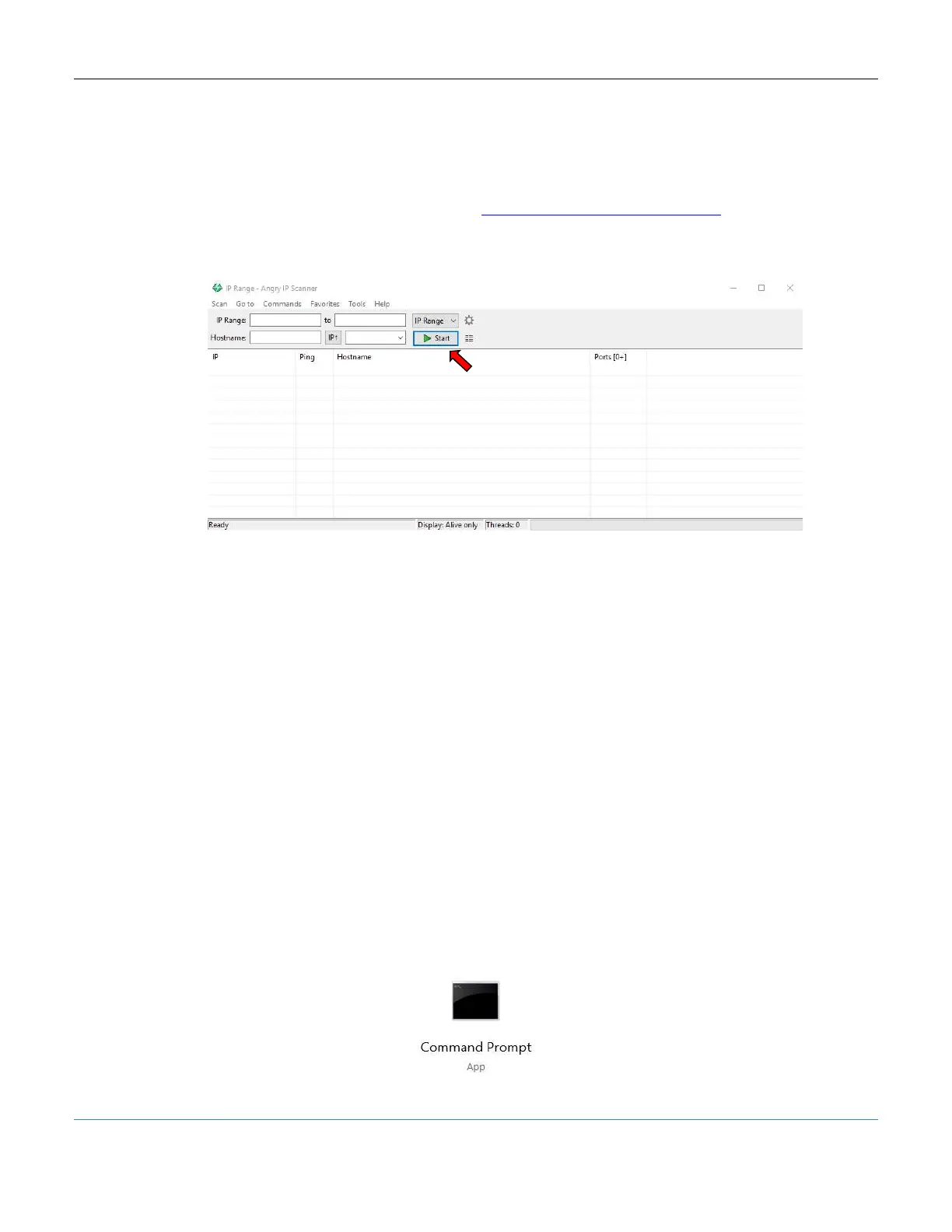
PODDs are accessed remotely over your local server using IPv4 addresses. For the initial
setup, download a network IP scanner of your choice. A recommended IP scanner is Angry
IP Scanner which can be downloaded from https://angryip.org/download/. Once installed
and opened, your local IP Range should automatically be set. Hit the start button to scan
your local network for PODDs.
Figure 18: Angry IP Scanner Interface
When a PODD is found, it will appear under the “Hostname” column as PODD-xxxx
where the ‘xxxx’ will be the last four digits of its serial number. Locate the IP address of
that PODD and type the IP address followed by :8888 (ex. 123.456.789.012:8888) into
the url bar of your favorite web browser. The PODD site should be accessible and the
PODD install complete.
NOTE: For Multi PODD Configuration, all PODDs must be powered on during setup and
the Centralized PODD must be set up first.
7.6.1 PODD Setup without Network Connection
Sometimes it is necessary to use a PODD without connecting it to a network, especially if
the PODD will be moved around and not be mounted to a specific row of Alencon
Devices. To establish a connection with a mobile laptop, connect the PODD’s WAN port
to the Ethernet port of the laptop. The next step is to find the IP address of the PODD
through the PC:
1. First open up the command prompt of your windows machine
Figure 19: Windows Command Prompt App



 To Next Page