STEP 8:POWERING ON THE STATTRAK-E
Here's how to power on the StatTrak-E once you're ready start collecting traffic data.
To power on the StatTrak-E:
A.
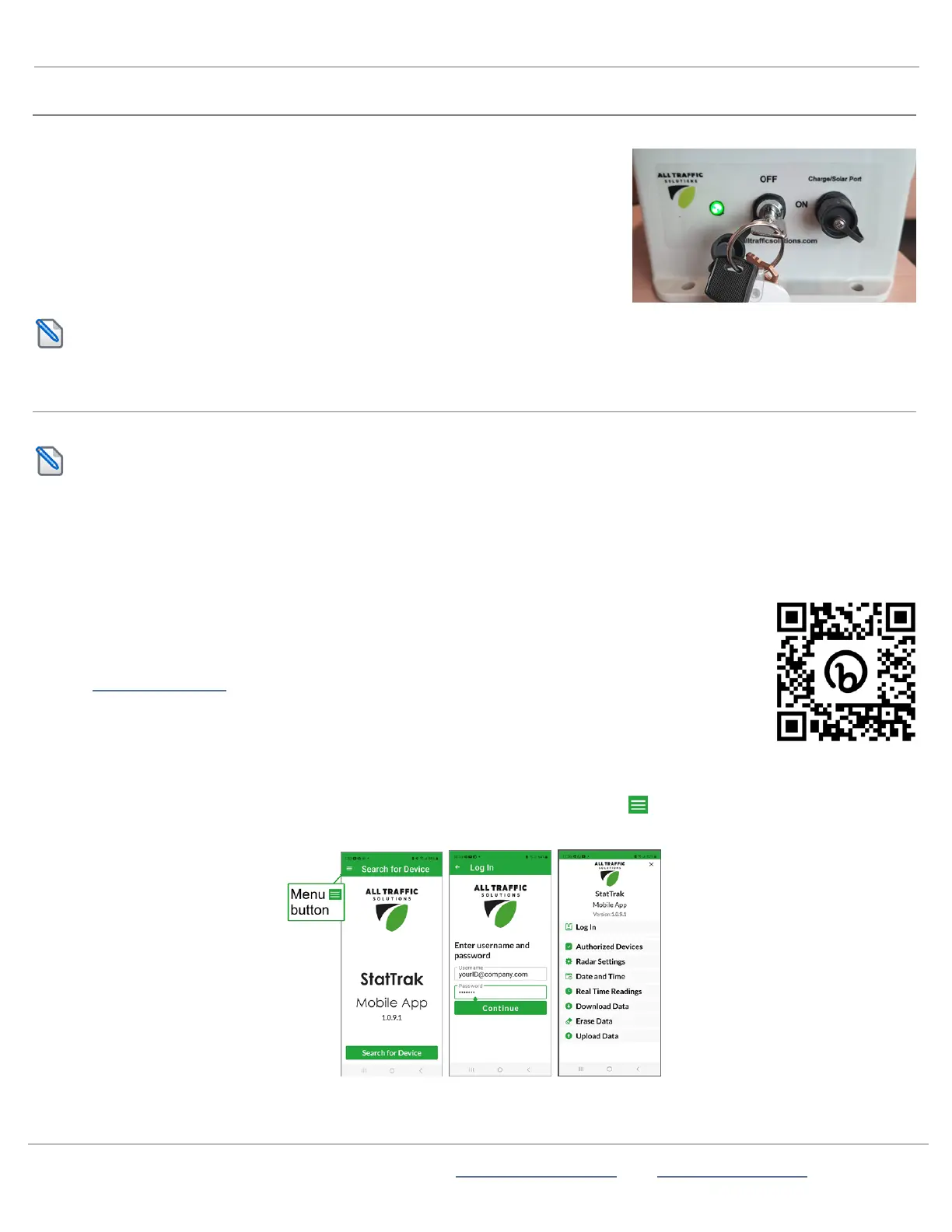
Turn the key on the bottom of the StatTrak-E enclosure one quarter turn
clockwise to the ON position, as shown. After about 30 seconds, the green
status light on the bottom of the enclosure flashes green to indicate that the
device is powered on. The LED turns off after that, and flashes only when traffic
is detected or if you cycle the power on and off.
B.
Remove the keys and keep them in a secure location.
NOTE: To conserve battery life, power down the StatTrak-E when not in use. Turn the key to the OFFposition.
STEP 9:SETTING UP THE STATTRAK-E MOBILE APP
Once the StatTrak-E is installed at your monitoring site, use this section to test and configure it using the StatTrak-E mobile app.
NOTE: Using the app is NOTrequired for roadside installations, but provides useful information such as real time
readings
To achieve higher accuracy for median installations, you must set up and use the StatTrak-E mobile app to enter lane
measurements and distance to each lane, among other settings. Advanced radar settings are also useful in some
installations.
What you'll need
» An Android mobile device with the StatTrak-E mobile app and with Bluetooth enabled.To download the
app, go to the Google Play Store on your Android device, find StatTrak-E and click Install.You can use
the following direct link or use the QR code shown at right:
http://bit.ly/3nbmylL
» An authorized StatTrak-E and TraffiCloud account and password.
» Close range access to your StatTrak-E.
To log in to StatTrak-E:
A.
On your mobile device, open the StatTrak-E mobile app and tap the menu button at the top left of the splash screen, as
shown.
ATS | Chantilly, VA | USA | Tel: 1-866-366-6602 | Email: sales@alltrafficsolutions.com | Web: www.alltrafficsolutions.com
Copyright © 2024 |
StatTrak-E Quick Start Guide, TraffiCloud Subscriber Edition
, ver. 1.01 | 4800268 | All rights reserved.
Step 8:Powering on the StatTrak-E Page 11 All Traffic Solutions



 To Next Page