B.
Tap Log In, enter the app credentials provided by your administrator, then tap Continue.
C.
Tap the menu button > Authorized Devices > Update.
To connect your mobile device to your StatTrak-E:
NOTE: Only one Bluetooth connection is allowed at a time.
A.
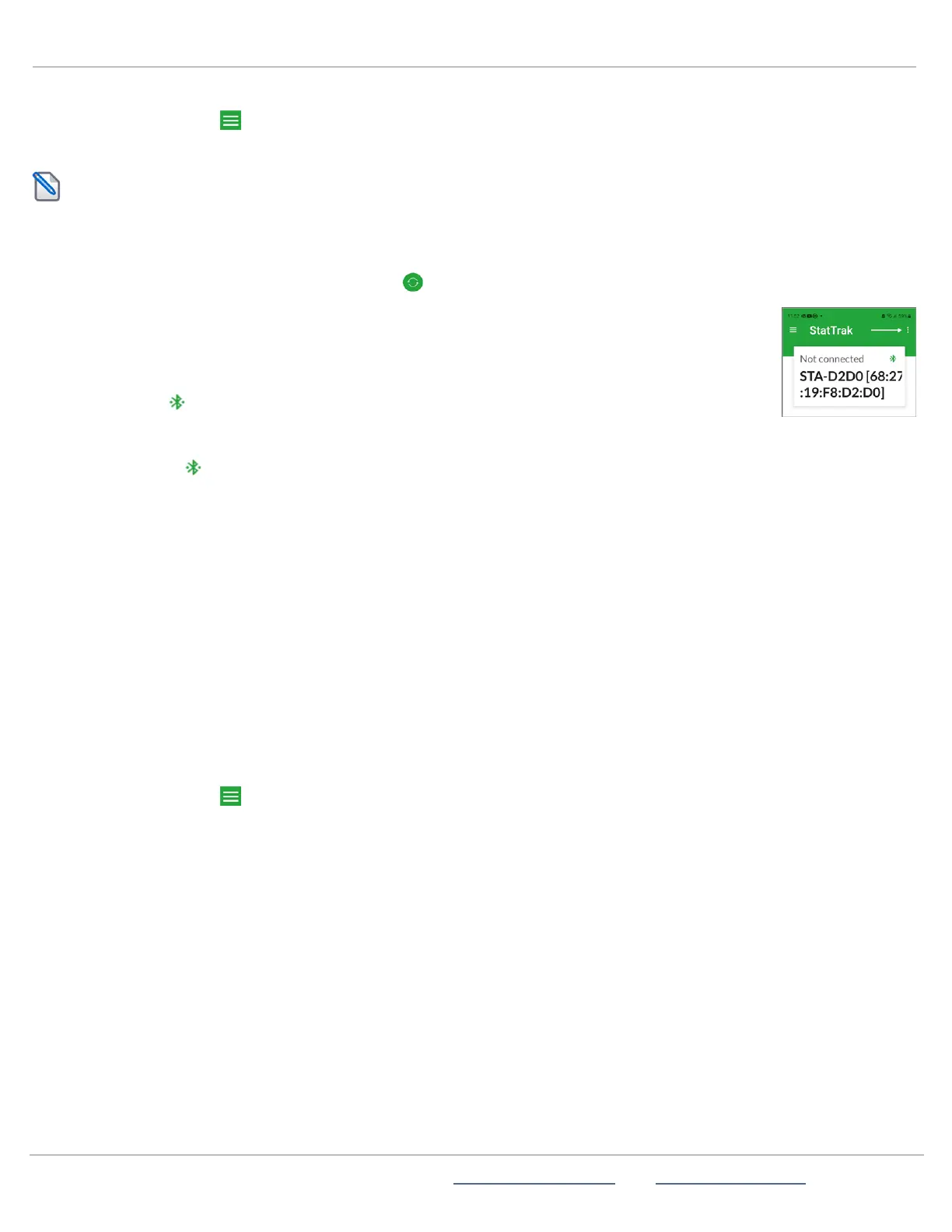
Open the StatTrak-E mobile app and in the app splash screen tap Search for Device. The Nearby Devices Detected page
opens, showing the MAC addresses of detected and available devices.
B.
If no devices are available, tap the Refresh icon .
C.
Tap Allow if your mobile device asks you if you want to give permission to the app to use your location.
D.
Tap the MAC address of your StatTrak-E (the last four characters are unique). A connection page
opens.
E.
Tap Connect . The Connected to page opens, showing the connection details, including the
MACaddress of the StatTrak-E, as well as its Serial Number, Firmware Version, Network Strength,
Battery Status, and Directional Mode (bidirectional).
F.
Tap Disconnect when you're ready to end your session.
Using the mobile app
With the StatTrak-E mobile app, you can do the following:
» Enter the lane dimensions you recorded in
Step 6:Mounting and aiming the StatTrak-E
on page8. The default dimensions are
based on standard lane sizes, but it's important to update them for radar precision.
» View real time radar readings.
» Download, upload, and erase app data (necessary for local Bluetooth access users only).
» View the default radar settings. For most median installations, the default radar settings are all you need, in which case you
can leave them as is. However, in some special traffic scenarios such as if the road in front of the StatTrak-E is curved, it may
be necessary to decrease the signal level.
» Synchronize the date and time between your mobile device and StatTrak-E.
To view and configure StatTrak-E settings:
A.
Tap the menu button at the top left of the splash screen. The menu page opens (see
To log in to StatTrak-E:
on the
previous page).
B.
Tap Date and Time, and then tap the Sync button to synchronize the date and time of StatTrak-E with your mobile device.
This is necessary the first time you use StatTrak-E or if it's been turned off for a long time.
ATS | Chantilly, VA | USA | Tel: 1-866-366-6602 | Email: sales@alltrafficsolutions.com | Web: www.alltrafficsolutions.com
Copyright © 2024 |
StatTrak-E Quick Start Guide, TraffiCloud Subscriber Edition
, ver. 1.01 | 4800268 | All rights reserved.
Step 9:Setting up the StatTrak-E mobile app Page 12 All Traffic Solutions



 To Next Page