C.
Feature What you can do
Radar Settings
Direction
Set the app to the direction of the traffic you plan to monitor.
For median installations:
l
Bidirectional
For roadside installations:
l
Incoming, Outgoing, or Bidirectional (the default)
Type Sets the type of traffic measurement you'll be using.
For median installations:
Four lanes, installation in the middle of the road.
For roadside installations:
l
One/two lanes incoming,
l
One/two lanes, outgoing,
l
First lane is incoming and second lane is outgoing (the default),
l
First lane is outgoing and second lane is incoming.
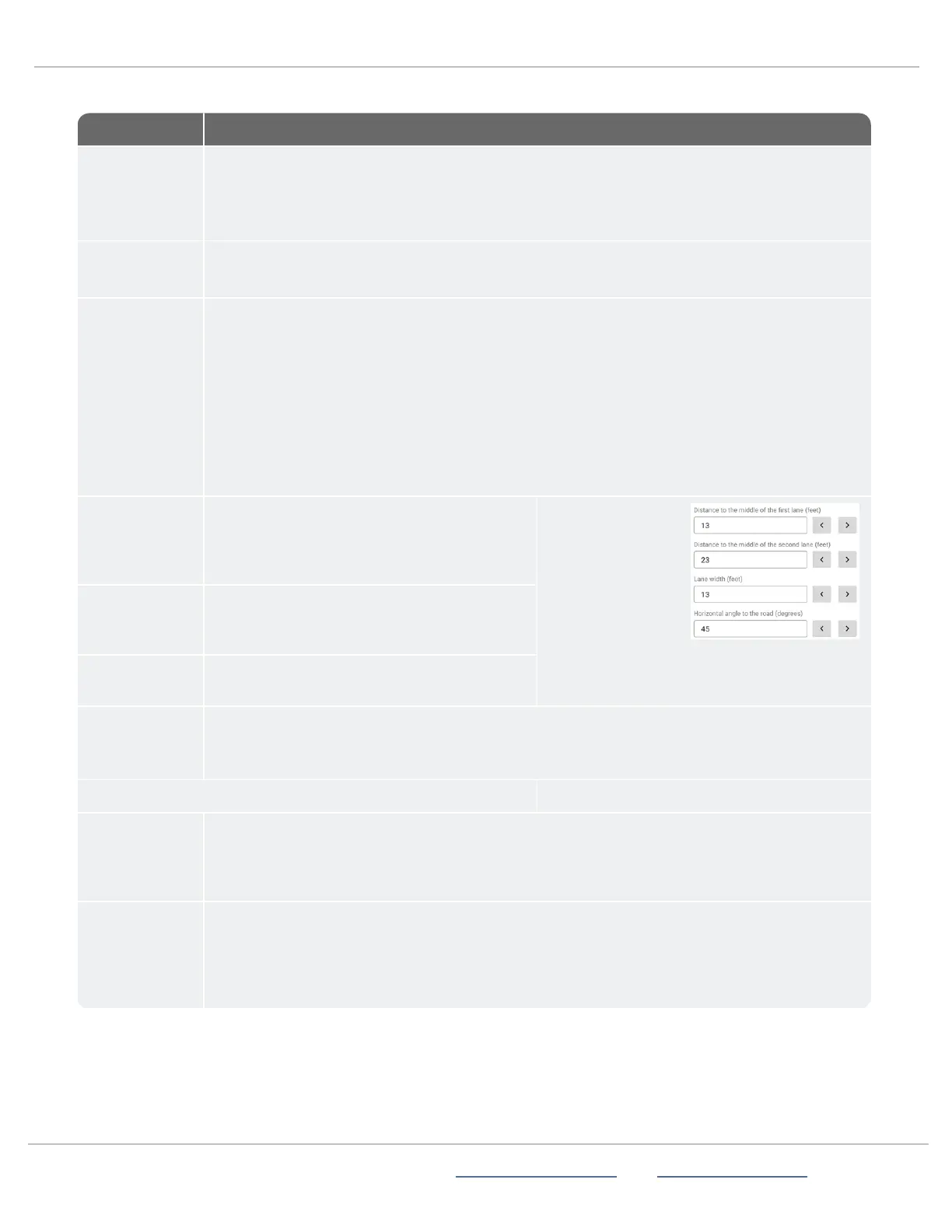
Distance to the
middle of the
first lane
Enter the distance to the middle of the first
lane (in feet or meters, depending on your
account settings). The default value is 13ft.
(4m).
Distance to the
middle of the
second lane
Enter the distance to the middle of the second
lane. The default value is 23 ft. (7m).
Lane width Enter the lane width. The default value is13ft.
(4m).
Horizontal
angle to the
road (degrees)
Enter the horizontal angle to the road, in degrees. The default value is zerodegrees for median
installationszerodegrees for median installations and 45degrees for roadside installations.
Advanced settings
Traffic
volume/burst
Set the radar sensitivity to adjust for capacity of vehicles and congestion, such as sudden
volume increases and vehicles passing simultaneously. The range is from two, where two small
vehicles may be interpreted as one larger vehicle, to 10, where small vehicles will be correctly
identified but long vehicles may be over-counted. The default setting is six.
Radar
sensitivity in
percent
Set the radar sensitivity, ranging from least to most sensitive. Radar sensitivity is used to tune
the radar system to detect harder to detect vehicles with lower reflectivity, or that are smaller or
farther away. If you set the sensitivity value higher, the radar can detect weaker signals from
smaller or less reflective objects. The range is from one percent to 100 percent. The default
setting is 60 percent.



 To Next Page