Feature What you can do
Radar
amplification
factor
Radar amplification, when applied to received radar signals, enhances the signal, which can
improve vehicle detection when further away or in heavy weather conditions. The range is from
one to seven. A setting of one applies minimum amplification, so the radar will primarily detect
large vehicles and may skip smaller ones. A setting of seven applies maximum amplification and
in addition to detecting large vehicles, will better detect smaller vehicles. The default setting is
seven.
Statistics
speed
Enable the system to calculate and display vehicle speeds and defines the range of speeds to
be recorded. The default range is from three mph to 100 mph (five to 160 km/h).
You can also perform the following functions with the mobile app:
Feature What you can do
Date and Time Tap Date and Time, and then tap the Sync button to synchronize the date and time of
StatTrak-E with your mobile device. This is necessary the first time you use StatTrak-E or if it's
been turned off for a long time.
You can also use Date and Time to stage your device for use in another time zone.
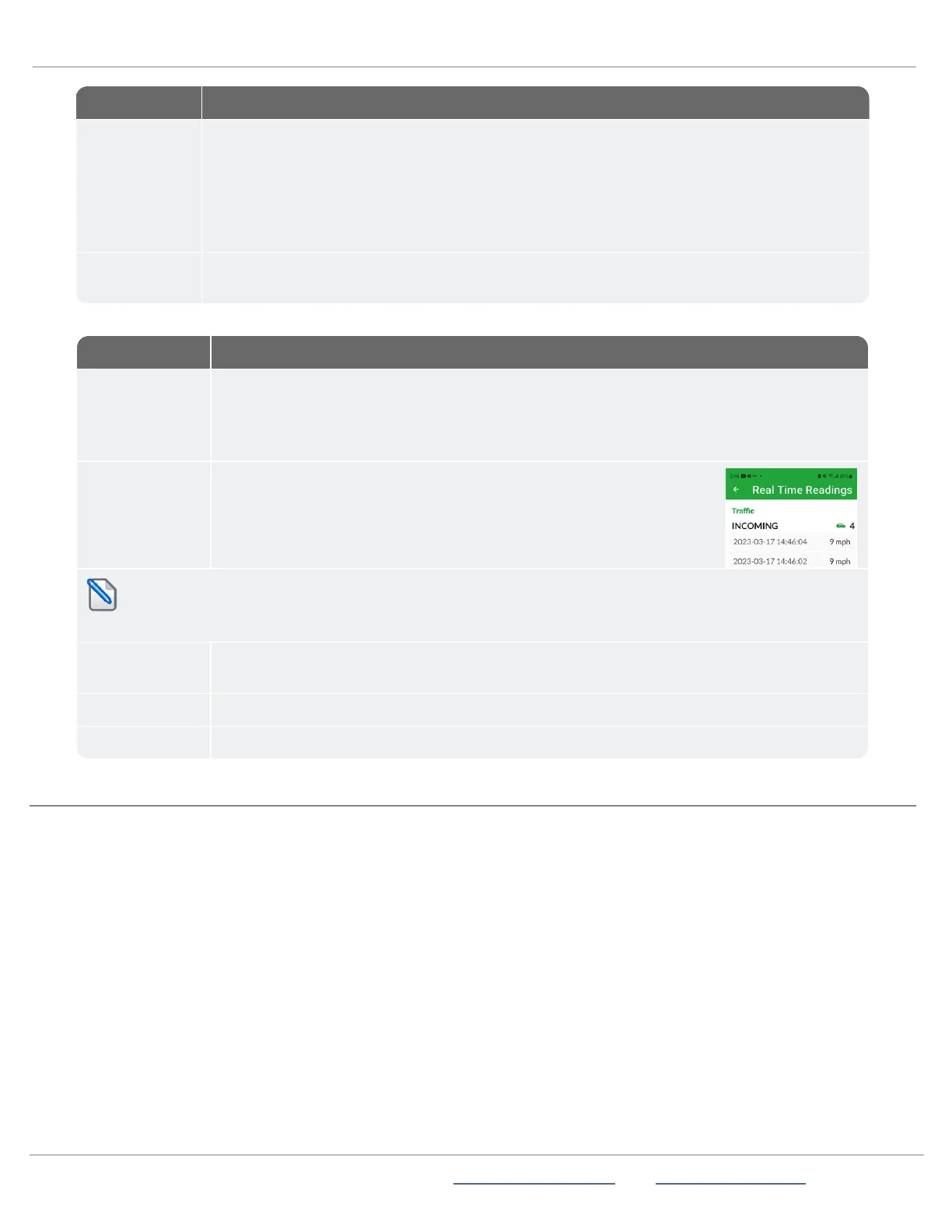
Real Time
Readings
Display incoming and outgoing traffic volume and speeds, by date and
time. Only the last three vehicles detected are shown with full data (date,
time, and speed). Flash speed represents how frequently the display
updates, in seconds. Click the radio button and enter a number to change
it. Click Clear Count to clear the readings.
Note:If you have a TraffiCloud subscription, your StatTrak-E also includes a modem, and automatically
uploads your data.
Download and
Erase Data
Display the data downloaded to your mobile device by date. Click Download and Erase to
download data to your device and erase it from the app.
Erase Data Click to erase all existing traffic data downloaded to the StatTrak-E.
Upload Data Click to upload StatTrak-E traffic data from your mobile device to TraffiCloud.
STEP 10:CONFIRMING YOUR INSTALLATION
Use either of the following methods to confirm that the StatTrak-E is working:
First, make sure the device is powered on. See
Step 8:Powering on the StatTrak-E
on page11.
» Check the green LEDat the base of the StatTrak-E. The LEDflashes 30seconds after you turn on the device and whenever it
detects a passing vehicle.
» Check for Real Time Readings in the StatTrak-E mobile app. See
Using the mobile app
on page12.
At this point, your work is complete until the StatTrak-E finishes collecting your traffic data. All Traffic Solutions recommends
conducting traffic studies for at least two weeks. The data uploads automatically to TraffiCloud.
ATS | Chantilly, VA | USA | Tel: 1-866-366-6602 | Email: sales@alltrafficsolutions.com | Web: www.alltrafficsolutions.com
Copyright © 2024 |
StatTrak-E Quick Start Guide, TraffiCloud Subscriber Edition
, ver. 1.01 | 4800268 | All rights reserved.
Step 10:Confirming your installation Page 14 All Traffic Solutions



 To Next Page