C.
If your device has a solar panel, disconnect the IP68 connector.
D.
Open the StatTrak-E enclosure by removing the two Torx security screws along the right side of the cover, using the
included Torx T-30 security bit and a nut driver.
E.
Open the Velcro straps holding the battery or batteries in place.
F.
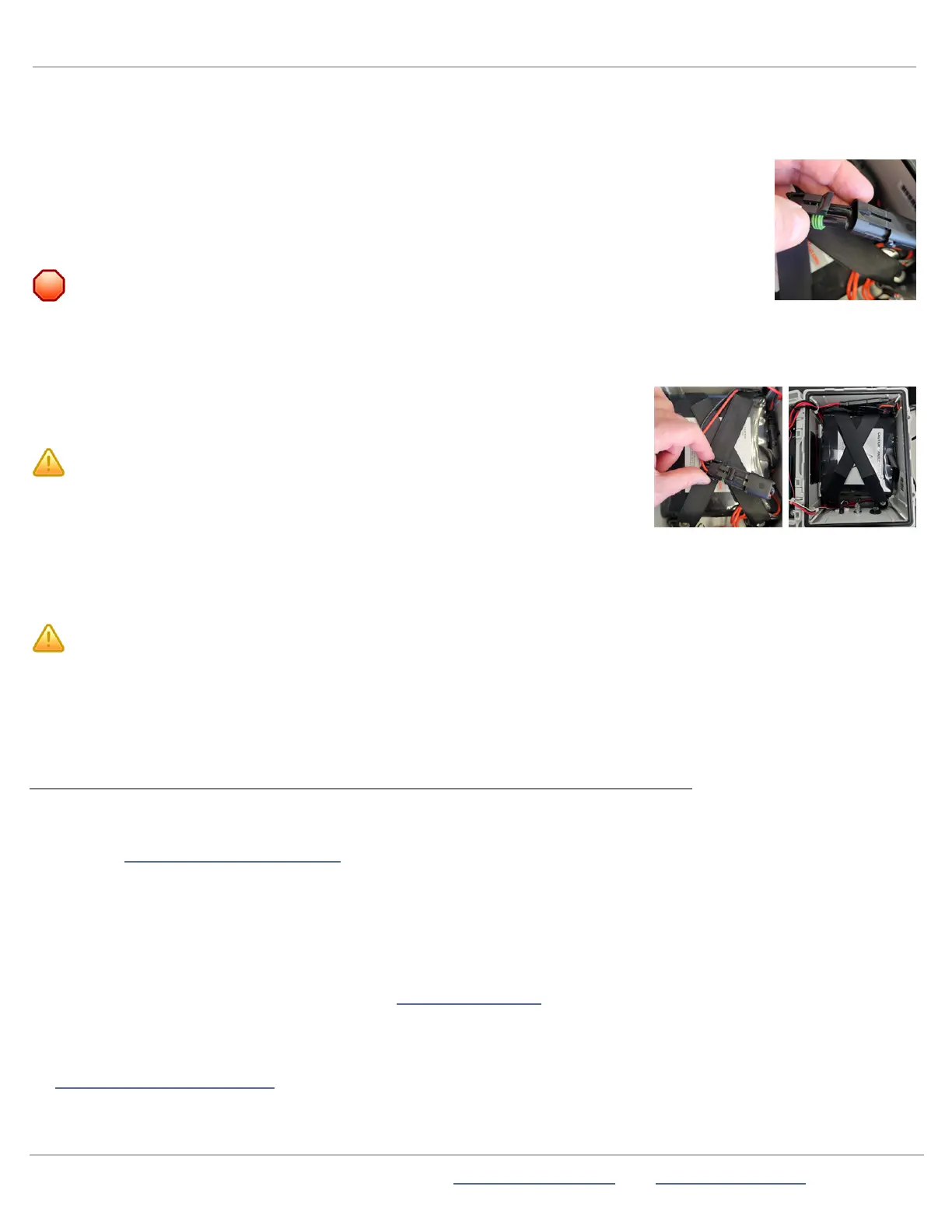
Detach the battery connectors (shown at right)from the StatTrak-E to the battery or batteries and lift
them out of the enclosure one at a time.
G.
Place the new battery or batteries inside the enclosure, positioning the battery harnesses at the top.
WARNING: Lithium batteries come with a protective outer wrap, which
should
never
be removed, as doing so damages the batteries and creates a potential
hazard. The lithium batteries supplied with the StatTrak-E are stable and safe
when handled and used properly. Do not bend the batteries or attempt to
puncture them with sharp objects as this could cause a fire or explosion.
H.
Reconnect the battery connectors and then tightly reconnect the Velcro straps in a
cross-over pattern, as shown.
CAUTION: RISKOFDAMAGE TO EQUIPMENT Be sure to
tightly resecure the Velcro straps holding the batteries inside
the enclosure crossing over each other to avoid damage to
internal components by loose batteries.
LEDs on the StatTrak-E circuit boards light up when the device starts receiving power from the new battery or batteries. This
is normal, even when the power switch is turned off.
I.
Close the StatTrak-E cover and fasten it tightly with the two security screws.
CAUTION: It is vitally important, whenever you close the StatTrak-E, that you tighten the enclosure screws securely
to avoid water infiltration, as this could damage the product and render your warranty null and void.
J.
Reconnect the solar panel, if applicable. See
Step 7:Connecting a solar panel to the StatTrak-E
on page10.
K.
Turn the power back on to begin monitoring traffic with the new battery or batteries in place. See
Step 8:Powering on the
StatTrak-E
on page11.
CONTACTING TECHNICAL SUPPORT
If you have questions or comments regarding this document or about configuring your StatTrak-E, please feel free to contact our
technical support center:
» By email: support@alltrafficsolutions.com
» By phone: 1-866-366-6602, Option 2
Standard hours (ET)
8:00 AM to 6:00 PM, M-F
Technical documentation and training
If you have a TraffiCloud subscription, please visit our ATS Start-Up Guides page for links to the most recent versions of our
technical documentation, including the
Getting Started with TraffiCloud
series. If you have local Bluetooth access only, please visit
the Technical Customer Support page.
Please contact Technical Customer Support to discuss your TraffiCloud training options. For online training resources, please visit
our TraffiCloud Training Videos Hub.
ATS | Chantilly, VA | USA | Tel: 1-866-366-6602 | Email: sales@alltrafficsolutions.com | Web: www.alltrafficsolutions.com
Copyright © 2024 |
StatTrak-E Quick Start Guide, TraffiCloud Subscriber Edition
, ver. 1.01 | 4800268 | All rights reserved.
Contacting Technical Support Page 16 All Traffic Solutions



 To Previous Page