C.
Setting What you can do
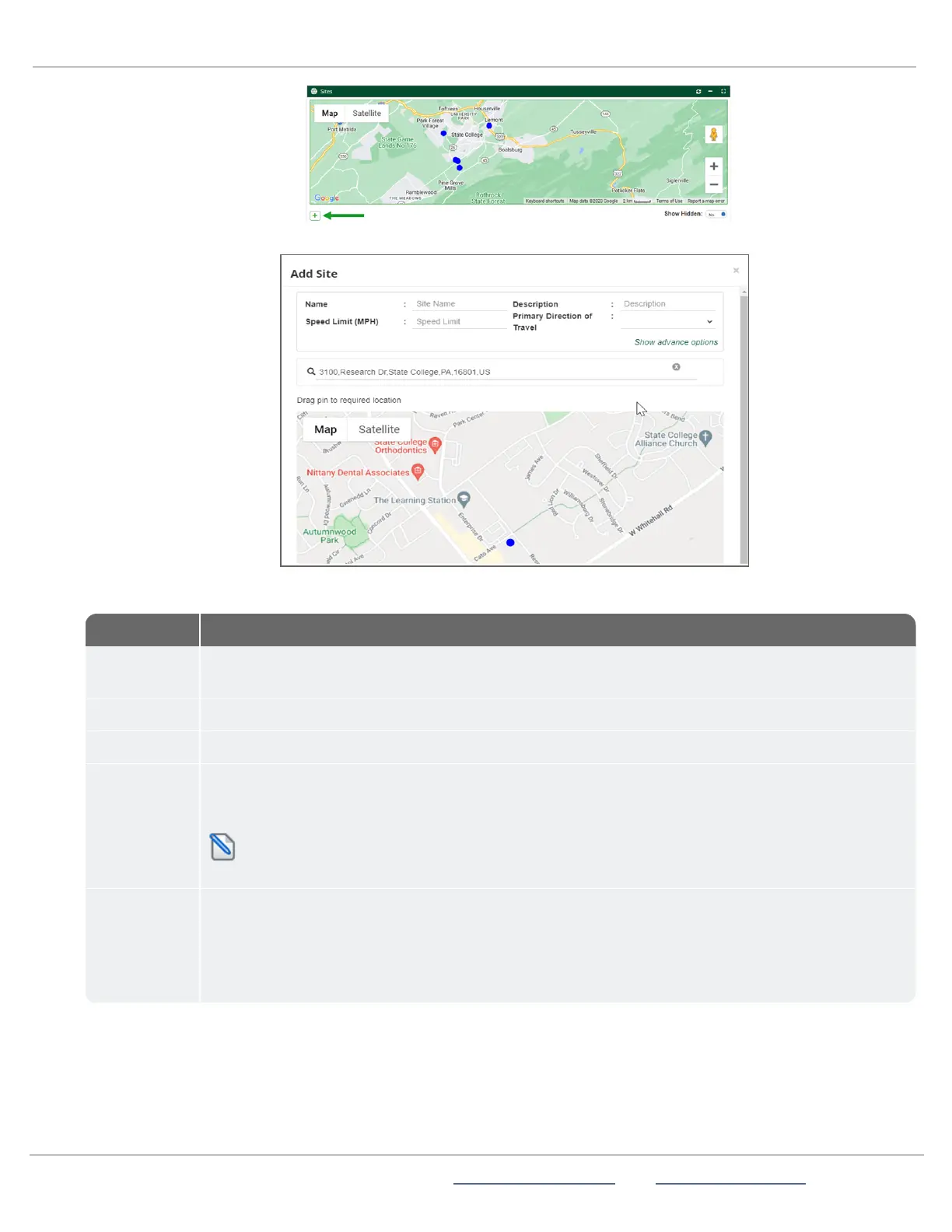
Name Enter a Site name that will identify the location for the StatTrak-E in the Sites list. For example,
Whitehall Road.
Description Optionally, enter a description for the Site.
Speed Limit Enter the speed limit for the Site.
Primary
Direction of
Travel
Select the primary direction of travel, where vehicles will be approaching the front of the device:North,
South, East, or West. If the street direction is between two primary directions, choose the closest one.
Shield signs do not detect bidirectional traffic.
NOTE: Once you have report data for a Site, it's best not to change the direction of travel.
Instead, create a new Site for that direction.
Address Enter an address for the Site using one of the following methods. The blue dot represents the Site for
your StatTrak-E on the map.
» In the address search box, enter the address or intersection where the StatTrak-E will be located.
The address field displays pattern matches for the address as you type. Select the address from
the list. You can also copy and paste an address from your address book.



 To Next Page