UM
150
User’s Manual
10
UM
150
User’s Manual
3.2 Getting Started
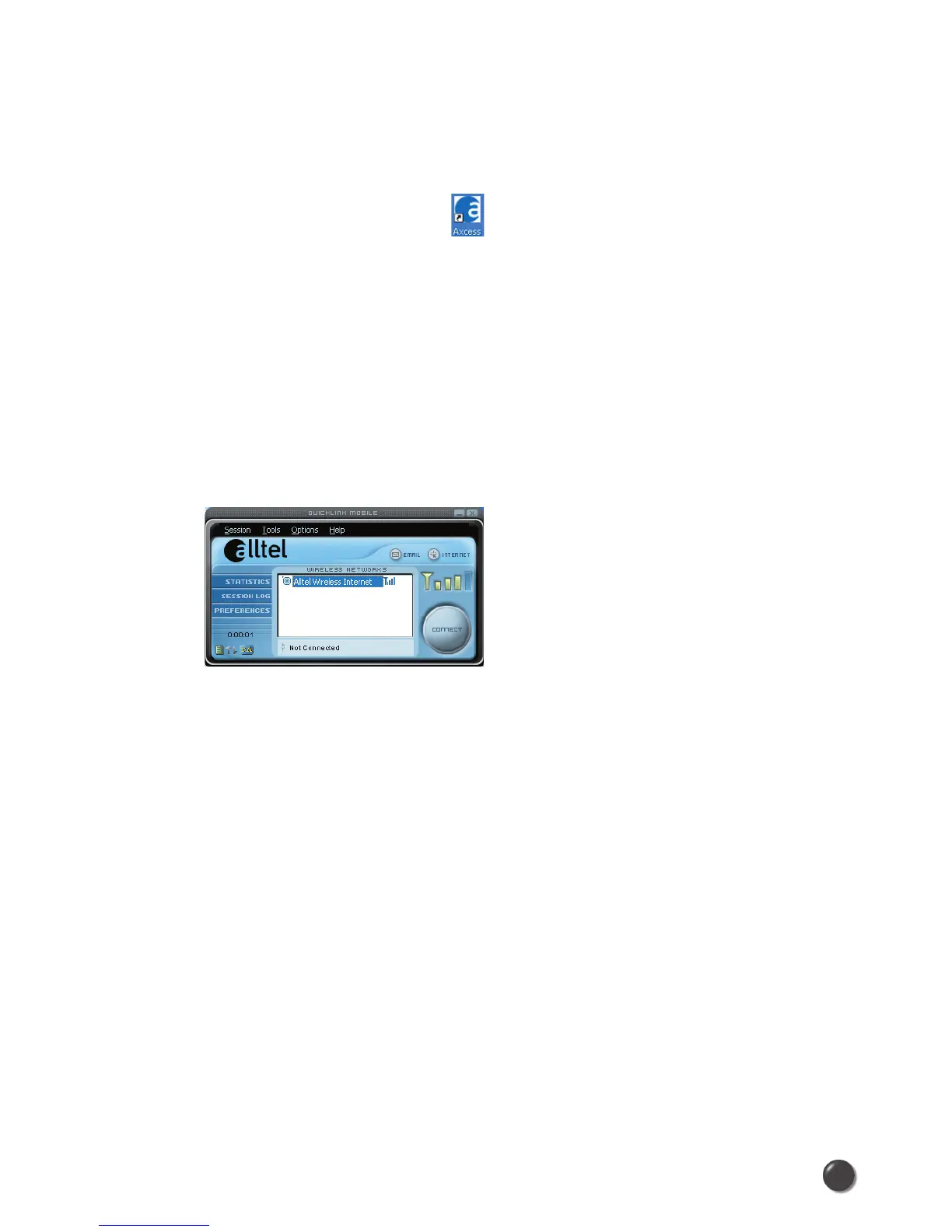
Double click on the QuickLink Mobile icon on your desktop or click on the Windows
Start menu and select QuickLink Mobile from the list of Programs.
About the Wireless Networks View
The QuickLink Mobile will open the Wireless Networks window by default.
This view is where you manage your wireless connections.
The Wireless Networks window displays all currently available network
connections.
At a glance you can see the signal strength and battery level.
Select “Refresh Networks” from the “Tools” menu to update the information
in this panel. Your current connection state and the elapsed time of the
connection are displayed along the bottom of the status bar.
If your expected connection does not appear or if you connected your wireless
phone and cable, or inserted your Wireless Internet Card after starting QuickLink
Mobile, select “Refresh Networks” from the “Tools” menu. This will cause QuickLink
Mobile to look for your wireless device(s) and verify network availability.
* If you change phones or Wireless Internet Cards, you will need to run the Setup
Wizard again. To do this make sure that your phone and cable are connected, then
select “Run Wizard” from the “Tools” menu.



 To Next Page