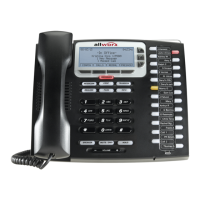
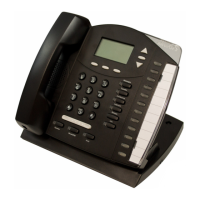
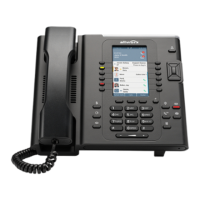
Allworx Phone Model 9212/9212L User Guide
Page 10 +1 866 ALLWORX * +1 585 421 3850
www.allworx.com
Version: J Revised: March 2, 2017
Call Supervision Enables supervisors to monitor calls for designated handsets in three modes:
• Barge In
• Silent Monitor
• Whisper
The supervisor presses the Call Supervision PFK, enters an agent extension, and begins
supervising the call. If the supervisor has a BLF PFK for the agent, press the Call Supervision PFK
followed by the BLF PFK to initiate the session. There is no indication to the agent that
supervision is in progress.
Call Supervisors can toggle between Barge In and Silent or the Whisper and Silent modes using
the MUTE function button.
Centrex Flash Enables transferring external calls to external numbers without tying up CO lines connected to
the Allworx server (only available on Allworx 6x, 6x 12, or 48x servers).
Contact Immediately dial or transfer a call to the Allworx User, System, or Public contact number assigned
to the PFK. Only available on Allworx servers running System Software 8.2 or higher. See
“Contacts” on page 23
for more information.
Emergency Alert Receive audible and visual alerts whenever making an emergency call from any local or remote
handset on the system.
Headset Turns the Headset on and off (if one is plugged in). When a plugged in headset and the handset
is off-hook, this button toggles the audio between the headset and the handset.
Note: If using an undefined Headset PFK, use the phone speaker button to operate the headset.
Hot Desk Enables users to log in to shared phones, receive calls on that phone, and place calls with the
caller ID. Users can initiate the login using a Hot Desk PFK or by selecting the Hot Desk Login
option from the phone’s Config menu.
Use the Hot Desk PFK for logging into the phone that has the PFK. The PFK is normally solid red
but goes off when a user logs in. Users can still log in to phones that do not have the PFK using
the phones Config menu.
Note: The PFKs configured for phones do not change when a new user logs in. The Hot Desk PFK
and all other PFKs remain as originally configured for the phone.
Line Appearance Monitors the status of an outside line, answers incoming calls on that line, and selects the line for
outbound calls. When setting up this function for this PFK, the user specifies the line.
To enable outside lines available for selection:
• Navigate to Phone System > Outside Lines and go to the Analog (CO) Lines section.
• Select the Analog (CO) Line, and click Modify.
• Go to the Outside Line section, and check the Enable Line Appearance check box.
• Click Update to return to the Outside Lines page.
Unique Allworx Functionality: Allworx has enhanced key-system capabilities relative to SIP
devices and Digital Lines. Any SIP proxy, SIP gateway, or Digital Line (T1) bearer channel can be
made available as Line Appearance selections when enabled on their respective configuration
pages. Through this manner, the Allworx system can present a common key system use model to
all external voice circuit facilities including VoIP trunks going to an ITSP.
Feature Description


 To Next Page